
Back to Menu No.06-01-04
Editing Costing Run (CK40N)
Menu: Accounting > Controlling > Product Cost Controlling > Product Cost Planning > Material Costing > Costing Run > Edit Costing Run
Process Overview: Perform processes collectively from standard cost estimate to release.
Remarks:
| 1. | Release of standard cost can be executed only once in the corresponding month. | |
| 2. | For product costing with a date earlier than the system date specified, saving and releasing cannot be executed. | |
| 3. | For product costing with a future date specified, saving can be executed but releasing cannot be executed until the system date reaches the specified date. |
Screen 1:
Operation Process:
| 1. |  |
Click [Create Costing Run]. |
Screen 2:
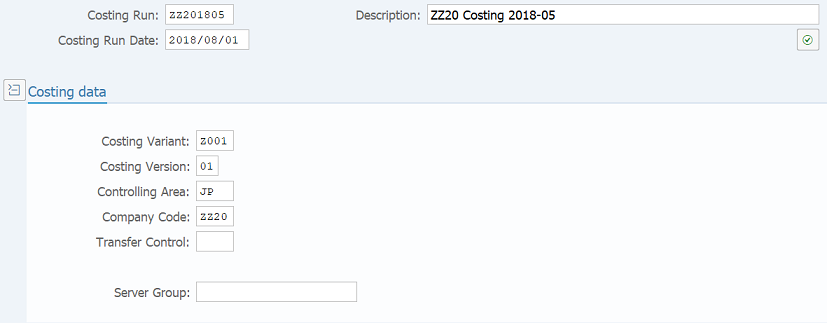
Operation Process:
| 1. | {{Costing Run}} | Enter the desired costing run code. | |
| 2. | {Description} | Enter the description of costing run. | |
| 3. | {{Costing Run Date}} | Enter the execution date of product costing. | |
| Costing data | |||
| 4. | {{Costing Variant}} | Enter the costing variant. | |
| 5. | {{Costing Version}} | Enter the costing version. | |
| 6. | {{Controlling Area}} | Enter the controlling area. | |
| 7. | {{Company Code}} | Enter the company code. | |
| 8. | Press [Enter] key. | ||
Remarks:
| 1. | If a past date is specified for the costing run date, costing result cannot be saved or released. |
Screen 3:
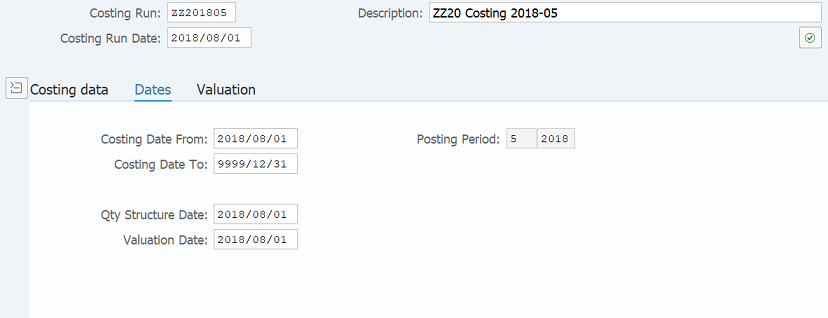
Operation Process:
| 1. | {{Costing Date From}} | Enter the cost estimate validity start date. | |
| 2. | {{Costing Date To}} | Enter the cost estimate validity end date. | |
| 3. | {{Qty Structure Date}} | Enter the quantity structure date to be applied to cost estimate. | |
| 4. | {{Valuation Date}} | Enter the date when the material or activity for cost estimate is valuated. | |
| 5. |  |
Click [Save]. |
Remarks:
| 1. | If a past date is specified for the costing run date, costing result cannot be saved or released. |
Screen 4:
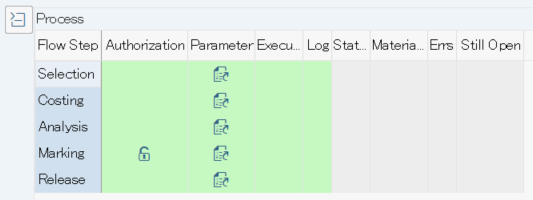
Operation Process:
| Create Cost Estimate | |||
| 1. |  |
Click [Change Parameter] of Flow Step: Selection. | |
Screen 5:
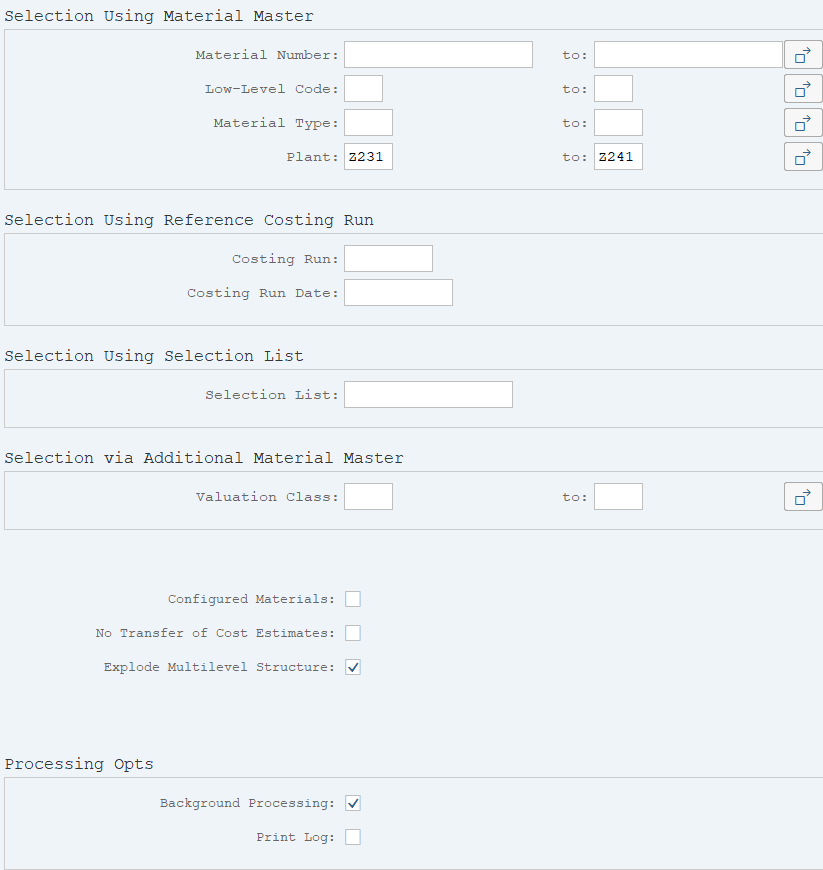
Operation Process:
| Selection Using Material Master | |||
| 1. | {Material Number} | Enter the material to be subject to product costing. | |
| 2. | {Plant} | Enter the plant to be subject to product costing. | |
| Processing Opts | |||
| 3. | {Background Processing} | Select this option to perform background (job) processing. | |
| 4. | |
Click [Save]. | |
| 5. |  |
Click [Back]. | |
Screen 6:
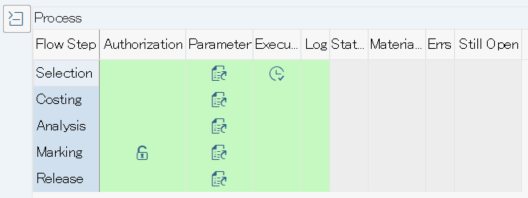
Operation Process:
| 1. |  |
Click [Execute] of Flow Step: Selection. |
Screen 7:
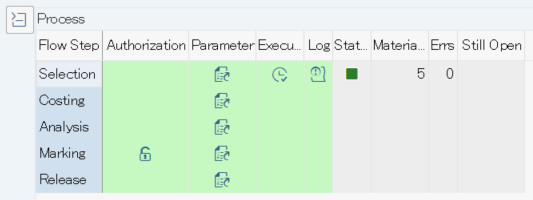
Operation Process:
| 1. | Check Status and Errs of Flow Step: Structure Explosion to confirm that the process has completed without errors. | ||
| 2. | |
Click [Change Parameter] of Flow Step: Costing. | |
Remarks:
| 1. | If Log displays  , click to check details. , click to check details. |
Screen 8:
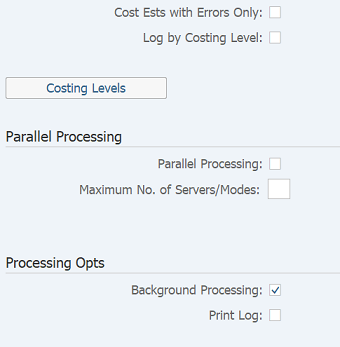
Operation Process:
| 1. | {Cost Ests with Errors Only} | Select this option if you are cost-accounting again the materials with errors, instead of producing estimate of materials. (Select this when you have performed cost estimate once and want to perform estimate again.) |
|
| Parallel Processing | |||
| 2. | {Parallel Processing} | Select this option if you are using parallel processing to perform cost estimate. | |
| 3. | {Maximum No. of Servers /Modes} | Enter the maximum number of work processes for parallel processing. (This field is mandatory if parallel processing is selected.) |
|
| Processing Opts | |||
| 4. | {Background Processing} | Select this option to perform background (job) processing. | |
| 5. | |
Click [Save]. | |
| 6. | |
Click [Back]. | |
Screen 9:
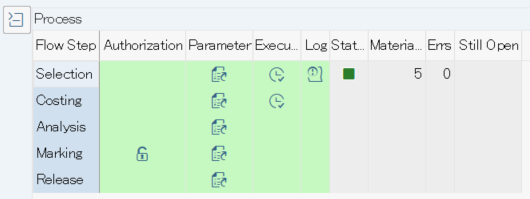
Operation Process:
| 1. | |
Click [Execute] of Flow Step: Costing. |
Screen 10:
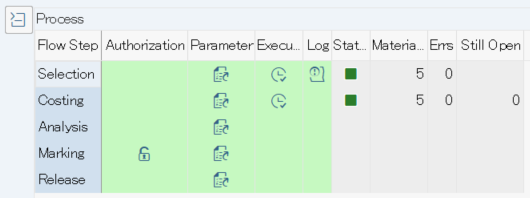
Operation Process:
| 1. | Check [Status] and [Errs] of Flow step: Costing to confirm that the process has completed without errors. | ||
| 2. | |
Click [Change Parameter] of Flow Step: Analysis. | |
Remarks:
| 1. | If Log displays , click to check details |
Screen 11:
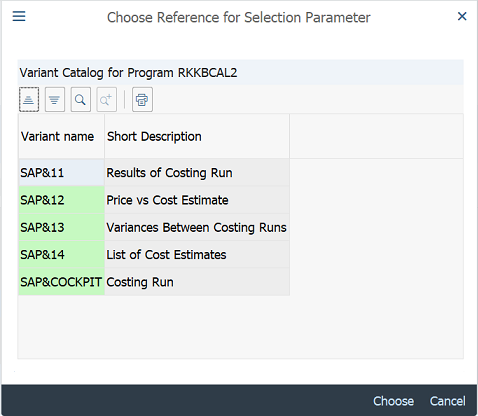
Operation Process:
| 1. | Select a desired analysis variant. | ||
| 2. |  |
Click [Choose]. | |
Screen 12:
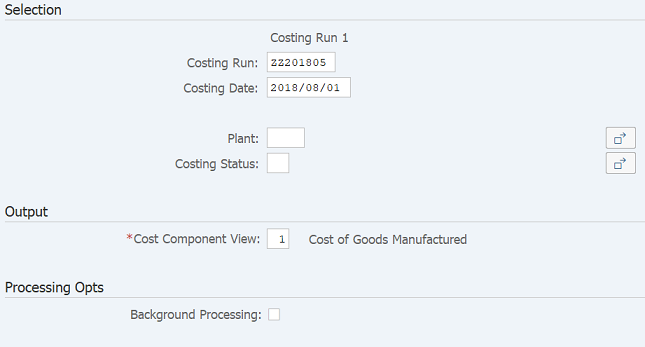
Operation Process:
| 1. | Enter the analysis details. (The setting screen varies depending on the variant selected in Screen 14.) | |||
| 2. | |
Click [Save]. | ||
| 3. | |
Click [Back]. | ||
Screen 13:
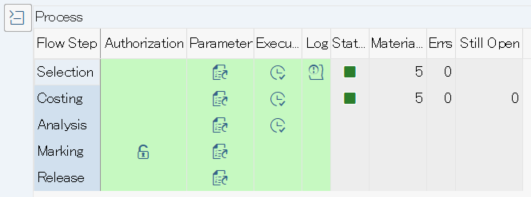
Operation Process:
| 1. | |
Click [Execute] of Flow Step: Analysis. |
Screen 14:

Operation Process:
| 1. | Check the analysis details. | ||
| 2. | |
Click [Back]. | |
Screen 15:
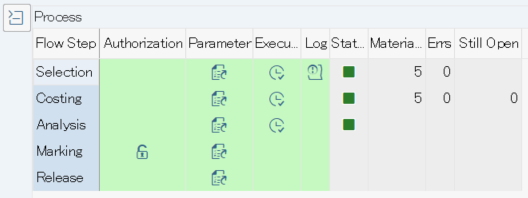
Operation Process:
| 1. | Check [Status] of Flow Step: Analysis. | ||
| 2. |  |
Click [Not yet allowed] of Flow Step: Marking. | |
Screen 16:
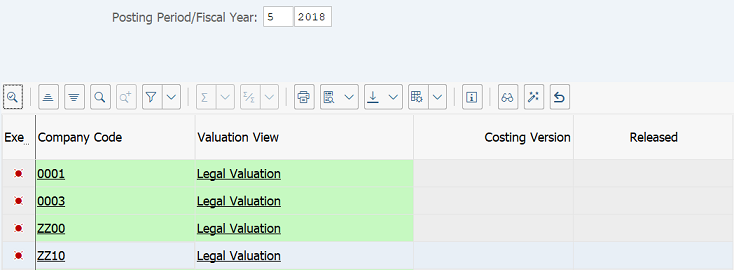
Operation Process:
| 1. | Select the row with the company code for which marking is to be permitted. | ||
| 2. |  |
Click [Issue marking allowance]. | |
Screen 17:
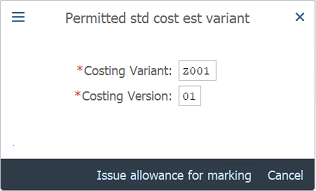
Operation Process:
| 1. | {{Costing Variant}} | Enter the costing variant. | |
| 2. | {{Costing Version}} | Enter the costing version. | |
| 3. |  |
Click [Issue allowance for marking]. |
Screen 18:
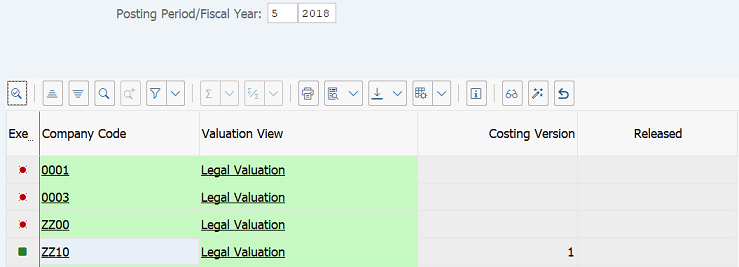
Operation Process:
| 1. | {Executed} | Check that  is displayed in the selected row. is displayed in the selected row. |
|
| 2. | |
Click [Back]. |
Screen 19:
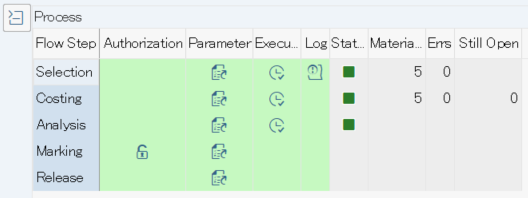
Operation Process:
| 1. | |
Click [Change Parameter] of Flow Step: Marking. |
Screen 20:
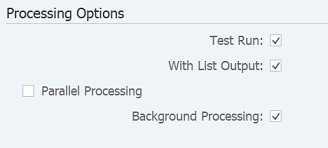
Operation Process:
| Processing Options | |||
| 1. | {Test Run} | Select this option to run test. | |
| 2. | {With List Output} | Select this option to display overview screen of the material. | |
| 3. | {Parallel Processing} | Select this option to perform parallel processing. | |
| 4. | {Server Group} | Enter the server group. (Required if parallel processing is performed.) | |
| 5. | {Number of Ses} | Enter the maximum number of work processes for parallel processing. (Required if parallel processing is performed.) | |
| 6. | {Background Processing} | Select this option to perform background (job) processing. | |
| 7. | |
Click [Save]. | |
Remarks:
| 1. | For the first execution, select [Test Run] before execution. | |
| 2. | If the test result is OK, deselect Test run option and execute. |
Screen 21:
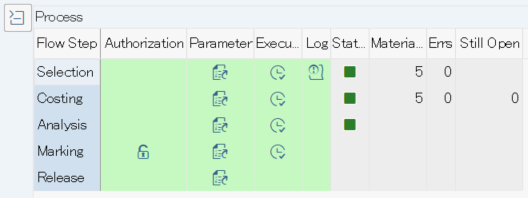
Operation Process:
| 1. | |
Click [Execute] of Flow Step: Marking. |
Screen 22:

Operation Process:
| 1. | Check the results. | ||
| 2. | |
Click [Back]. | |
Screen 23:
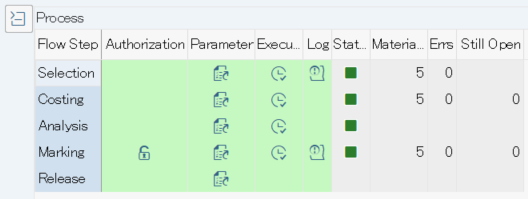
Operation Process:
| 1. | Check [Status] and [Errs] of Flow Step: Marking to confirm that the process has completed without errors. | ||
| 2. | |
Click [Change Parameter] of Flow Step: Release. | |
Remarks:
| 1. | If Log displays , click to check details. |
Screen 24:
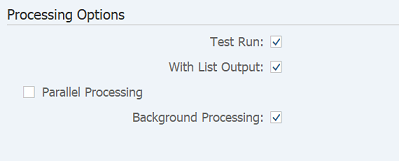
Operation Process:
| Processing Options | |||
| 1. | {Test Run} | Select this option to run test. | |
| 2. | {With List Output} | Select this option to display overview screen of the material. | |
| 3. | {Parallel Processing} | Select this option to perform parallel processing. | |
| 4. | {Server Group} | Enter the server group. (Required if parallel processing is performed.) | |
| 5. | {Number of Ses} | Enter the maximum number of work processes for parallel processing. (Required if parallel processing is performed.) | |
| 6. | {Background Processing} | Select this option to perform background (job) processing. | |
| 7. | |
Click [Save]. | |
Remarks:
| 1. | To perform release, it is required that FI fiscal period for the cost-setting month is open. | |
| 2. | Release of standard cost can be executed only once in the corresponding month. (Cancellation or reprocessing cannot be performed.) | |
| 3. | For the first execution, select [Test Run] before execution. | |
| 4. | If the test result is OK, deselect test run option and execute. |
Screen 25:
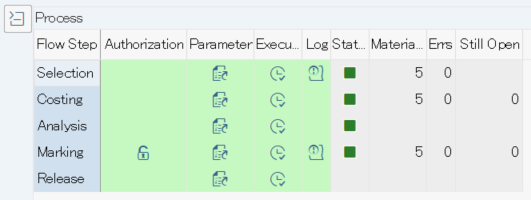
Operation Process:
| 1. | |
Click [Execute] of Flow Step: Release. |
Screen 26:

Operation Process:
| 1. | Check the results. | ||
| 2. | |
Click [Back]. | |
Screen 27:
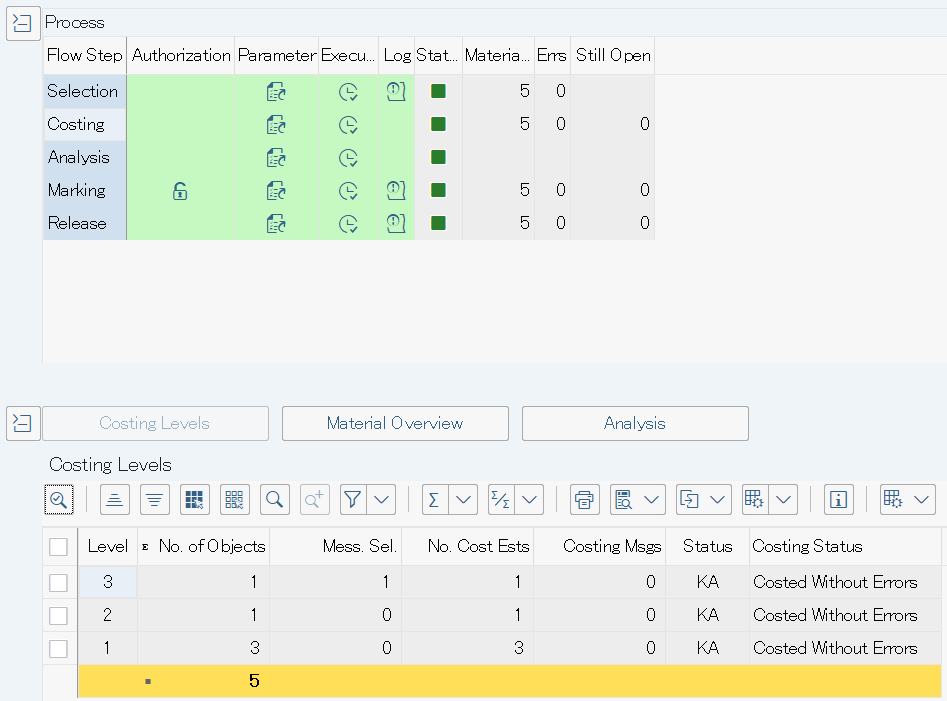
Operation Process:
| 1. | Check [Status] and [Errs] of Flow Step: Release to confirm that the process has completed without errors. |
Supplement:
| 1. | Detailed estimate results can be checked from the cost estimate screen. |
Operation Process:
| 1. |  |
Click [Analysis]. |

Operation Process:
| 2. | Estimate results can be checked from the list. | |
| 3. | Select a desired line. |
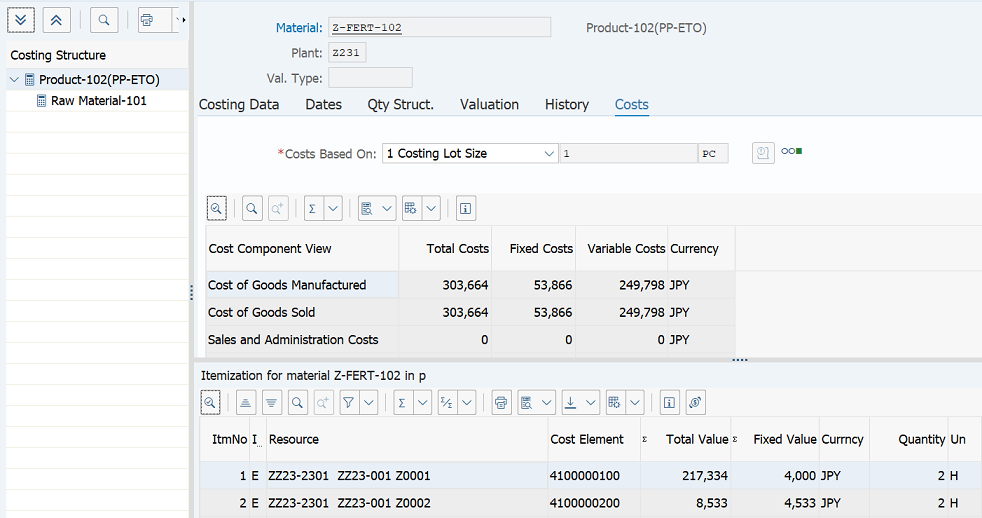
Operation Process:
| 4. | Detailed estimate results for each material can be checked. |
Copyright(c) MITSUI KINZOKU YOURSOFT Inc.