Back to Menu No.06-03-01
Editing Costing Run (CKMLCP)
Menu: Accounting > Controlling > Product Cost Controlling > Actual Costing/Material Ledger > Actual Costing > Edit Costing Run
Process Overview: Collect the cost variance per material which recorded during the month, and distribute it at a rate of inventory quantity & withdrawal quantity.
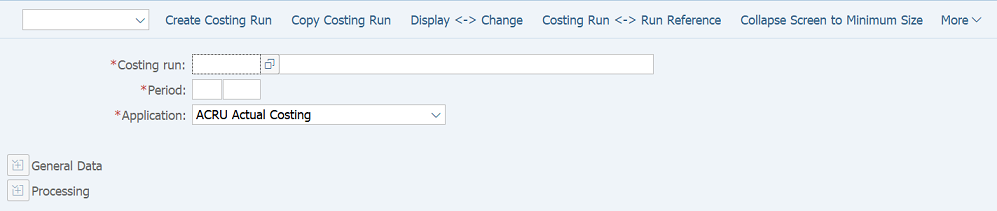
Screen 1:
Operation Process:
| 1. |  |
Click [Create costing run]. |
Screen 2:
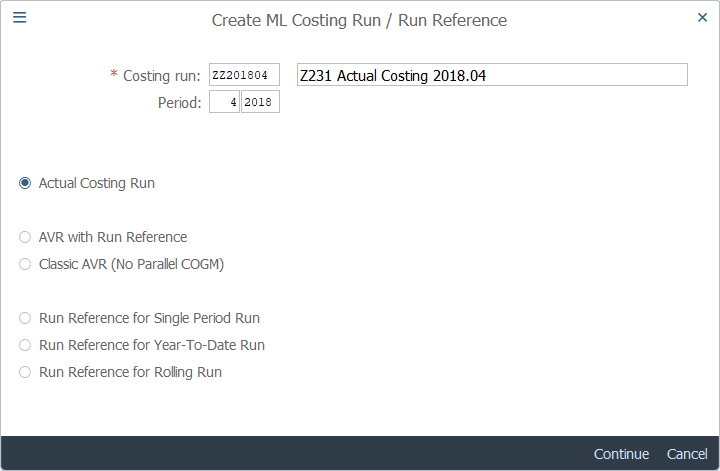
Operation Process:
| 1. | {{Costing run}} | Enter the desired costing run code. | |
| 2. | {Costing run name} | Enter the description of the product costing. | |
| 3. | {{Period - Posting period}} | Enter the posting period. | |
| 4. | {{Period - Fiscal Year}} | Enter the fiscal year. | |
| 5. | {{Actual Costing Run}} | Select. | |
| 6. |  |
Click [Continue]. |
Screen 3:
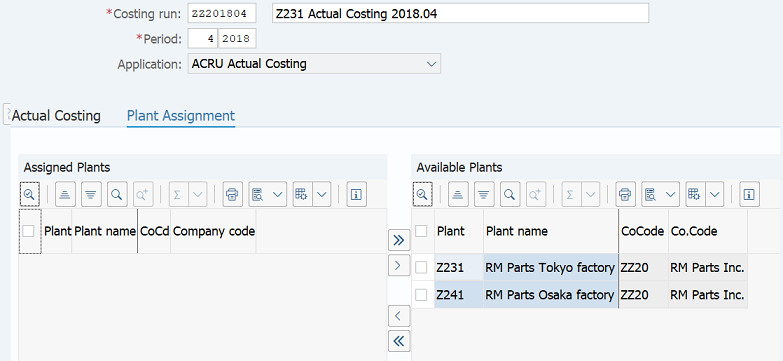
Operation Process:
| 1. | {{Available Plants}} | Select a desired plant. | |
| 2. |  |
Click [Assign Selected plant assignment]. |
Screen 4:
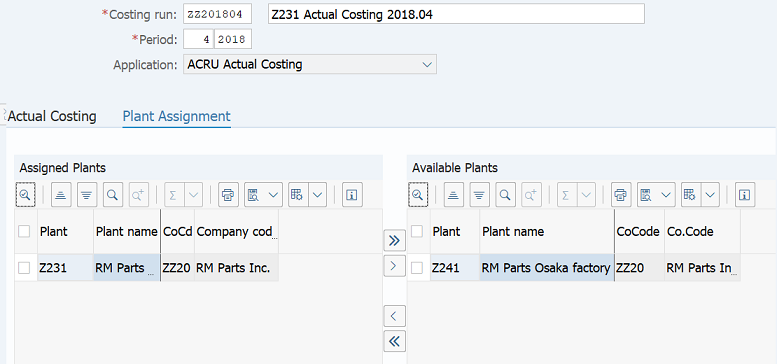
Operation Process:
| 1. |  |
Click [Save]. |
Screen 5:
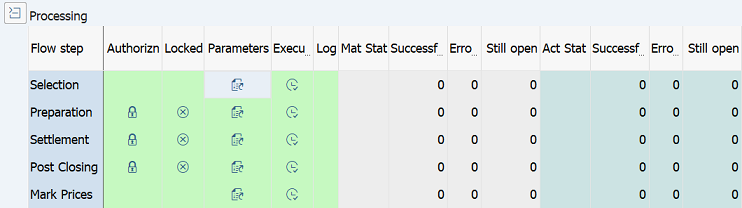
Operation Process:
| 1. |  |
Click [Change Parameters] of Flow step: Selection. |
Screen 6:
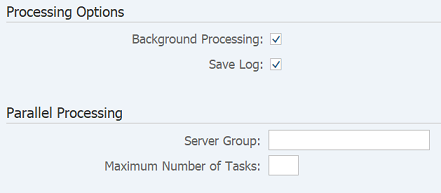
Operation Process:
Processing |
|||
| 1. | {Background Processing} | Select this option to perform background (job) processing. | |
| 2. | |
Click [Save]. | |
| 3. |  |
Click [Back]. | |
Screen 7:
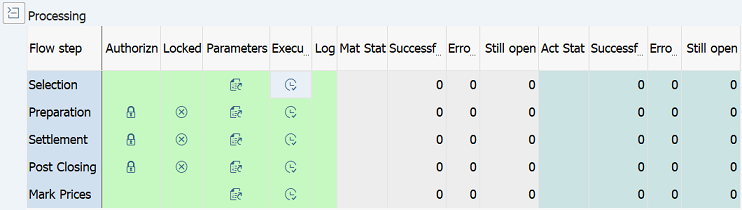
Operation Process:
| 1. |  |
Click [Execute] of Flow step: Selection. |
Screen 8:
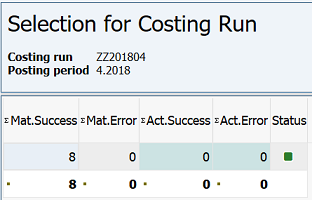
Operation Process:
| 1. | Check that the process has completed without errors. | ||
| 2. | |
Click [Back]. | |
Screen 9:
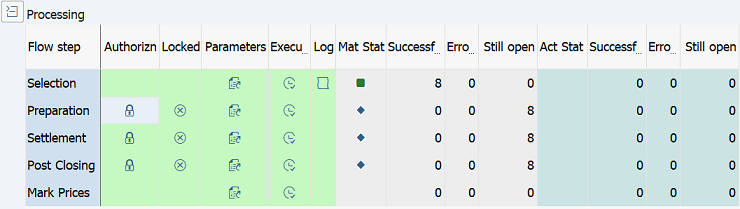
Operation Process:
| 1. | Check [Status] and [Errors] of Flow step: Selection to confirm that the process has completed without errors. | ||
| 2. |  |
Click [Not Yet Allowed] of Flow step: Preparation. | |
Remarks:
| 1. | If processing results are not applied to the screen contents, click  [Refresh] to apply the results to the screen. [Refresh] to apply the results to the screen. |
Screen 10:
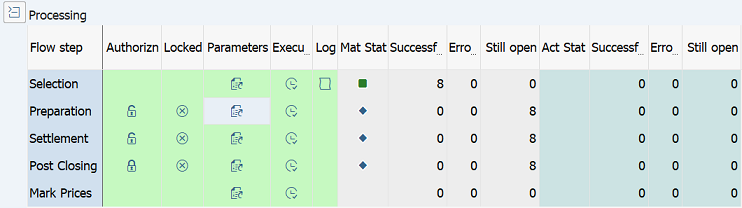
Operation Process:
| 1. | |
Click [Change Parameters] of Flow step: Preparation. |
Screen 11:
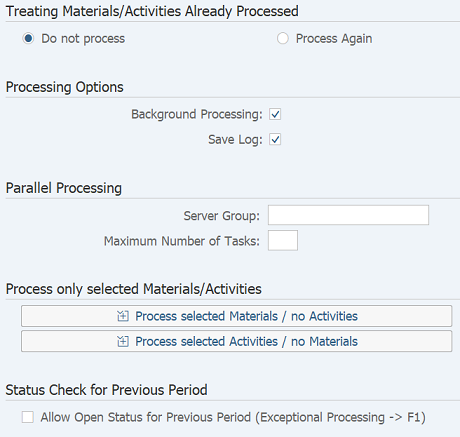
Operation Process:
Treating Materials Already Processed |
|||
| 1. | {Do not process} | Select this option to perform no price computation for materials processed once. | |
| 2. | {Process Again} | Select this option to perform price computation again even for materials processed once. | |
Processing Options |
|||
| 3. | {Background Processing} | Select this option to perform background (job) processing. | |
| 4. | {Save log} | Select this option to save logs. | |
| 5. | |
Click [Save]. | |
| 6. | |
Click [Back]. | |
Screen 12:
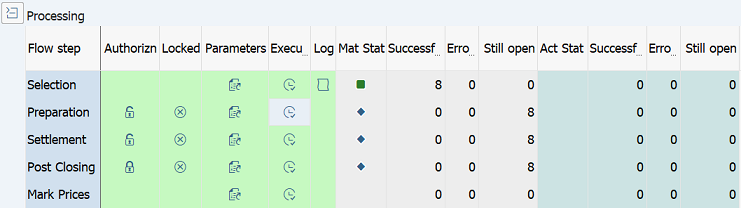
Operation Process:
| 1. | |
Click [Execute] of Flow step: Preparation. |
Screen 13:
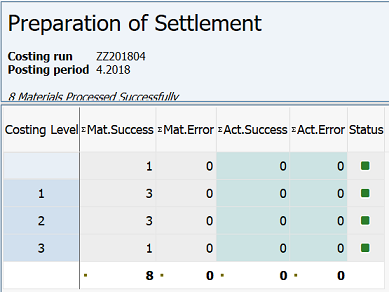
Operation Process:
| 1. | Check that the process has completed without errors. | ||
| 2. | |
Click [Back]. | |
Screen 14:
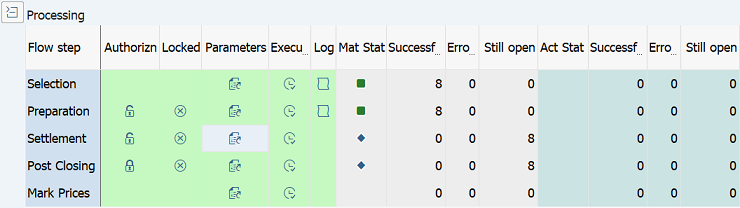
Operation Process:
| 1. | Check [Status] and [Errors] of Flow step: Preparation to confirm that the process has completed without errors. | ||
| 2. | |
Click [Change Parameters] of Flow step: Settlement. | |
Screen 15:
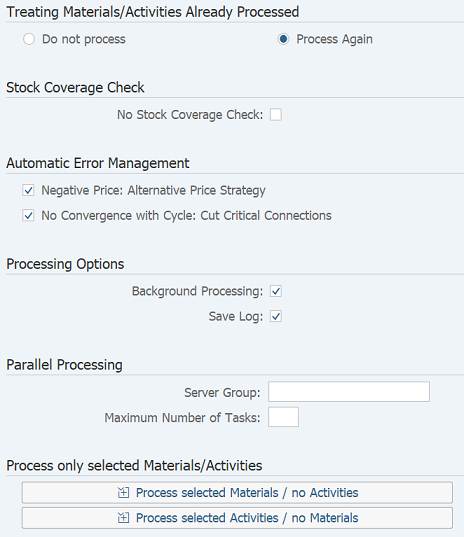
Operation Process:
| Treating Materials/Activities Already Processed | |||
| 1. | {Do not process} | Select this option to perform no price computation for materials processed once. | |
| 2. | {Process Again} | Select this option to perform price computation again even for materials processed once. | |
Stock Coverage Check |
|||
| 3. | {No Stock Coverage Check} | Select the processing method for the case when no stock coverage check. (optional) | |
| Automatic Error Management | |||
| 4. | {Negative Price: Alternative Price Stategy} | Select the processing method for the case when the price is a negative value. (optional) | |
| 5. | {No Convergence with Cycle: Cut Critical Connections} | Select the processing method for the case when inconsistency occurs in multi-level price determination. (optional) | |
Processing |
|||
| 6. | {Background Processing} | Select this option to perform background (job) processing. | |
| 7. | {Save log} | Select this option to save logs. | |
| 8. | |
Click [Save]. | |
| 9. | |
Click [Back]. | |
Screen 16:
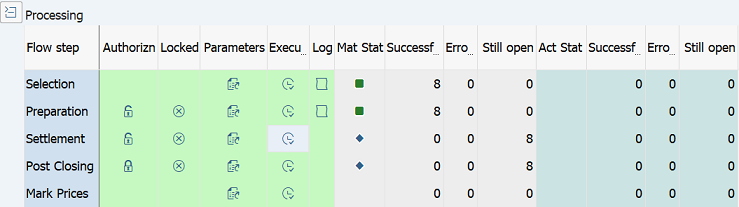
Operation Process:
| 1. | |
Click [Execute] for Flow step: Settlement. |
Screen 17:
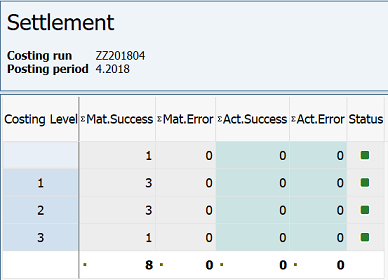
Operation Process:
| 1. | Check that the process has completed without errors. | ||
| 2. | |
Click [Back]. | |
Screen 18:
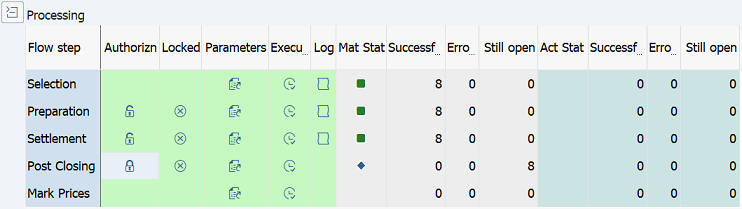
Operation Process:
| 1. | Check [Status] and [Errors] of Flow step: Settlement to confirm that the process has completed without errors. | ||
| 2. | |
Click [Not Yet Allowed] Flow step: Post Closing. | |
Screen 19:
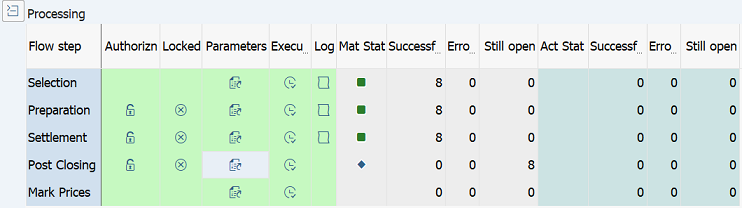
Operation Process:
| 1. | |
Click [Change Parameters] of Flow step: Post Closing. |
Screen 20:
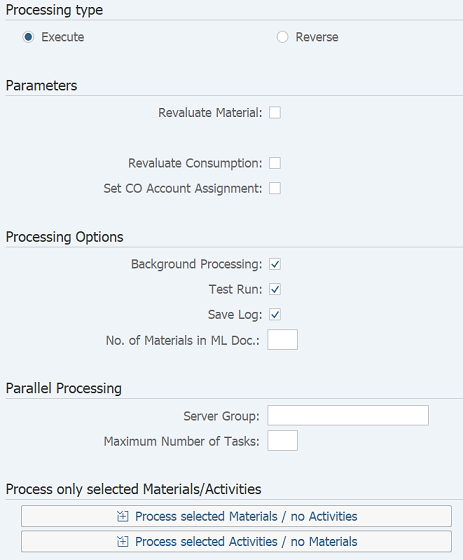
Operation Process:
Processing type |
|||
| 1. | {Execute} | Select this option to execute closing operations. | |
| 2. | {Reverse} | Select this option to cancel closing operations. | |
| Parameters | |||
| 3. | {{Revaluate Material}} | Select this option to revaluate material stock. | |
| 4. | {{Revaluate Consunption}} | Select this option to revaluate consumption. | |
| 5. | {{Set CO Account Assignment}} | Select this option to reflect the consumption revaluation details on controlling accounting. | |
Processing options |
|||
| 6. | {Background Processing} | Select this option to perform background (job) processing. | |
| 7. | {Test run} | Select this option to run test. | |
| 8. | {Save log} | Select this option to save logs. | |
| 9. | |
Click [Save]. | |
| 10. | |
Click [Back]. | |
Screen 21:
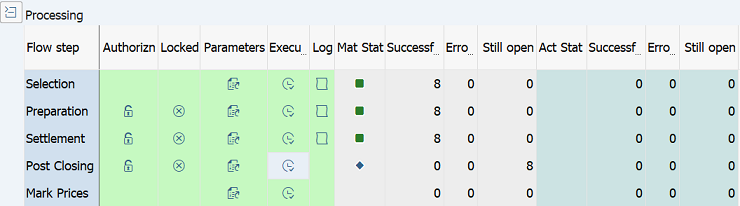
Operation Process:
| 1. | |
Click [Execute] of Flow step: Post Closing. |
Screen 22:
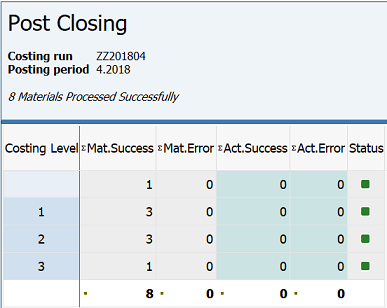
Operation Process:
| 1. | Check that the process has completed without errors. | ||
| 2. | |
Click [Back]. | |
Screen 23:
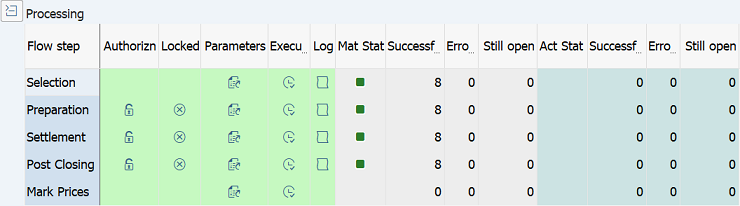
Operation Process:
| 1. | Check [Status] and [Errors] of Flow step: Post Closing to confirm that the process has completed without errors. |
Copyright(c) MITSUI KINZOKU YOURSOFT Inc.