Back to Menu No.02-03-04
Registering Activity Output (KP26)
Menu: Accounting > Controlling > Cost Center Accounting > Planning > Activity Output/Prices > Change
Process Overview: Register the planned values for Activity consumption by the Cost center/Activity type.
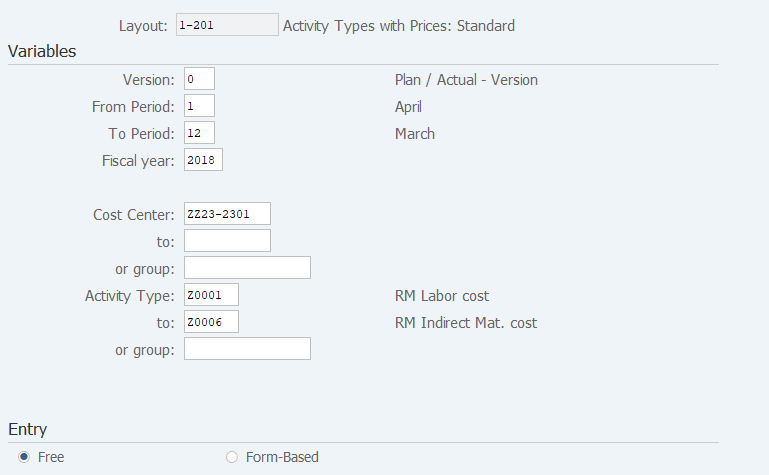
Screen 1:
Operation Process:
| Variables | |||
| 1. | {{Version}} | Enter the plan version. | |
| 2. | {{From Period}} | Enter the start fiscal period for which to display the plan. | |
| 3. | {{To Period}} | Enter the end fiscal period for which to display the plan. | |
| 4. | {{Fiscal year}} | Enter the fiscal year for which to display the plan. | |
| 5. | {{Cost Center}} or {{group}} |
Enter the Cost center or Cost center group. | |
| 6. | {{Activity Type}} or {{group}} |
Enter the Activity type or Activity type group. | |
| Entry | |||
| 7. | {Free} | Select this option if you want to enter the activity type of your choice in the next screen. (If registered data already exist, only the registered contents are displayed.) |
|
| 8. | {Form-Based} | Select this option if you want to display in the next screen all activity types that have been specified in Variables. (All activity types specified in Variables are displayed regardless of registered data.) |
|
| 9. |  |
Click [Overview Screen] to access the screen from which you can enter the cumulative total. To Screen2 | |
| 10. |  |
Click [Period Screen] to access the screen from which you can enter periodic plan value. To Screen3 | |
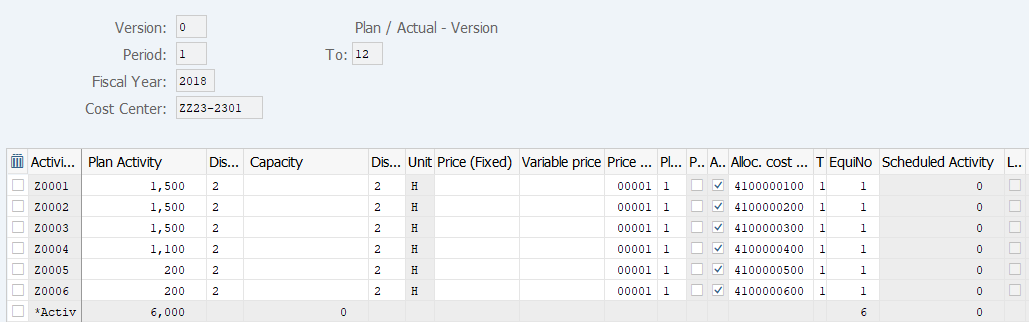
Operation Process:
| 1. | {{Plan Activity}} | Enter the planned activity output. | |
| 2. | {{Distribution key}} | Select the method of distributing the planned activity quantity to each period. (Ex. '2' Distribution as before) |
|
| 3. |  |
Click [Post]. |
Supplement:
| 1. | Screen 2 is Overview Screen. | ||
| 2. | |
Click [Period Screen] to move to the screen from which you can enter a periodic plan. |
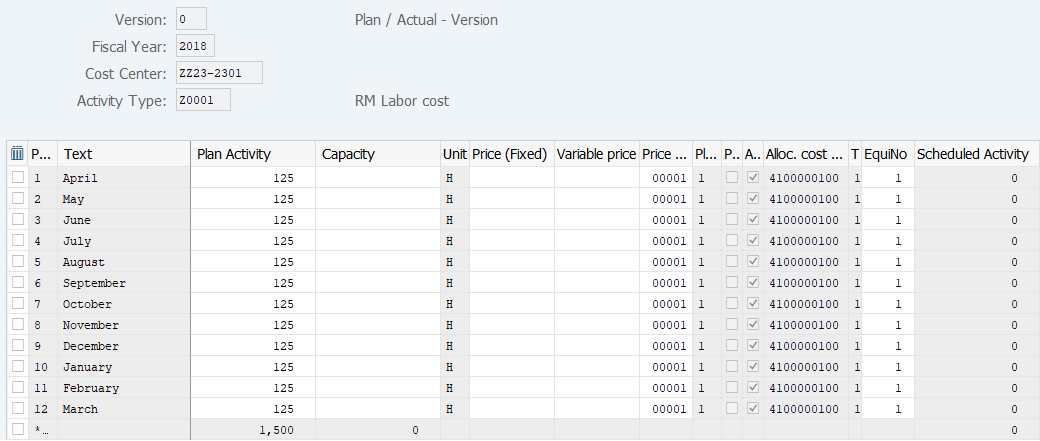
Operation Process:
| 1. | {{Plan Activity}} | Enter the planned activity output. | |
| 2. | |
Click [Post]. |
Supplement:
| 1. | Screen 3 is Period Screen. | ||
| 2. | |
Click [Overview Screen] to access the screen from which you can enter the cumulative total. | |
| 3. |   |
Click [Previous Combination] or [Next Combination] to move to the previous or next Combination. |
Copyright(c) MITSUI KINZOKU YOURSOFT Inc.