Back to Menu No.02-01-03
Lock Cost Center (KS02)
Menu: Accounting > Controlling > Cost Center Accounting > Master Data > Cost Center > Individual Processing > Change
Process Overview: Set the lock flag to Cost center.
Remarks: The report can be checked even if the cost center is locked (disabled).
(1) Information on how to implement time-dependent change management is available from here
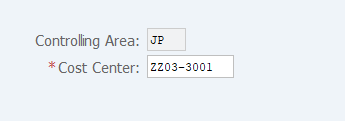
Screen 1:
Operation Process:
| 1. | {{Cost Center}} | Enter the Cost Center to be locked. | |
| 2. | Press [Enter] key. |
Screen 2:
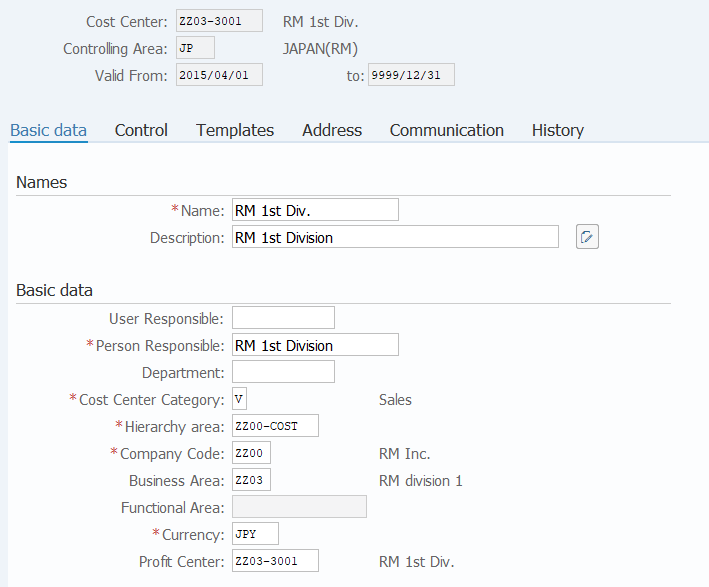
Operation Process:
| 1. |  |
Select [Control] tab. |
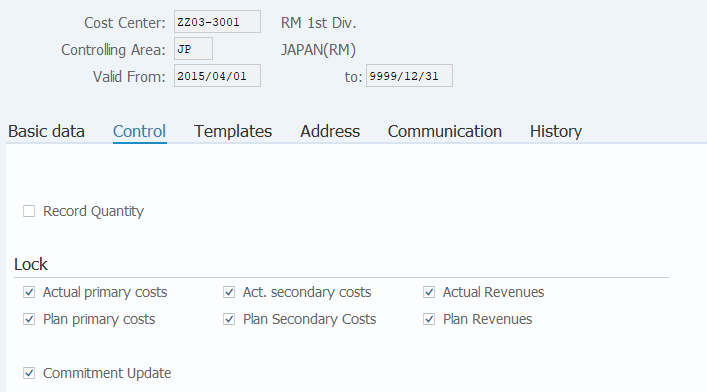
Operation Process:
Lock |
|||
| 1. | {{Actual primary costs}} | Tick. | |
| 2. | {{Plan primary costs}} | Tick. | |
| 3. | {{Act. secondary costs}} | Tick. | |
| 4. | {{Plan Secondary costs}} | Tick. | |
| 5. | {{Actual Revenues}} | Tick. | |
| 6. | {{Plan Revenues}} | Tick. | |
| 7. | {{Commitment Update}} | Tick. | |
| 8. |  |
Click [Save]. | |
(1)How to implement time-dependent change management
Screen (1)-1:
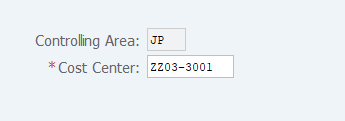
Operation Process:
| 1. | {{Cost Center}} | Enter the Cost Center to be locked. | |
| 2. | Press [Enter] key. |
Screen (1)-2:
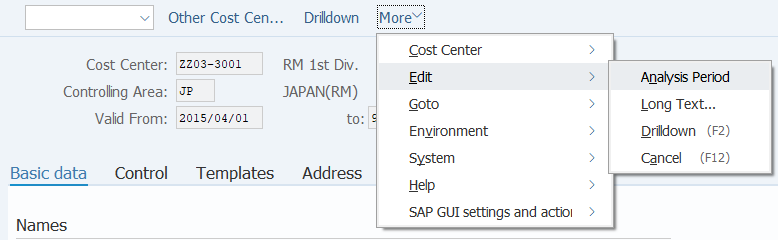
Operation Process:
| 1. | Menu: More > Edit > Analysis Period |
Screen (1)-3:
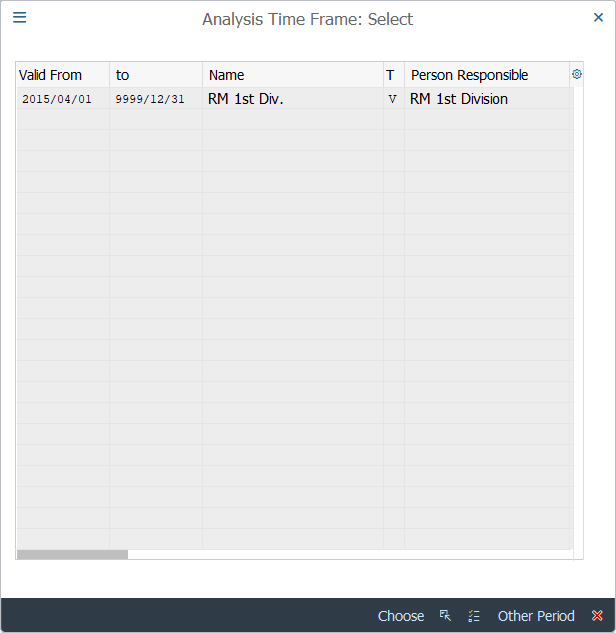
Operation Process:
| 1. |  |
Click [Other Period]. |
Screen (1)-4:
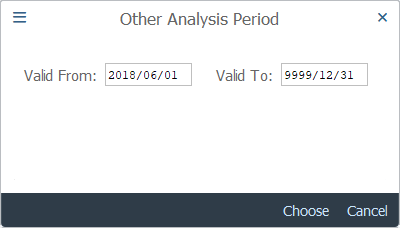
Operation Process:
| 1. | {{Valid From}} | Enter the start date for the analysis period. | |
| 2. | {{Valid To}} | Enter the end date for the analysis period. | |
| * If no specific end date is to be set, enter '9999/12/31'. | |||
| 3. |  |
Click [Choose]. |
Screen (1)-5:
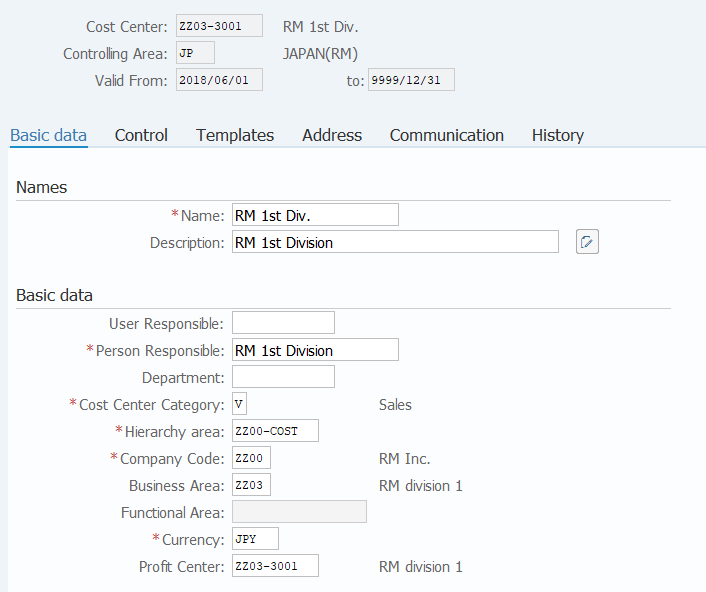
Operation Process:
| 1. | |
Select [Control] tab. | |
| 2. | Lock the Cost center (Refer to Screen 3). | ||
| 3. | |
Click [Save]. |
Copyright(c) MITSUI KINZOKU YOURSOFT Inc.