Back to Menu No.04-06-01
List of Order (YRCO0021)
Menu: Accounting > Controlling > Add: Download > List of Order
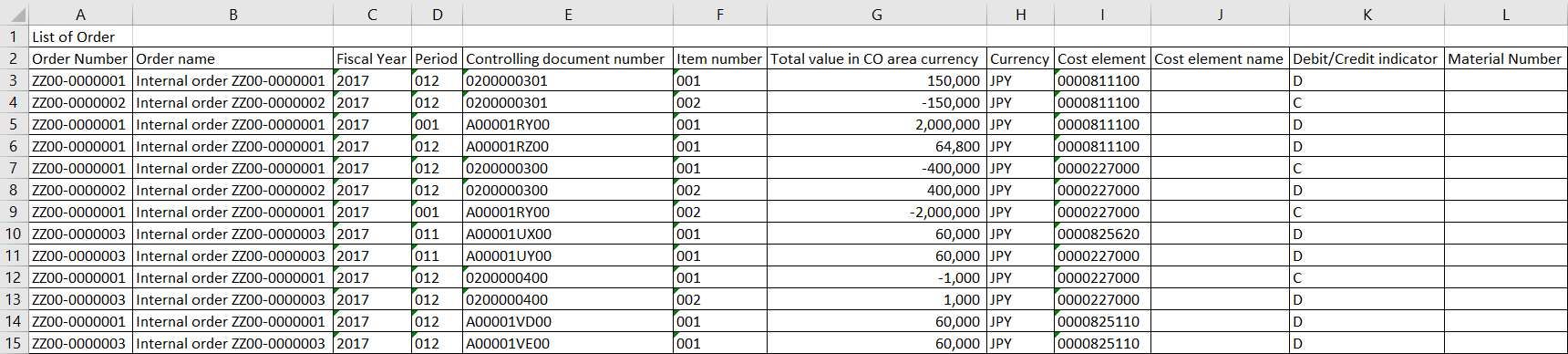
Process Overview: Outputs the data of Orders.
Screen 1:
Operation Process:
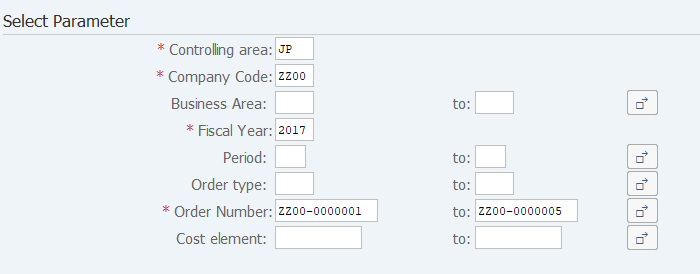
| Select parameter | |||
| 1. | {{Controlling area}} | Enter the target Controlling area. | |
| 2. | {{Company Code}} | Enter the target Company Code. | |
| 3. | {Business Area} | Enter the target Business Area. | |
| 4. | {{Fiscal Year}} | Enter the target Fiscal Year. | |
| 5. | {Period} | Enter the target Period. | |
| 6. | {Order type} | Enter the target Order type. | |
| 7. | {{Order Number}} | Enter the target Order Number. | |
| 8. | {Cost element} | Enter the target Cost element. | |
Operation Process:
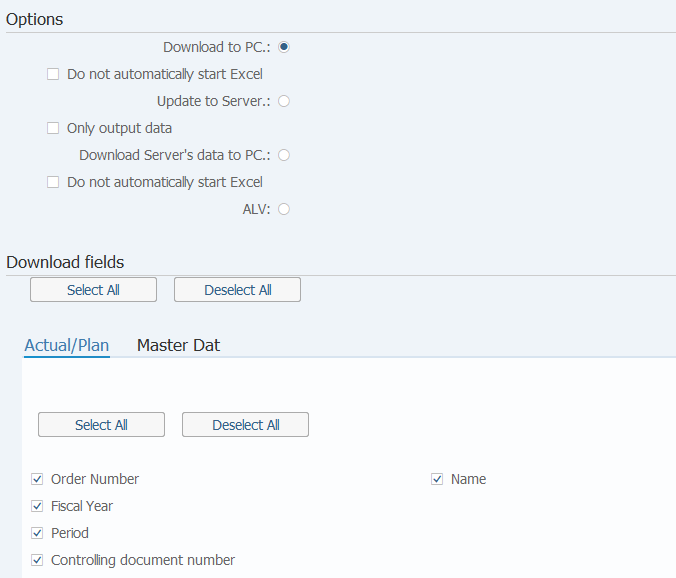
| Option | |||
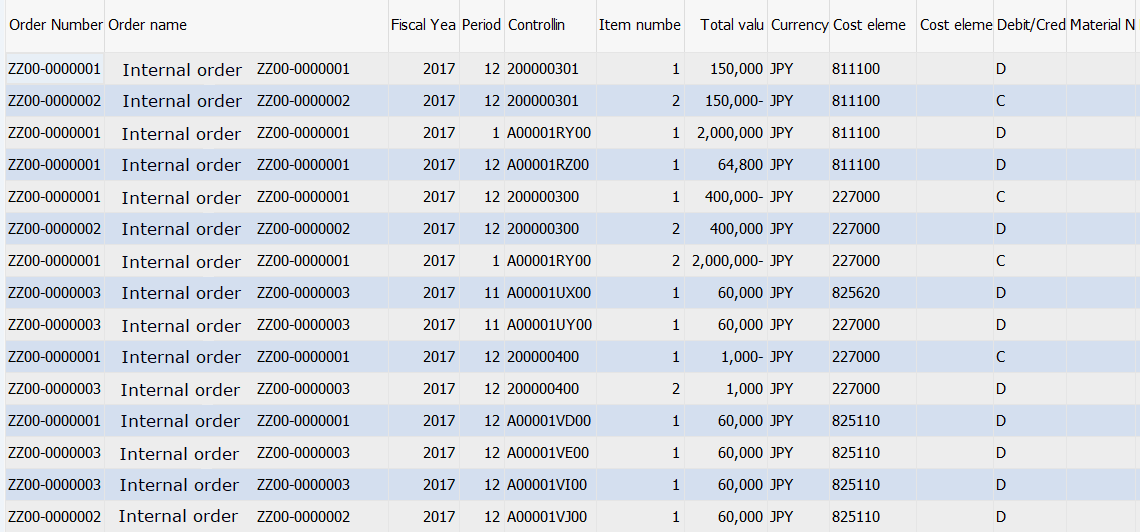
| 9. | {Download to PC.} | Select this option to download and display the extracted data in Excel. To Screen 2. | |
| 10. | {Do not automatically start Excel} | Select this option when not starting Excel automatically concurrently with program execution. | |
| 11. | {Update to Server.} | Select this option when download the data to SAP ERP server. To Screen 4. | |
| 12. | {Only output data} | Select this option if field name line doesn't need to be downloaded. | |
| 13. | {Download Server's data to PC.} | Select this option when download the data that had downloaded to SAP ERP server to local PC. To Screen2. | |
| 14. | {Do not automatically start Excel} | Select this option when not starting Excel automatically concurrently with program execution. | |
| 15. | {ALV} | Select this option to display the extracted data on screen. To Screen 5. | |
| Download fields | |||
|
16. |
Select the necessary fields. | ||
| 17. |  |
Click [Execute]. | |
Supplement:
| 1. | The option 'Update to server' can be executed in background. | |
| 2. | If execute this program with selecting the option 'Update to sever', the downloaded data will overwrite the old that downloaded by same User ID at server. | |
| 3. | When you download data that had downloaded to server by option 'Only output data', please check the box of 'Do not automatically start Excel'. |
Operation Process:
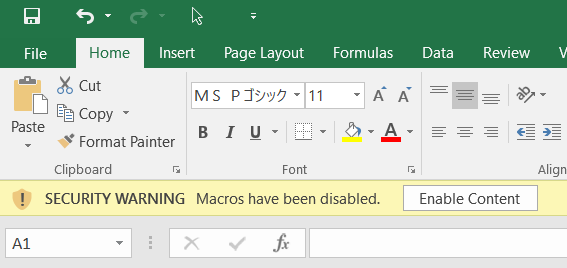
| 1. |  |
Click [Enable Content]. |
Screen 3:

Copyright(c) MITSUI KINZOKU YOURSOFT Inc.