Back to Menu No.01-03-02
Post with Clearing (F-04)
Menu: Accounting > Financial Accounting > General Ledger > Document Entry > Post with Clearing
Process Overview: Select the open item together with G/L entry and clear the item.
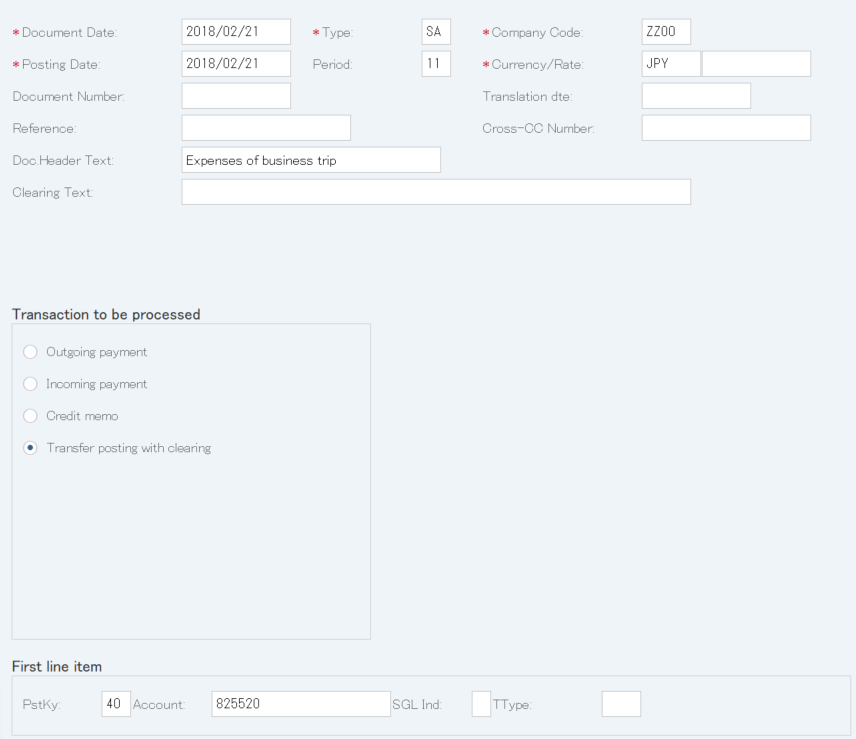
Screen 1:
Operation Process:
| 1. | {{Document Date}} | Enter any date. (Used as a substitute of a memorandum.) | |
| 2. | {{Type}} | Enter the code for classifying the document. (Ex. 'SA' general accounting document) | |
| 3. | {{Company Code}} | Enter the Company code for managing the document. (Normally, own company code) | |
| 4. | {{Posting Date}} | Enter the document management date. (Ex. Enter '2016.04.xx' for the document of April 2016.) | |
| 5. | {Period} | Enter the Accounting period for managing the document. (Calculated automatically based on the posting date) | |
| 6. | {{Currency}} | Currency code for managing the item amount. Change if the operation is foreign currency entry. (Ex. 'JPY' Japanese Yen) | |
| 7. | {Rate} | Enter the Rate when entering a foreign currency. (Not required for the local currency) | |
| 8. | {Doc.Header Text} | Enter the document abstract. (Ex. 'Settlement of expenses of business trip for month XX') | |
| 9. | {Clearing Text} | Enter the abstract to be entered in the clearing item. | |
| Transaction to be processed | |||
| 10. | {{Transfer posting with clearing}} | Tick. | |
| First line item | |||
| 11. | {{PstKy}} | Enter the item management key of the 1st item. (Ex. '40' Debit entry) | |
| 12. | {{Account}} | Enter the Account code of the 1st item. | |
| 13. | Press [Enter] key. | ||
Screen 2:
Operation Process:
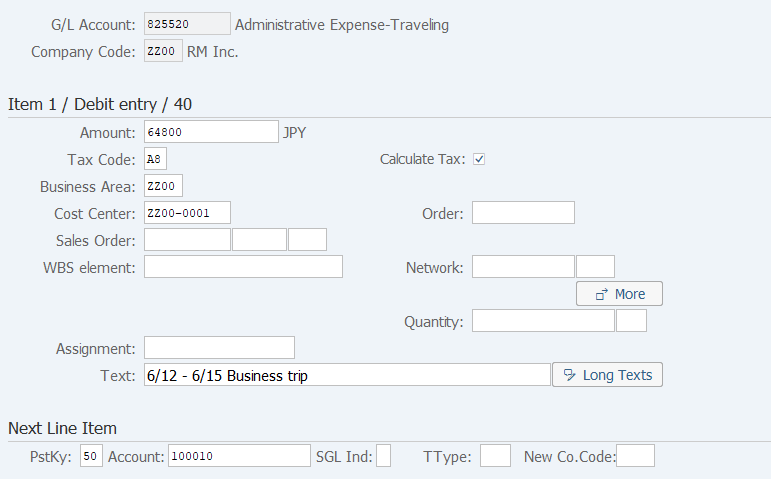
| 1. | {{Amount}} | Enter the item amount. | |
| 2. | {{Tax Code}} | Enter the consumption tax code for the item. (Ex. 'A8' Taxable purchase 8%) | |
| 3. | {Calculate Tax} | Select when using consumption tax automatic calculation. | |
| 4. | {{Cost Center}} | Enter the Cost center for managing the item. | |
| 5. | {Assignment} | Enter the item sorting key. | |
| 6. | {Text} | Enter the item abstract. | |
| Next Line Item | |||
| 7. | {{PstKy}} | Enter the item management key of the 2nd item. (Ex. '50' Credit entry) | |
| 8. | {{Account}} | Enter the Account code of the 2nd item. | |
| 9. | Press [Enter] key. | ||
Remarks:
| 1. | The screen configuration and entry condition being mandatory/optional vary according to the Account code entered in the previous screen. | |
| 2. | In this manual, a clearing item is called after entering 2 items. (If you need only an item. To Screen 5) |
Screen 3:
Operation Process:
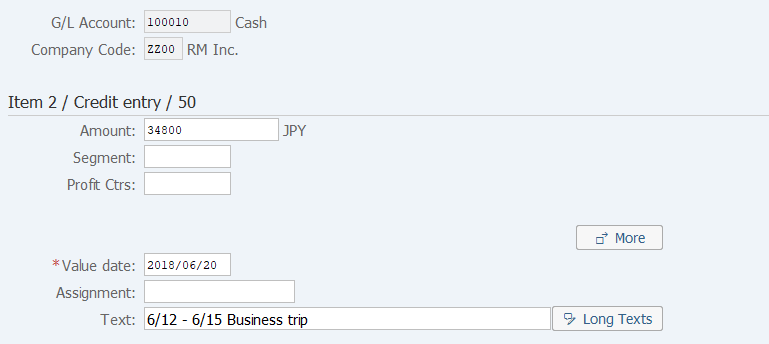
| 1. | {{Amount}} | Enter the Item Amount. | |
| 2. | {{Value date}} | Enter the date used as the baseline of interest calculation. (Used for cash and bank account code) | |
| 3. | {Assignment} | Enter the Item Sorting key. | |
| 4. | {Text} | Enter the Item Abstract. | |
| 5. |  |
Click [More]. |
Screen 4:
Operation Process:
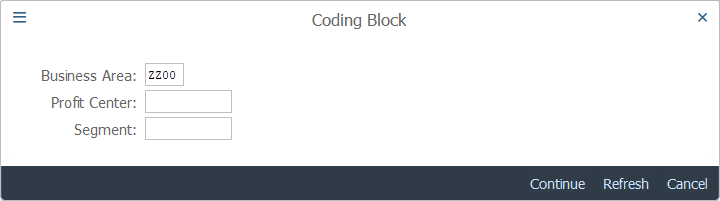
| 1. | {{Business Area}} | Enter the Business area of the item. | |
| 2. |  |
Click [Continue]. |
Operation Process:
| 1. |  |
Click [Choose open items]. |
Screen 6:
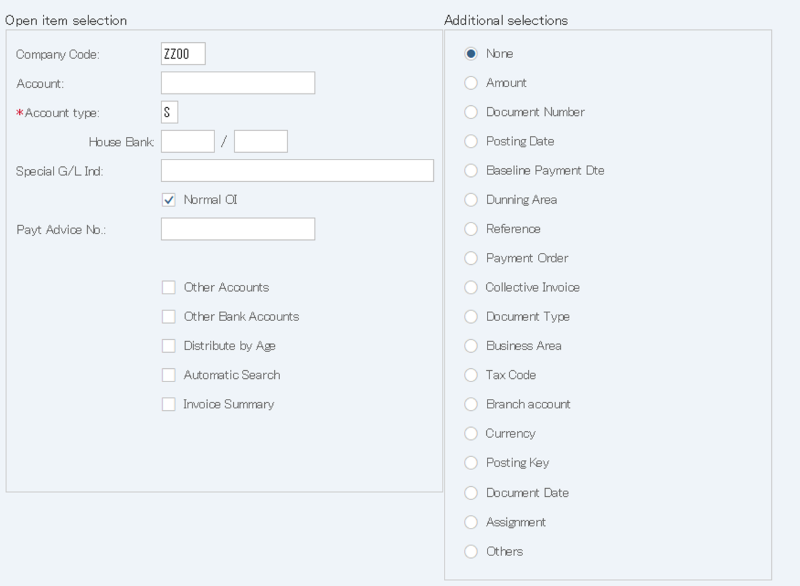
Operation Process:
| Open item selection | |||
| 1. | {{Company Code}} | Enter the Company code for managing open item. | |
| 2. | {{Account}} | Enter the Account code for clearing. | |
| 3. | {{Account Type}} | Check that the account is 'S' (G/L accounts). | |
| Additional selections | |||
| 4. | {Additional selections} | Select a selection condition for extracting open items. | |
| 5. |  |
Click [Process Open Items]. | |
Remarks:
| 1. | In Screen 6, 'Document number' is selected as the open item extraction condition. When not setting a condition (select 'None'). To Screen 8 |
Screen 7:
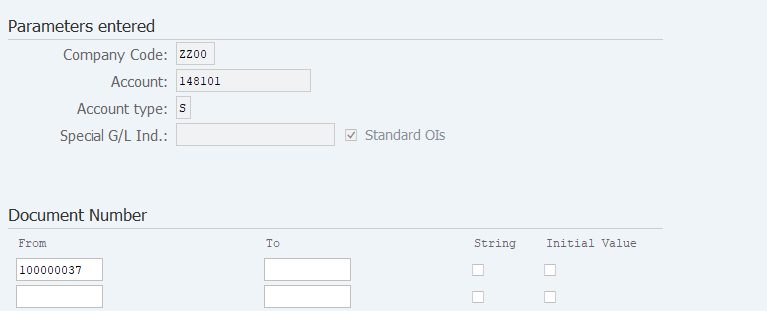
Operation Process:
| 1. | {{From}} | Enter a Document number of the open item to be selected. | |
| 2. | {{To}} | Enter a Document number of the open item to be selected. (End number when a range is specified) | |
| 3. | |
Click [Process Open Items]. |
Remarks:
| 1. | The item specified in the additional selection item field of Screen 6 becomes the additional extraction condition. | |
| 2. | Multiple extraction conditions can be selected by click [Enter] after entering a value. |
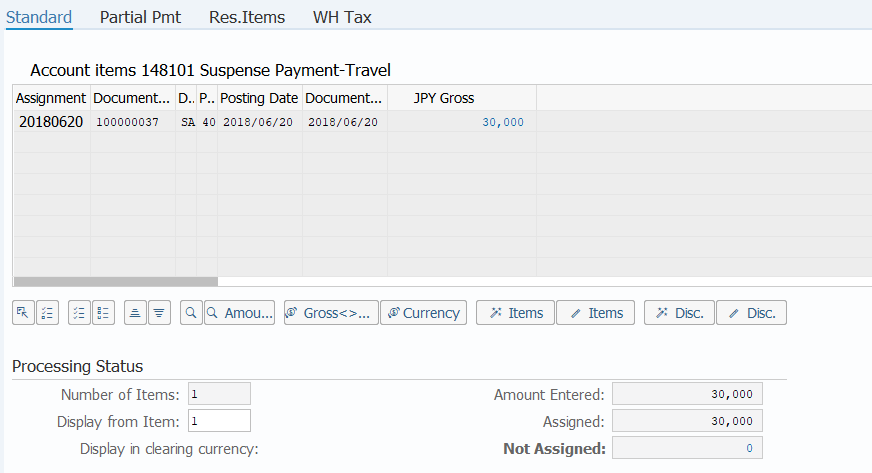
Operation Process:
| 1. | {{JPY Gross}} | Double-click on the 'JPY Gross' amount of the document and select an item. (The selected item is displayed in blue.) | |
| 2. | {{Not Assigned}} | Check that the clearing amount and assigned amount match (Not assigned is '0'). | |
| 3. | Menu: More > Document > Simulate |
Supplement :
| 1. | When the document number is double-clicked, the item overview can be checked. |
Screen 9:
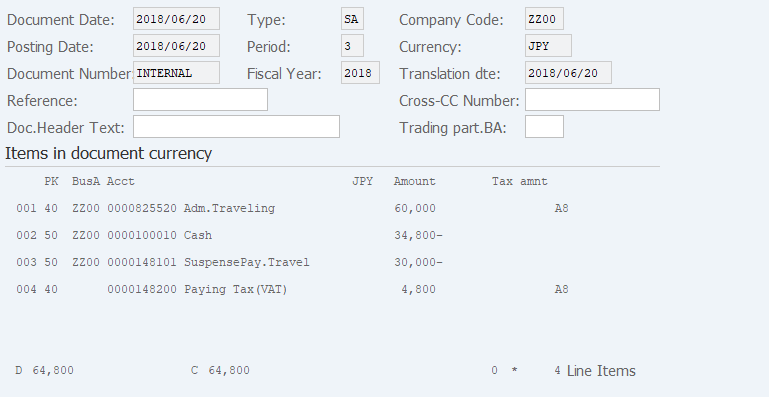
Operation Process:
| 1. |  |
Check the journal and click [Post]. |
Copyright(c) MITSUI KINZOKU YOURSOFT Inc.