Back to Menu No.02-01-01
Invoice-General (F-22)
Menu: Accounting > Financial Accounting > Accounts Receivable > Document Entry > Invoice-General
Process Overview: Create a Sales or Accrued Revenue document from SD module.
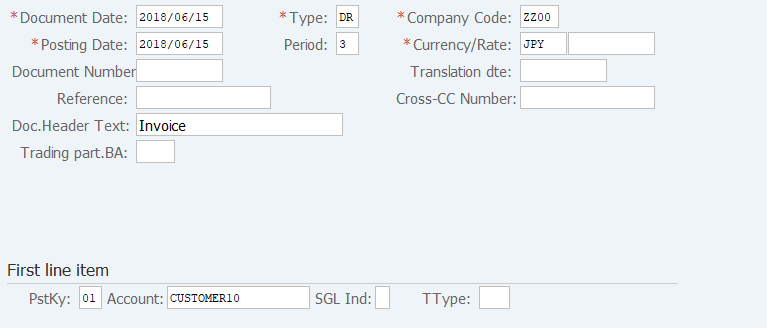
Screen 1: Enter Header info. & Posting Key of the first item, Customer code.
Operation Process:
| 1. | {{Document Date}} | Enter any date. (Used as a substitute of a memorandum.) | |
| 2. | {{Type}} | Enter the Code for classifying the document. (Ex. 'DR' customer invoice) | |
| 3. | {{Company Code}} | Enter the Company code for managing the document. (Normally, own company code) | |
| 4. | {{Posting Date}} | Enter the document management date. (Ex. Enter '2016.04.xx' for the document of April 2016.) | |
| 5. | {Period} | Enter the accounting period for managing the document. (Calculated automatically based on the posting date) | |
| 6. | {{Currency}} | Currency code for managing the item amount. Change if the operation is a foreign currency entry. (Ex. 'USD' US Dollar) | |
| 7. | {Rate} | Enter the Rate when entering a foreign currency. (Not required for the local currency) | |
| 8. | {Doc. Header Text} | Enter the document abstract. | |
| First line item | |||
| 9. | {{PstKy}} | Enter the item management key. (Ex. '01'Invoice) | |
| 10. | {{Account}} | Enter the Customer Account. | |
| 11. | Press [Enter] key. | ||
Remarks:
| 1. | The initial value of the Document type is 'DR'. |
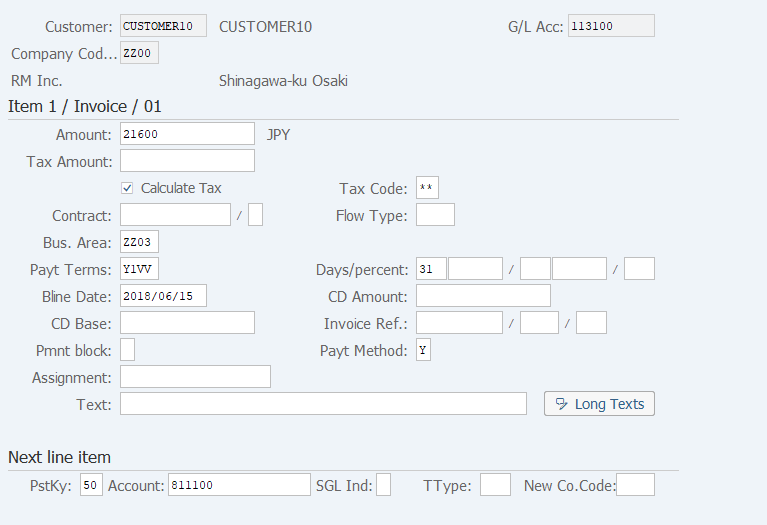
Screen 2: Enter the info. Such as Amount, Payment base date, etc for the first item. Also enter Posting key & Account code for the second item.
Operation Process:
| 1. | {{Amount}} | Enter the item amount. | |
| 2. | {Calculate tax} | Select this field when automatically calculating a taxable amount. (Checked: Automatic calculation, Blank: Manual entry) | |
| 3. | {{Bus. Area}} | Enter the Business area of the item. | |
| 4. | {{Bline Date}} | Enter the payment date. | |
| 5. | {Pmnt Block} | Enter this field when temporarily blocking a payment. (Ex. 'Payment block') | |
| 6. | {{Pmt Method}} | Enter the Payment method. (Ex. '1' Cash payment) | |
| 7. | {Text} | Enter the abstract. | |
| Next line item | |||
| 8. | {{PstKy}} | Enter the item management key of the 2nd item. (Ex.'50'Credit entry) | |
| 9. | {{Account}} | Enter the Account code of the 2nd item. | |
| 10. | Press [Enter] key. | ||
Supplement:
| When setting Customer master as 'Target for Closing', you can control following items in A/R items. -[Closing Date]: Baseline Date *Date to consolidate Invoices -[Due Date for Net payment]: Due date for receipt of money And [Due Date for Net payment] is calculated from Terms of Payment by SAP automatically, so that you can not change it directly. [Due Date for Net payment] can be confirmed by clicking [Invoice summary]. |
| 1. |  |
Click [Invoice Summary]. |
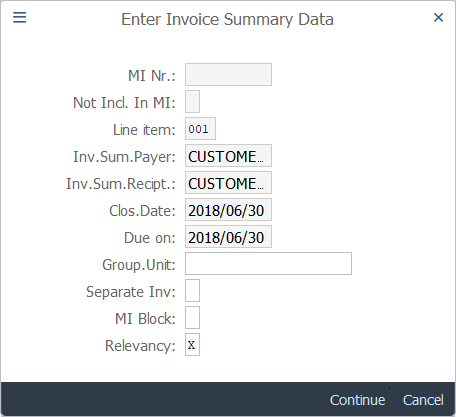
| 2. | {MI Block} | Enter this field when temporarily blocking invoice summary. | |
| 3. | {Relevancy} | Enter this field when excluded from subject of invoice summary. |
Screen 3: Enter amount, organizational info. For the Second item.
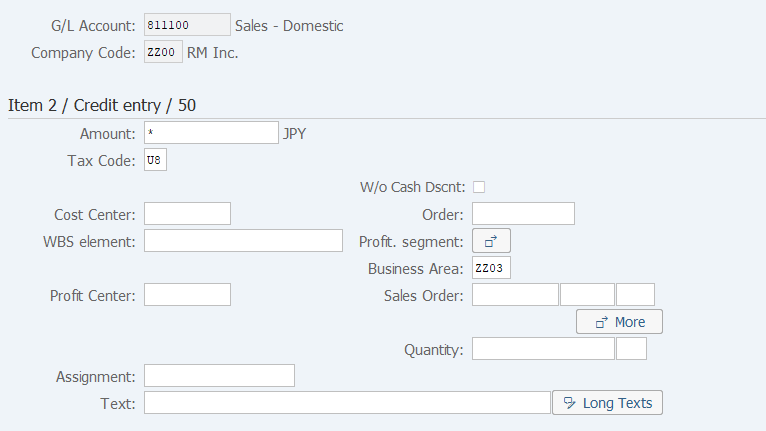
Operation Process:
| 1. | {{Amount}} | Enter the item amount. (For a final item, when '*' is entered, the balancing amount is calculated automatically.) | |
| 2. | {{Tax Code}} | Enter the Tax code. (Ex. 'U8' Tax - sales 8%) | |
| 3. | {{Business Area}} | Enter the Business area of the item. | |
| 4. |  |
Click [Enter account assignment]. |
Screen 4: Enter Profitability segment to the second item.
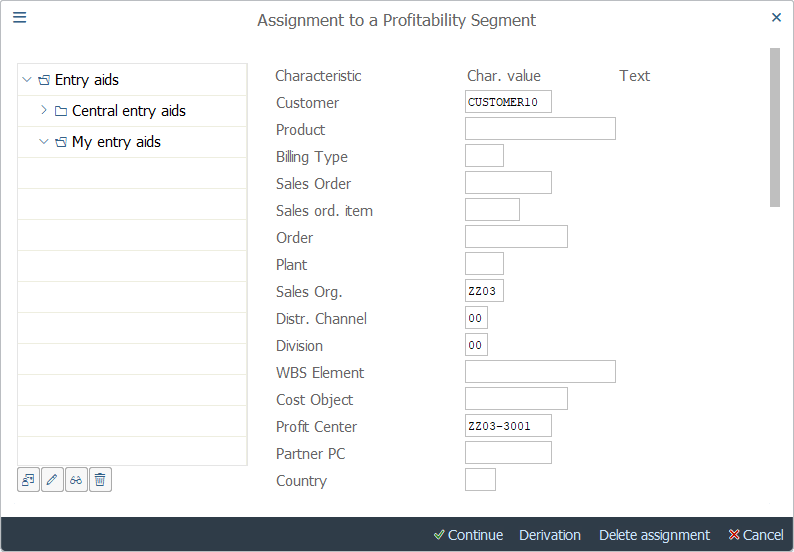
Operation Process:
| 1. | {Customer} | Enter the Customer code to be assigned. | |
| 2. | {Product} | Enter the Sales material code to be assigned. | |
| 3. | {Sales Org.} | Enter the Sales organization to be assigned. | |
| *Enter an item necessary for profitability analysis. | |||
| 4. |  |
Click [Derivation]. | |
| 5. |  |
Click [Continue]. |
Remarks:
| 1. | Enter at least one field among the three input fields from Operation process 1 to Operation process 3. |
Screen 5: Confirm the entry of second item.
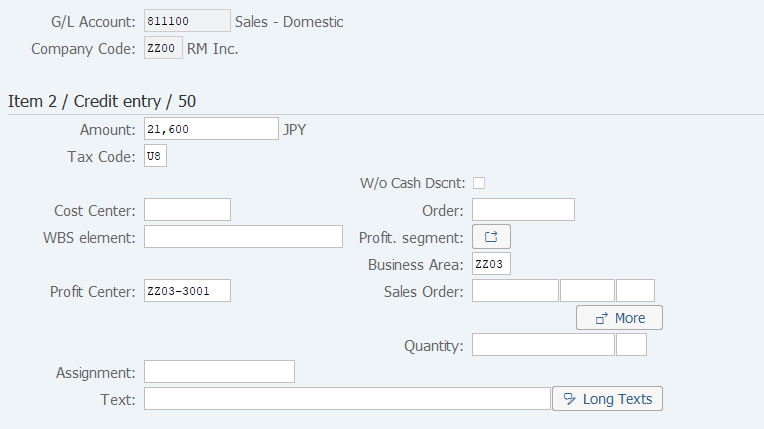
Operation Process:
| 1. | Check the item that is assigned. | ||
| 2. |  |
Click [Display Document Overview]. |
Screen 6: Confirm the entry on Document overview screen before saving the data.
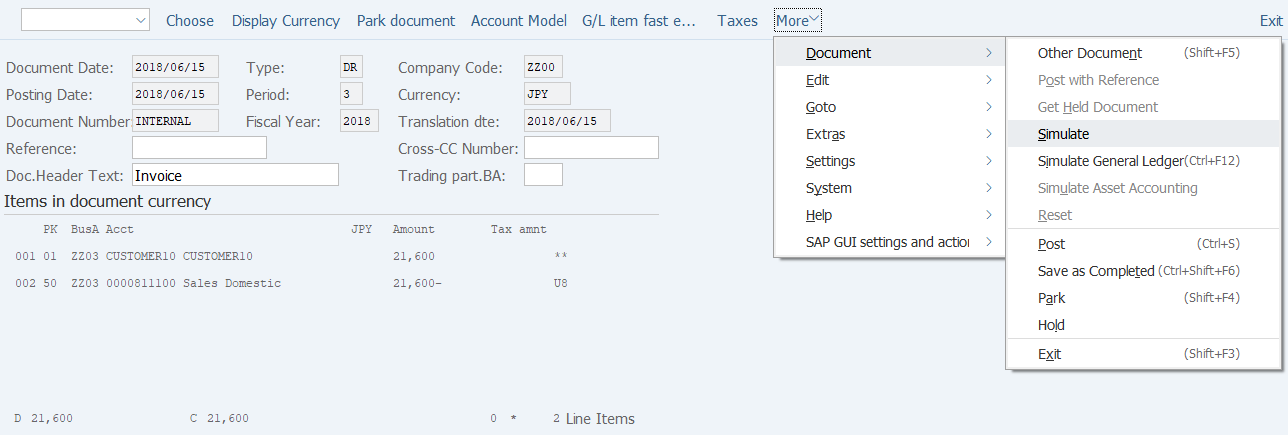
Operation Process:
| 1. | Menu: More > Document > Simulate (The document overview to be posted can be checked through simulation.) | ||
| 2. |  |
Click [Post]. |
Supplement :
| 1. | When taxable amount automatic calculation is selected, a tax account is added to the item. In this case, check the amount. |
Copyright(c) MITSUI KINZOKU YOURSOFT Inc.