Back to Menu No.02-03-02
Bill Receipt of money (Key Money) (F-22)
Menu: Accounting > Financial Accounting > Accounts Receivable > Document Entry > Invoice - General
Process Overview: Post the transaction of Incoming bill of exchange and electronically recorded monetary claims using temporary account.
Screen 1:
Operation Process:
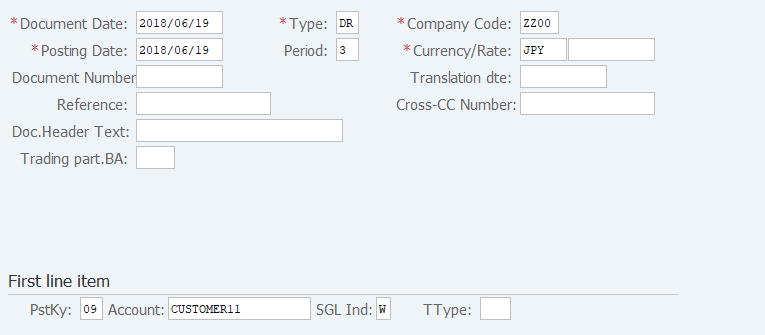
| 1. | {{Document Date}} | Enter any date. (Used as a substitute for a memorandum.) | |
| 2. | {{Type}} | Enter the code for classifying the document. (Ex. 'KR' Vendor invoice) | |
| 3. | {{Company Code}} | Enter the Company code for managing the document. (Normally, own company code) | |
| 4. | {{Posting Date}} | Enter the document management date. (Ex. Enter '2016.04.xx' for the document of April 2016.) | |
| 5. | {Period} | Enter the Accounting period for managing the document. (Calculated automatically based on the posting date) | |
| 6. | {{Currency}} | Currency code for managing the item amount. Change if the operation is a foreign currency entry. (Ex. 'JPY' Japanese Yen) | |
| 7. | {Rate} | Enter the Rate when entering a foreign currency. (Not required for the local currency) | |
| 8. | {Doc. Header Text} | Enter the document abstract. (Ex. 'Payment for month XX') | |
| First line item | |||
| 9. | {{PstKy}} | Enter the item management key of the 1st item. (Ex. '09' Special G/L debit) | |
| 10. | {{Account}} | Enter the Customer account. | |
| 11. | {{SGL Ind}} | Enter the Special G\L. (Ex. 'W': Note Receivable) | |
| 12. | Press [Enter] key. | ||
Screen 2:
Operation Process:
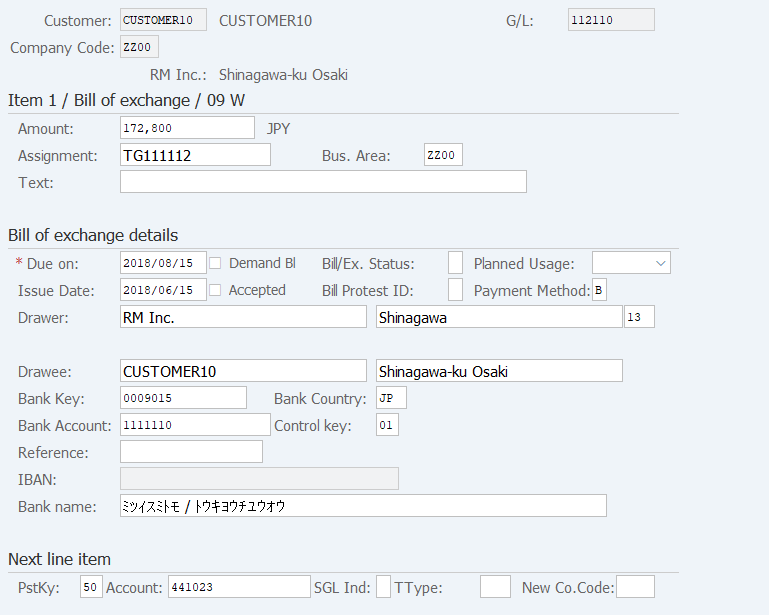
| 1. | {{Amount}} | Enter the bill of exchange amount. | |
| 2. | {{Assignment}} | Enter the physical bill of exchange number. | |
| 3. | {{Bus.Area}} | Enter the Business area code for managing the item. | |
| 4. | {Text} | Enter the drawer and underwriter. (In case of endorsed bills exchanged between two parties or draft bills of exchange) | |
| Enter the record number in case of Electronically Recorded Monetary Claims item. (Required) | |||
| Bill of exchange details | |||
| 5. | {{Due on}} | Enter the Due date of the physical bill of exchange. | |
| 6. | {{Issue Date}} | Enter the Issue date of the physical bill of exchange. | |
| 7. | {{Payment Method}} | Enter the Payment method for the physical bill of exchange. (Ex. '3': interest to be borne by us) | |
| 8. | {Drawer} | The Drawer is displayed by translating the company number. Modify the displayed drawer as necessary. | |
| 9. | {Drawee} | The Drawee is displayed by translating the customer account. Modify the displayed drawee as necessary. | |
| 10. | {{Bank Key}} | Enter the payment location. (Bank) | |
| 11. | {{Bank Country}} | Enter the country where the bank is located. (Ex. Fixed to 'JP': Japan) | |
| 12. | {{Bank Account}} | Enter the Account number. | |
| 13. | {{Control key}} | Enter the Account type. (Fixed to '01': current deposit) | |
| Next line item | |||
| 14. | {{PstKy}} | Enter the Item management key of the 2nd item. (Ex.'50'Credit entry) | |
| 15. | {{Account}} | Enter the Account code of the 2nd item. | |
| 16. | Press [Enter] key. | ||
Supplement :
| 1. | The bank name is entered automatically by entering the bank key. |
Screen 3:
Operation Process:
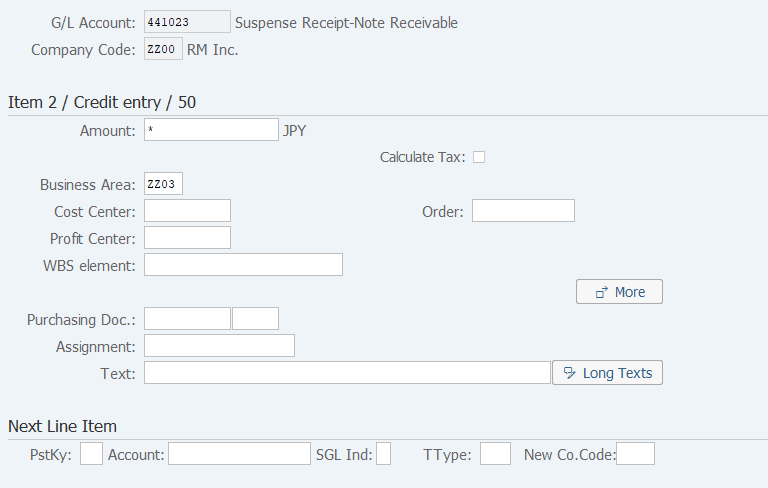
| 1. | {{Amount}} | Enter the bill of exchange amount. | |
| 2. | {{Business Area}} | Enter the Business area code for managing the item. | |
| 3. | {{Assignment}} | Enter the physical bill of exchange number. (The same number as the one shown on Screen 2) | |
| 4. |  |
Click [Display Document Overview]. |
Screen 4:
Operation Process:
| 1. |  |
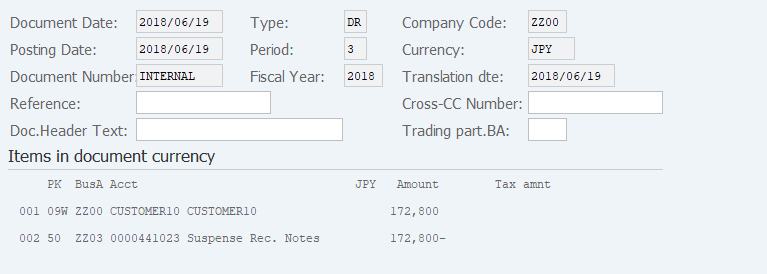
Click [Post]. |
Copyright(c) MITSUI KINZOKU YOURSOFT Inc.