Incoming Payment (Over / Under) (F-28)
Menu: Accounting > Financial Accounting > Accounts Receivable > Document Entry > Incoming Payments
Process Overview: Clear the open item through bank incoming payment (incoming overpayment or underpayment).
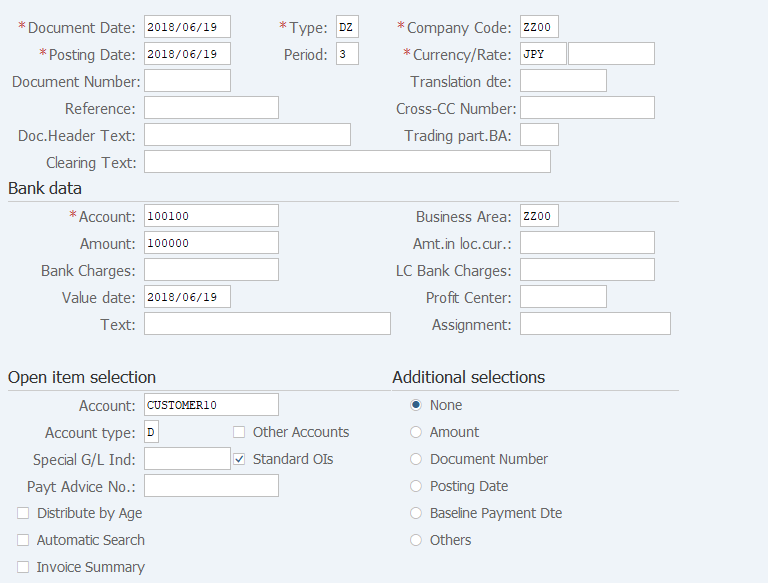
Screen 1: Enter document header info, incoming account info (Debit side), payer info (Credit side).
Operation Process:
| 1. | {{Document Date}} | Enter any date. (Used as a substitute for a memorandum.) | |
| 2. | {{Type}} | Enter the code for classifying the document. (Ex. 'DZ' Customer payment) | |
| 3. | {{Company Code}} | Enter the Company code for managing the document. (Normally, own company code) | |
| 4. | {{Posting Date}} | Enter the document management date. (Ex. Enter '2016.04.xx' for the document of April 2016.) | |
| 5. | {Period} | Enter the Accounting period for managing the document. (Calculated automatically based on the posting date) | |
| 6. | {{Currency}} | Enter the Currency code for managing the item amount. Change if the operation is a foreign currency entry. (Ex. 'JPY' Japanese Yen) |
|
| 7. | {Doc. Header Text} | Enter the Document abstract. | |
| 8. | {Clearing Text} | Enter the item overview to be input in the Item text of the clearing item. | |
| Bank data | |||
| 9. | {{Account}} | Enter the Bank account code through which money is paid. | |
| 10. | {{Business Area}} | Enter the Business area of the item. | |
| 11. | {{Amount}} | Enter the Amount received. | |
| 12. | {{Value date}} | Enter the received date. | |
| 13. | {Text} | Enter the overview of the item. | |
| Open item selection | |||
| 14. | {{Account}} | Enter the Customer code through which money is received. | |
| 15. | {{Account Type}} | Indicates the "Account code" of the open item selection. (Fixed 'D' Customers) | |
| 16. | {Standard Ols} | Displays the item other than the Special G/L that is checked. | |
| 17. | {Special G/L ind} | Enter the code when extracting a Special G/L code item. (Ex. 'M' Other accounts receivable) | |
| 18. | {Invoice Summary} | Select when extracting a Invoice summary item. | |
| Additional selections | |||
| 19. | {Additional selections} | Use this option to extract open items selected by conditions. | |
| 20. |  |
Click [Process Open Items]. | |
Supplement :
| 1. | To select open items from the list, select an addition selection field and enter a condition. |
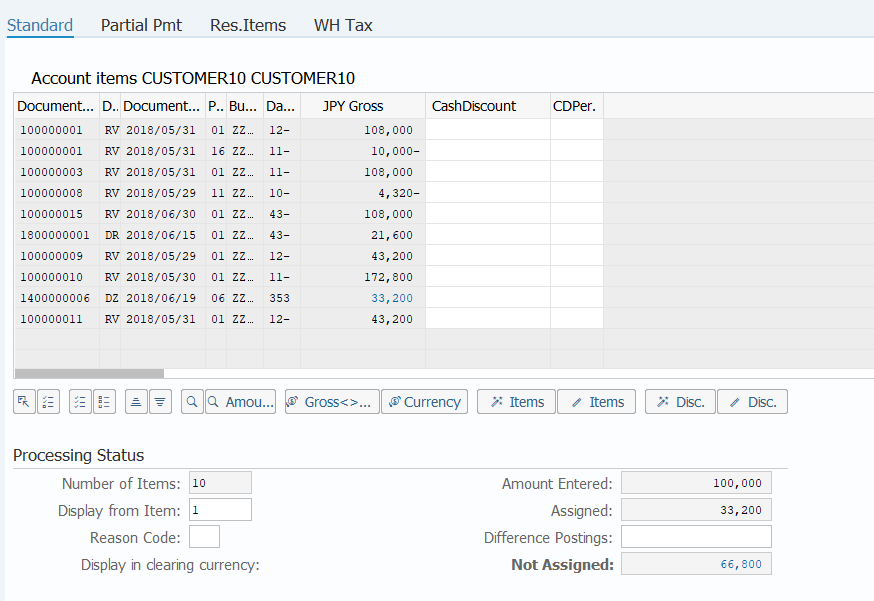
Screen 2: Confirm which open item is for the incoming payment, and select the item. Confirm the difffernce amount.
Operation Process:
| 1. | {{JPY Gross}} | Double-click on the 'JPY Gross' amount of the document and select an item. (The selected item is displayed in blue.) | |
| 2. | {{Not Assigned}} | Check that the clearing amount and assigned amount match (Not assigned is '0'). | |
| 3. |  |
Click [Charge Off Difference]. |
Supplement :
| 1. | When Operation process 1 is performed, the amount of the selected item is displayed in blue. | |
| 2. | The overview of the item can be checked by double-clicking on the item. |
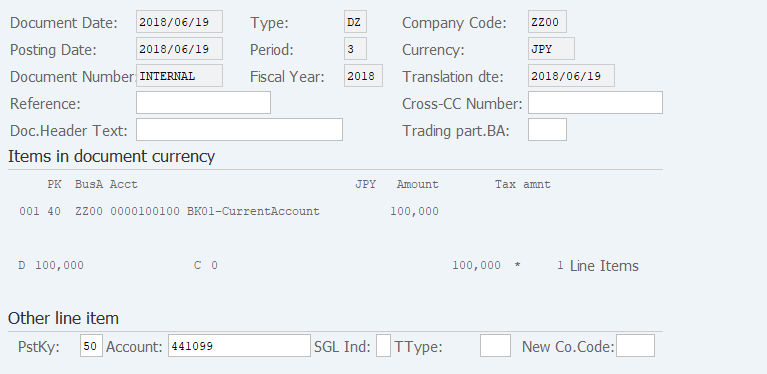
Screen 3: Enter the difference amount between incoming amount & open item amount. Enter Posting key & the account code for the difference amount.
Operation Process:
| Other line item | |||
| 1. | {{PstKy}} | Enter the Posting key. (Ex. '50' Credit entry) | |
| 2. | {{Account}} | Enter the Account code. (Account used at overpayment). | |
| 3. | Press [Enter] key. | ||
Remarks:
| 1. | Posting key is 50 (credit posting) at overpayment and 40 (debit posting) at underpayment. (Overpayment in the manual) |
Screen 4: Enter amount, organizational info. For the Second item.
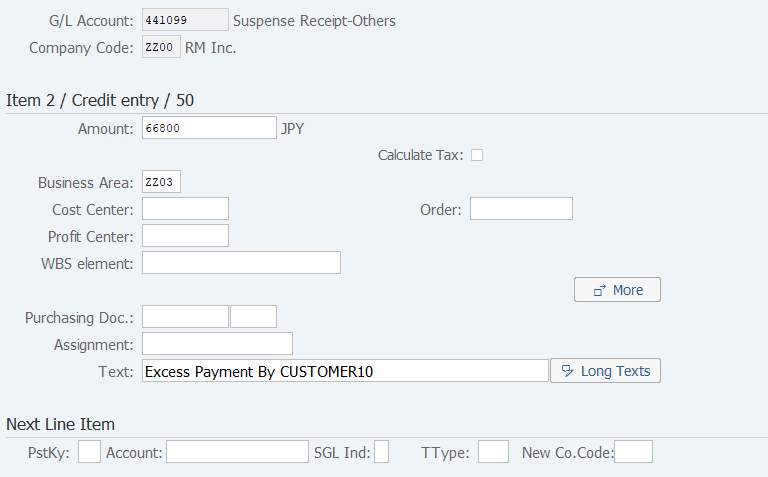
Operation Process:
| 1. | {{Amount}} | Enter the overpayment account. | |
| 2. | {{Business Area}} | Enter the Business area for managing the item. | |
| 3. |  |
Click [Display Document Overview]. |
Screen 5: You can confirm the journal before saving it by running a simulation.
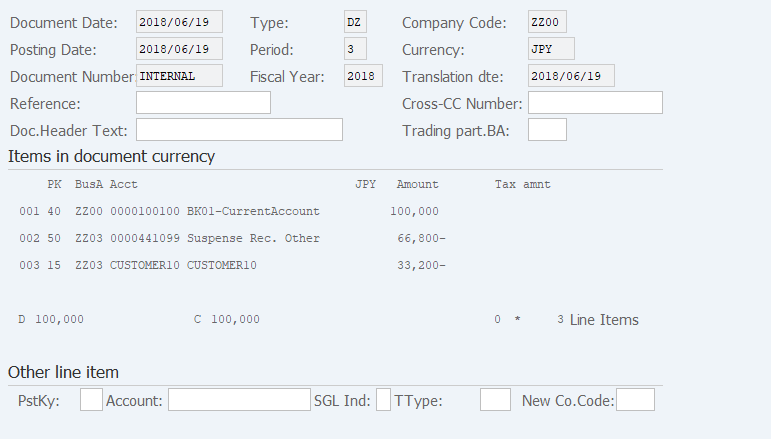
Operation Process:
| 1. | Menu Path: Document > Simulate (The overview of the document to be posted can be checked through simulation.) |
Screen 6:Confirm the entry on Document overview screen before saving the data.
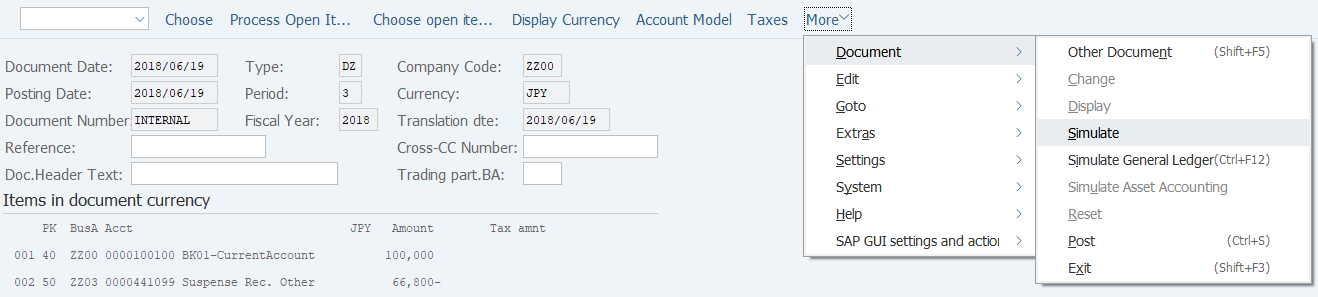
Operation Process:
| 1. | Check the item | ||
| 2. |  |
Click [Post]. |
Copyright(c) MITSUI KINZOKU YOURSOFT Inc.