Back to Menu No.02-01-04
Down Payment - Posting (SD Advance billing) (F-29)
Menu: Accounting > Financial Accounting > Accounts Receivable > Document Entry > Down Payment > Down Payment
Overview: Receive the down payment for the noted item created from SD module (SD: sales and distribution).
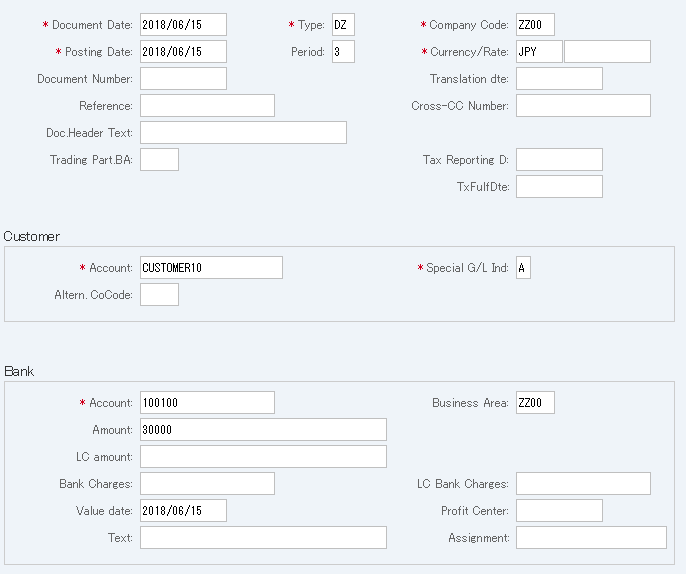
Screen 1:
Operation Process:
| 1. | {{Document Date}} | Enter any given date. (Used as a memo) | |
| 2. | {{Type}} | Enter a code categorizing the document. (Ex. 'DZ': Incoming payment from customer) | |
| 3. | {{Company Code}} | Enter the Company number of the company that controls the document. (Usually your company code) | |
| 4. | {{Posting Date}} | Enter the date under which the document is to be controlled. (Ex. If the document is for April, 2016, enter '2016.04.xx') | |
| 5. | {Period} | Enter the Fiscal period under which the document is to be controlled. (This will be calculated automatically based on the posting date) |
|
| 6. | {{Currency}} | The Currency code for controlling the item values. The code must be changed if foreign currency is entered. (Ex. 'JPY': Japanese yen) |
|
| 7. | {Rate} | Enter the Rate if foreign currency is entered. (This option is not necessary if home currency is used) | |
| 8. | {Doc.Header Text} | Enter the summary of the document. | |
Customer |
|||
| 9. | {{Account}} | Enter the Customer account. | |
| 10. | {{Special G/L Ind}} | Enter an indicator of the down payment received. (Ex. 'A': Down payment made) | |
Bank |
|||
| 11. | {{Account}} | Enter the Account number of the bank where the down payment was received. (Ex. '100100': current deposit) | |
| 12. | {{Business Area}} | Enter the Business area for the line item. | |
| 13. | {{Amount}} | Enter the amount for the line item. | |
| 14. | {{Value date}} | Enter the date on which the down payment was received by the bank. | |
| 15. |  |
Click [Requests]. | |
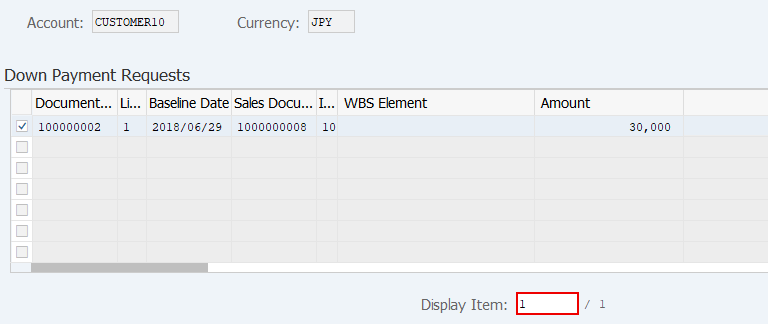
Screen 2:
Operation Process:
| 1. | Select the corresponding item. | ||
| 2. |  |
Click [Create down payments]. |
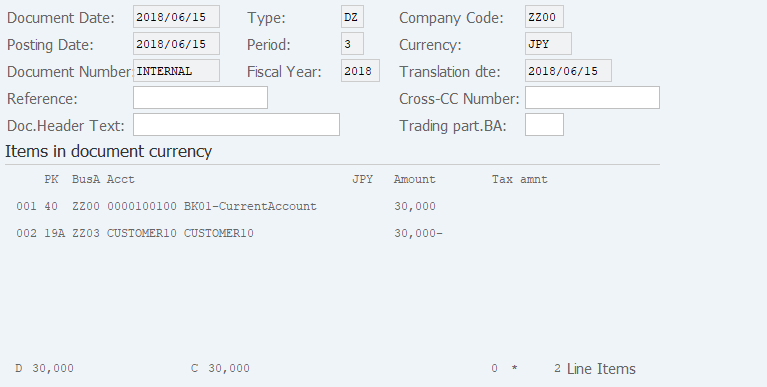
Screen 3:
Operation Process:
| 1. | Check the line item. | ||
| 2. |  |
Click [Post]. |
Remarks:
| 1. | The down payment created upon creation of sales from Sales must be reconciled. |
Copyright(c) MITSUI KINZOKU YOURSOFT Inc.