Back to Menu No.02-01-03
Down Payment - Posting (F-29)
Menu: Accounting > Financial Accounting > Accounts Receivable > Document Entry > Down Payment > Down Payment
Process Overview: Post the down payment from customer.
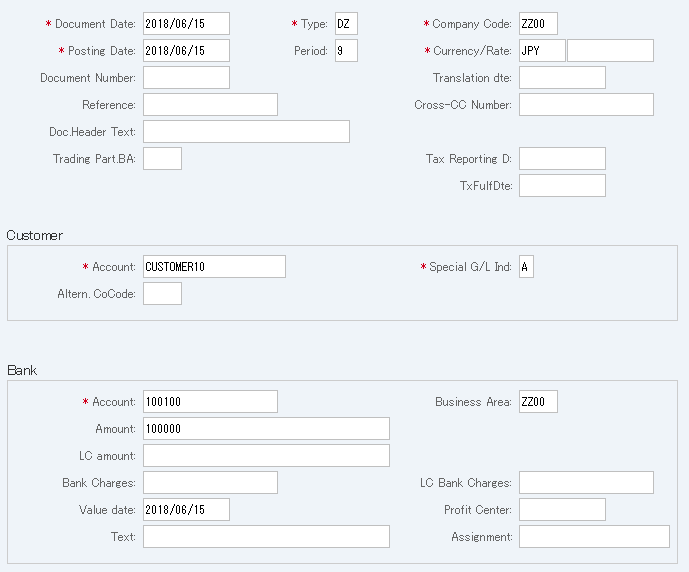
Screen 1:
Operation Process:
| 1. | {{Document Date}} | Enter any date. (Used as a substitute for a memorandum.) | |
| 2. | {{Type}} | Enter the code for classifying the document. (Ex. 'DZ' customer incoming payment) | |
| 3. | {{Company Code}} | Enter the Company code for managing the document. (Normally, own company code) | |
| 4. | {{Posting Date}} | Enter the document management date. (Ex. Enter '2000.04.xx' for the document of April 2000.) | |
| 5. | {Period} | Enter the Accounting period for managing the document. (Calculated automatically based on the posting date) | |
| 6. | {{Currency}} | Enter the Currency code for managing the item amount. Change if the operation is a foreign currency entry. (Ex. 'JPY' Japanese Yen) |
|
| 7. | {Rate} | Enter the Rate when entering a foreign currency. (Not required for the local currency) | |
| 8. | {Doc. Header Text} | Enter the document abstract. | |
| Customer | |||
| 9. | {{Account}} | Enter the Customer code. | |
| 10. | {{Special G/L Ind}} | Enter the code for checking the down payment processing. (Ex. 'A' Down payment/Prepayment) | |
| Bank | |||
| 11. | {{Account}} | Enter the Account code of the bank from which down payment is received. (Ex. '100100' Checking account) | |
| 12. | {{Business Area}} | Enter the Business area of the item. | |
| 13. | {{Amount}} | Enter the item amount. | |
| 14. | {{Value date}} | Enter the date when the bank received the money. | |
| 15. | Press [Enter] key. | ||
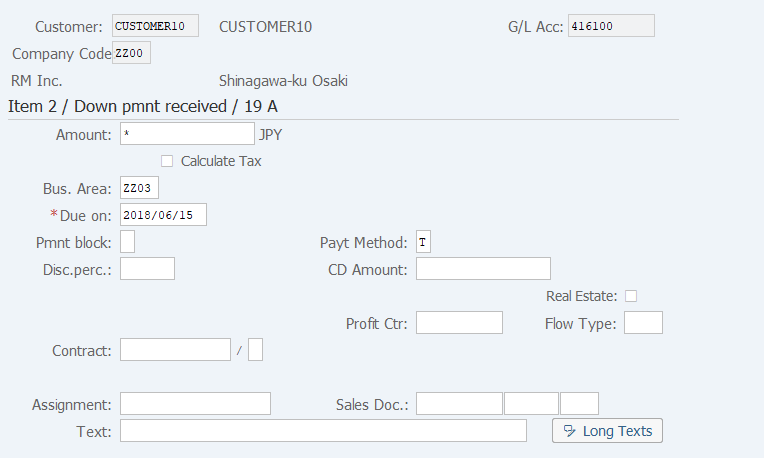
Screen 2:
Operation Process :
| 1. | {{Amount}} | Enter the item amount. (Ex. When '*' is entered, a balance amount is calculated automatically.) | |
| 2. | {{Bus. Area}} | Enter the Business area for the item. | |
| 3. | {{Due on}} | Enter the date used for the period of cash discount date and net payment amount. | |
| 4. |  |
Click [Display Document Overview]. |
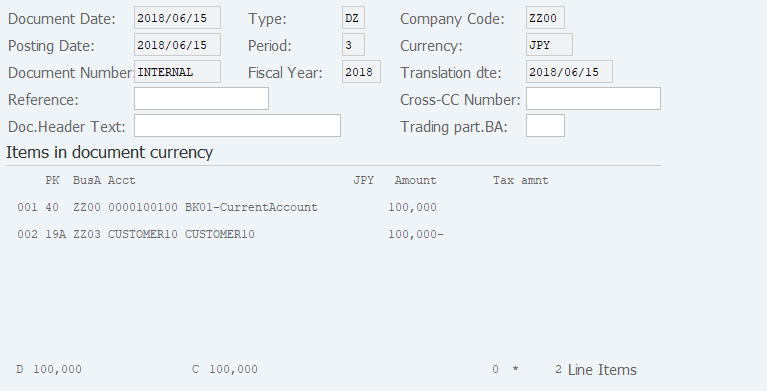
Screen 3:
Operation Process :
| 1. | Check the item. | ||
| 2. |  |
Click [Post]. |
Copyright(c) MITSUI KINZOKU YOURSOFT Inc.