Back to Menu No.03-01-01
Enter Vendor Invoice (F-43)
Menu: Accounting > Financial Accounting > Accounts Payable > Document Entry > Invoice - General
Process Overview: Post a document for Payable which is not from MM (Material Management)
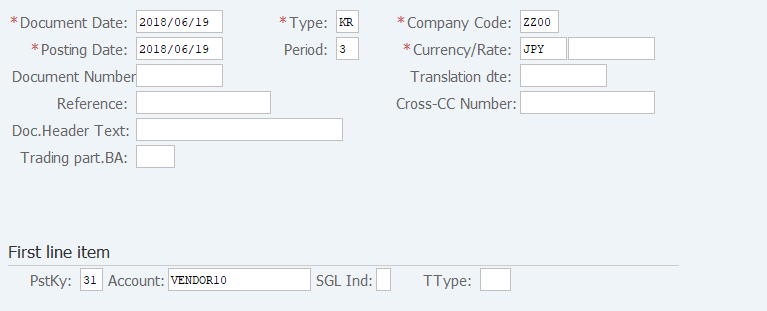
Screen 1: Enter Header info. & Posting Key of the first item, Account code(Vendor code).
Operation Process:
| 1. | {{Document Date}} | Enter any date. (Used as a substitute for a memorandum.) | |
| 2. | {{Type}} | Enter the code for classifying the document. (Ex. 'KR' Vendor invoice) | |
| 3. | {{Company Code}} | Enter the Company code for managing the document. (Normally, own company code) | |
| 4. | {{Posting Date}} | Enter the document management date. (Ex. Enter '2016.04.xx' for the document of April 2016.) | |
| 5. | {Period} | Enter the Accounting period for managing the document. (Calculated automatically based on the posting date) | |
| 6. | {{Currency}} | Currency code for managing the item amount. Change if the operation is a foreign currency entry. (Ex. 'JPY' Japanese Yen) | |
| 7. | {Rate} | Enter the Rate when entering a foreign currency. (Not required for the local currency) | |
| 8. | {Doc. Header Text} | Enter the document abstract. (Ex. 'Payment for month XX') | |
| First line item | |||
| 9. | {{PstKy}} | Enter the item management key of the 1st item. (Ex. '31' Invoice) | |
| 10. | {{Account}} | Enter the Vendor account of the 1st item. | |
| 11. | Press [Enter] key. | ||
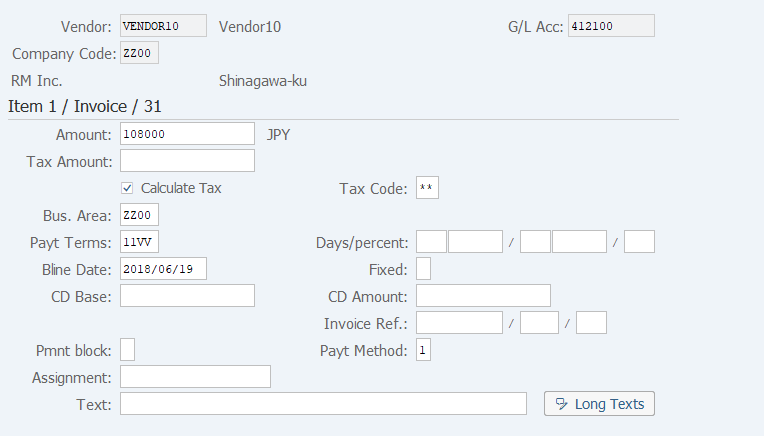
Screen 2: Enter the amount, organizational info, to the first item.
Operation Process:
| 1. | {{Amount}} | Enter the payment amount. | |
| 2. | {Calculate tax} | Select when calculating a consumption tax automatically. | |
| 3. | {{Bus. Area}} | Enter the Business area code for managing the item. | |
| 4. | {{Bline Date}} | Enter the payment baseline date. | |
| 5. | {Pmt Method} | Enter the Payment method. (Ex. 'T' Domestic bank transfer) | |
| 6. |  |
Click [Display Additional Data for Document Item]. |
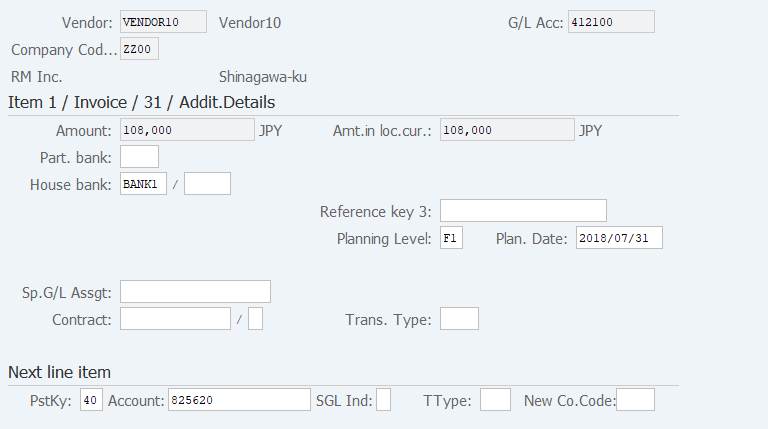
Screen 3: Enter an addition info for the First item & Posting key, Account code for the Second item..
Operation Process:
| 1. | {House Bank} | Enter the drawing bank code. | |
| Next line item | |||
| 2. | {{PstKy}} | Enter the Posting key of the next item. (Ex. '40' Debit entry, '50' Credit entry) | |
| 3. | {{Account}} | Enter the Account code of the next item. (Enter if the payment is to be made by other account than firm's own main account.)) | |
| 4. | Press [Enter] key. | ||
Supplement:
| 1. | The House Bank ID can be set in the Vendor master in advance. If the ID is entered in both the Vendor master and document item, the value entered in the document item is used. |
|
| 2. | If no House Bank ID is entered, the payment will be made from the main account. |
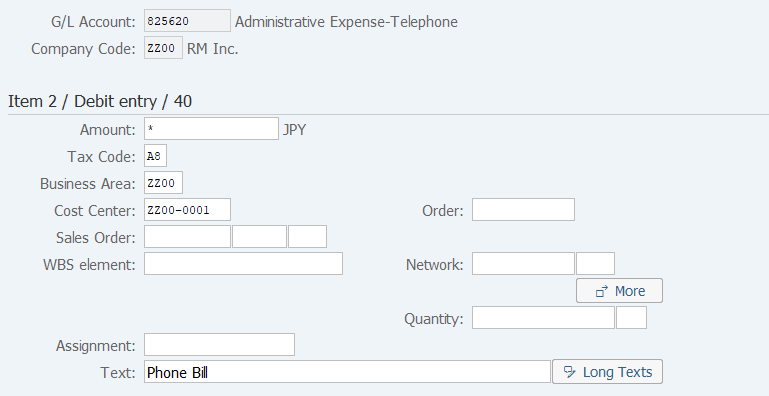
Screen 4: Enter amount, organizational info. For the Second item.
Operation Process:
| 1. | {{Amount}} | Enter the item amount. | |
| 2. | {{Tax Code}} | Enter the consumption tax code. | |
| 3. | {{Cost Center}} | Enter the Cost center. (Organization that manages the cost) | |
| 4. | {Text} | Enter the item abstract. | |
| 5. |  |
Enter the item abstract. Click [Display Document Overview]. |
Remarks:
| 1. | When there are three or more items, click the posting key of the next item, enter an account, and repeat the procedure. |
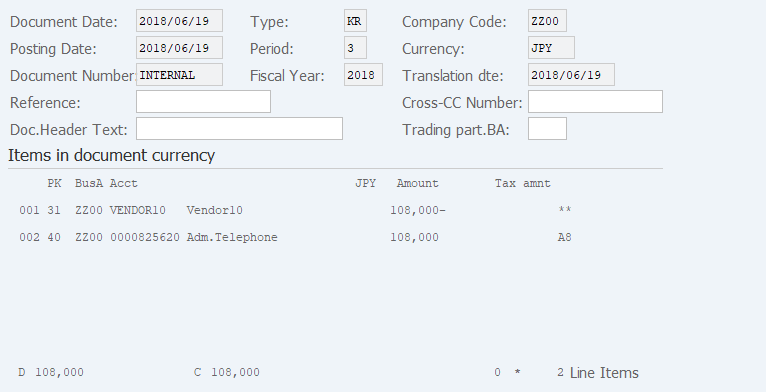
Screen 5: Confirm the entry before saving.
Remarks:
| 1. | Check the overview of the document. | |
| 2. | When changing an item, double-click on the item and make a necessary change. |
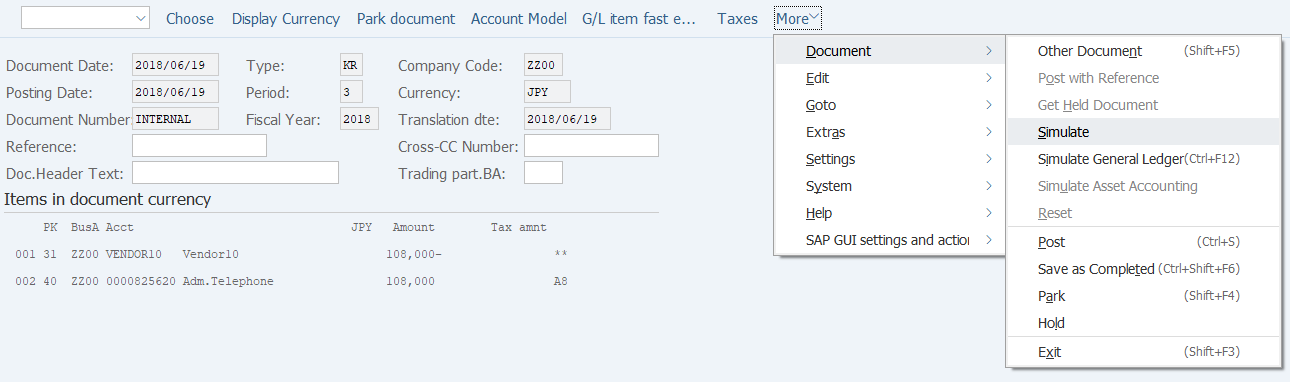
Screen 6: You can confirm the journal before saving it by running a simulation
Operation Process:
| 1. | Menu: More > Document > Simulate (The document overview to be posted can be checked through simulation.) |
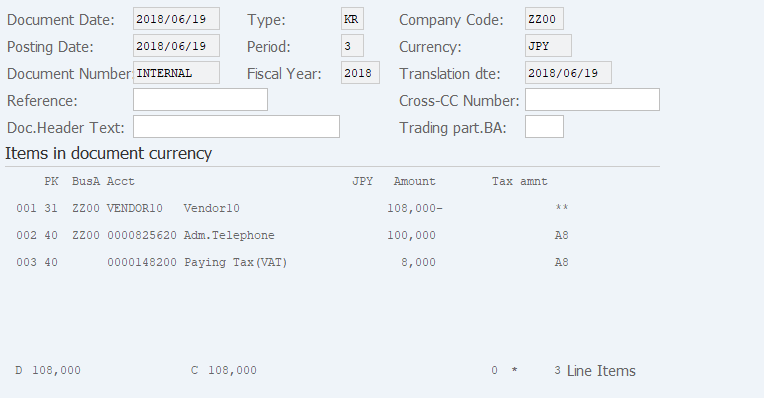
Screen 7: Confirm the entry before saving (Especially Tax amount).
Operation Process:
| 1. | Check the document overview. | ||
| 2. |  |
Click [Post]. |
Remarks:
| 1. | When automatic tax calculation is selected, a tax account is added to the item. Check the amount. |

Copyright(c) MITSUI KINZOKU YOURSOFT Inc.