Back to Menu No.03-01-04
Withholding Tax Document (F-43)
Menu: Accounting > Financial Accounting > Accounts Payable > Document Entry > Invoice - General
Process Overview: Post a document subject to withholding tax.
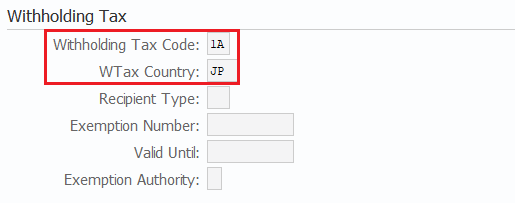
Prerequisite: The Company number must be entered in the vendor master and the withholding tax code must be entered in the Accounting info view.
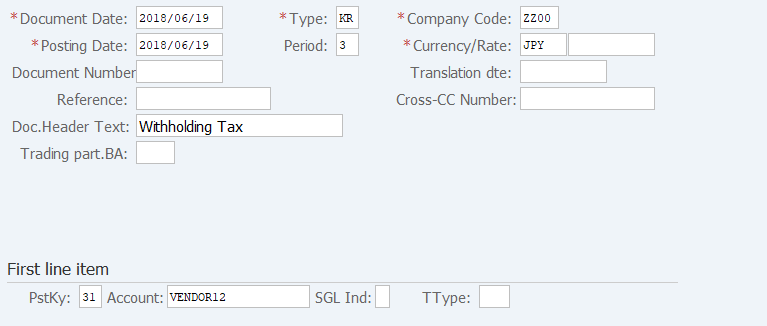
Screen 1: Enter Header info. & Posting Key of the first item, Vendor code
Operation Process:
| 1. | {{Document Date}} | Enter any date. (Used as a substitute for a memorandum.) | |
| 2. | {{Type}} | Enter the code for classifying the document. (Ex. 'KR' Vendor invoice) | |
| 3. | {{Company Code}} | Enter the Company code for managing the document. (Normally, own company code) | |
| 4. | {{Posting Date}} | Enter the document management date. (Ex. Enter '2016.04.xx' for the document of April 2016.) | |
| 5. | {Period} | Enter an accounting period for managing the document. (Calculated automatically based on the posting date) | |
| 6. | {{Currency}} | Currency code for managing the item amount. Change if the operation is a foreign currency entry. (Ex. 'JPY' Japanese Yen) | |
| 7. | {Rate} | Enter the Rate when entering a foreign currency. (Not required for the local currency) | |
| 8. | {Doc. Header Text} | Enter the document abstract. (Ex. 'Payment for month XX') | |
| First line item | |||
| 9. | {{PstKy}} | Enter the Item management key of the 1st item. (Ex. '31' Invoice) | |
| 10. | {{Account}} | Enter the Vendor account of the 1st item. | |
| 11. | Press [Enter] key. | ||
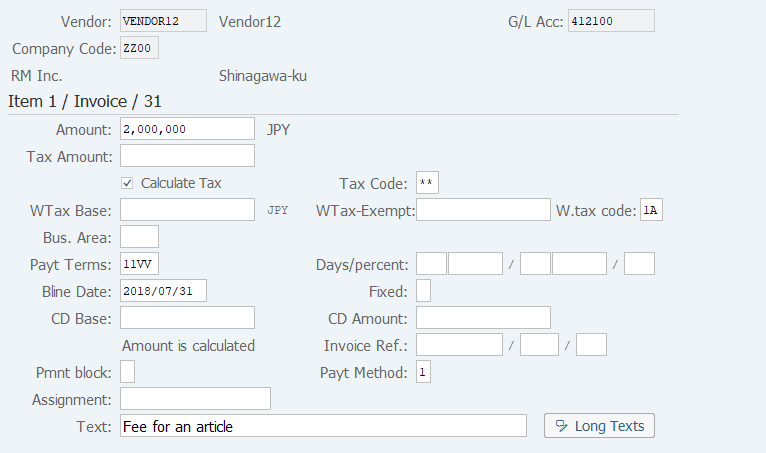
Screen 2: Enter the amount, organizational info, to the first item
Operation Process:
| 1. | {{Amount}} | Enter the payment amount. | |
| 2. | {Calculate tax} | Select when calculating a consumption tax automatically. | |
| 3. | {{WTax Base}} | Enter the amount subject to Withholding tax. (Usually this is the same as the amount) | |
| 4. | {WTax-Exempt} | Enter the amount not subject to Withholding, if such amount is included. | |
| 5. | {{W.tax code}} | Enter the Withholding tax code. (Ex. '1A': fee for an article, '2A': lawyer) | |
| 6. | {{Bus. Area}} | Enter the Business area code for managing the item. | |
| 7. | {{Bline Date}} | Enter the payment baseline date. | |
| 8. | {Payt Method} | Enter the Payment method. (Ex. 'T' Domestic bank transfer) | |
| 9. |  |
Click [Display Additional Data for Document Item]. |
Remarks:
| 1. | The withholding tax for the vendor master will be displayed by default. Change the displayed value as necessary. | |
| 2. | To exempt this document from withholding tax, leave both the withholding tax basis field and withholding tax field blank. |
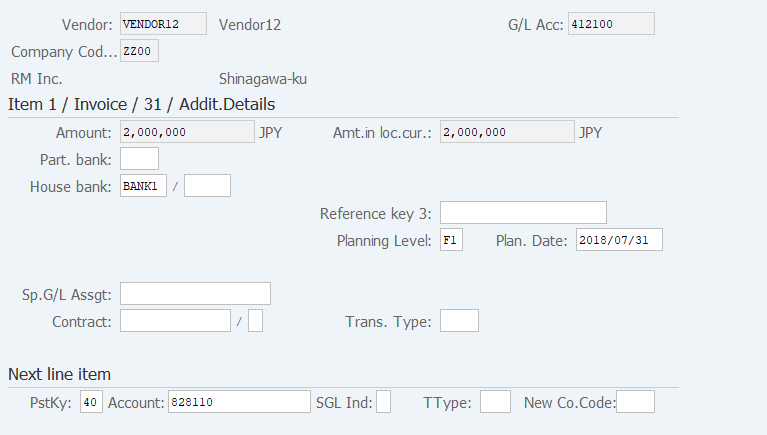
Screen 3: Enter an additional info for First item, Posting key & Account code for the Second item.
Operation Process:
| 1. | {House bank} | Enter the drawing bank code. | |
| Next line item | |||
| 2. | {{PstKy}} | Enter the Posting key of the next item. (Ex. '40' Debit entry, '50' Credit entry) | |
| 3. | {{Account}} | Enter the Account code of the next item. | |
| 4. | Press [Enter] key. | ||
Screen 4: Enter amount, organizational info. For the Second item.
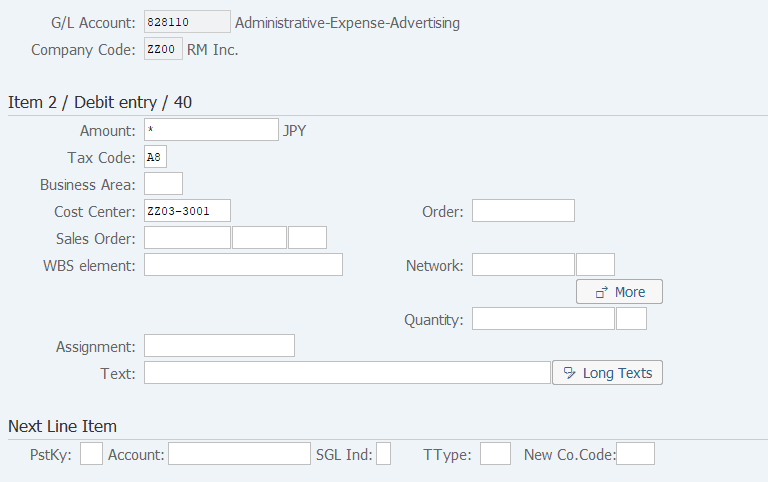
Operation Process:
| 1. | {{Amount}} | Enter the item amount. | |
| 2. | {{Tax Code}} | Enter the consumption tax code. | |
| 3. | {{Cost Center}} | Enter the Cost center. (Organization that manages the cost) | |
| 4. | {Text} | Enter the item abstract. | |
| 5. |  |
Enter the item abstract. Click [Display Document Overview]. |
Remarks:
| 1. | When there are three or more items, click the posting key of the next item, enter an account, and repeat the procedure. |
Screen 5: You can confirm the journal before saving it by running a simulation
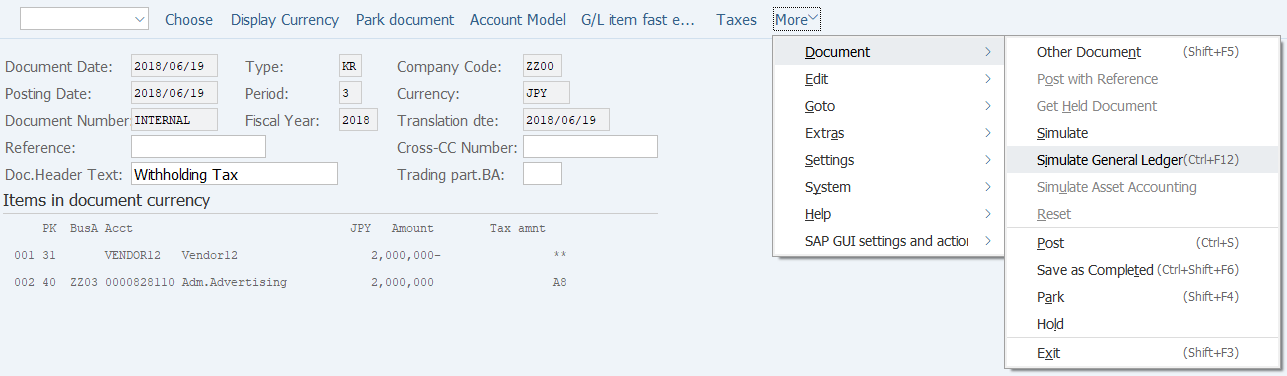
Operation Process:
| 1. | Menu: More > Document > Simulate (The document overview to be posted can be checked through simulation.) |
Screen 6: Post the document after the confirmation.
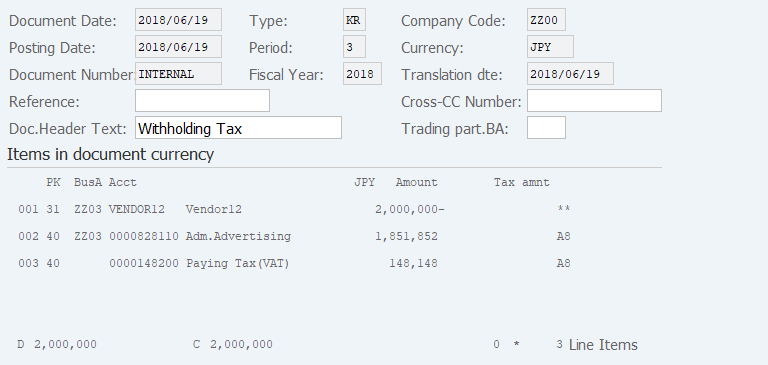
Operation Process:
| 1. | Check the document overview. | ||
| 2. |  |
Click [Post]. |
Remarks:
| 1. | When automatic tax calculation is selected, a tax account is added to the item. Check the amount. |

Supplement:
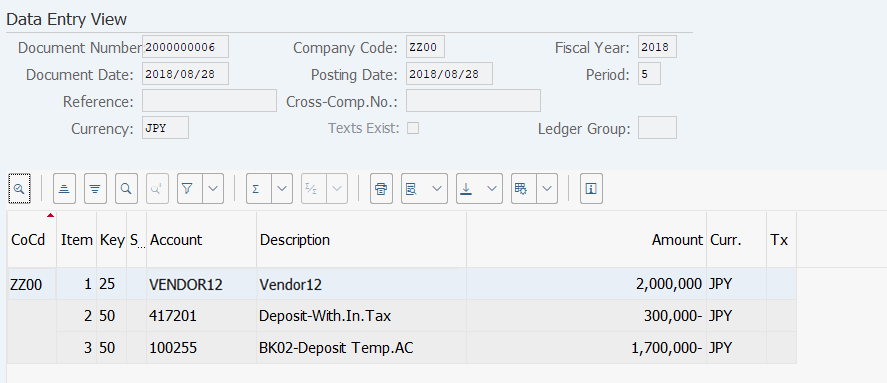
| 1. | The withholding tax amount is calculated as part of the automatic payment processing (F110). |
Calculation results:
Copyright(c) MITSUI KINZOKU YOURSOFT Inc.