Back to Menu No.03-03-02
Clear Open Item by Vendor (F-44)
Menu: Accounting > Financial Accounting > Accounts Payable > Account > Clear
Process Overview: Clear the open debt by Vendor.
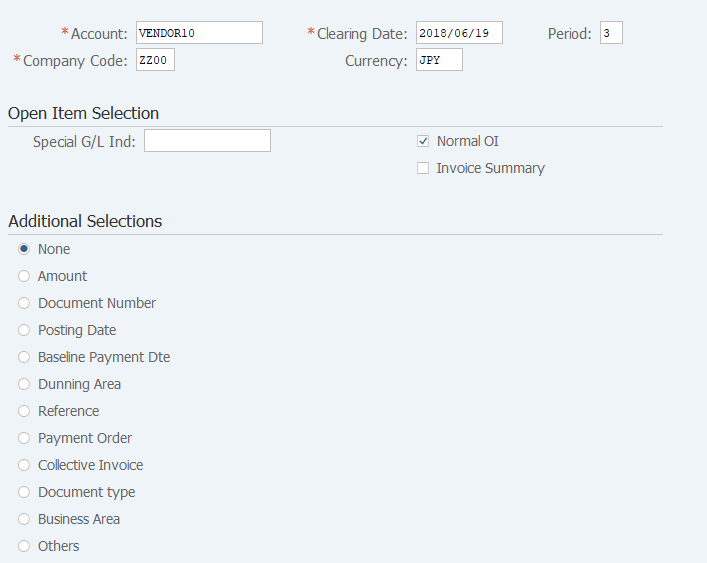
Screen 1:
Operation Process:
| 1. | {{Account}} | Enter the Vendor account of the account to be cleared. | |
| 2. | {{Clearing Date}} | Enter the Clearing date. | |
| 3. | {{Company Code}} | Enter the Company code for managing the document. (Normally, own company code) | |
| 4. | {{Currency}} | Enter the Currency code for managing the item amount. Change if the operation is a foreign currency entry. (Ex. 'JPY' Japanese Yen) |
|
Open item selection |
|||
| 5. | {Special G/L Ind} | Enter when extracting the items processed by Special G/L. (Ex. Payment due 'N') | |
| 6. | {Normal OI} | Check this option when displaying an item that does not use Special G/L. | |
| 7. |  |
Click [Process open items]. | |
Remarks:
| 1. | When selecting an extraction condition, select [Additional selections]. |
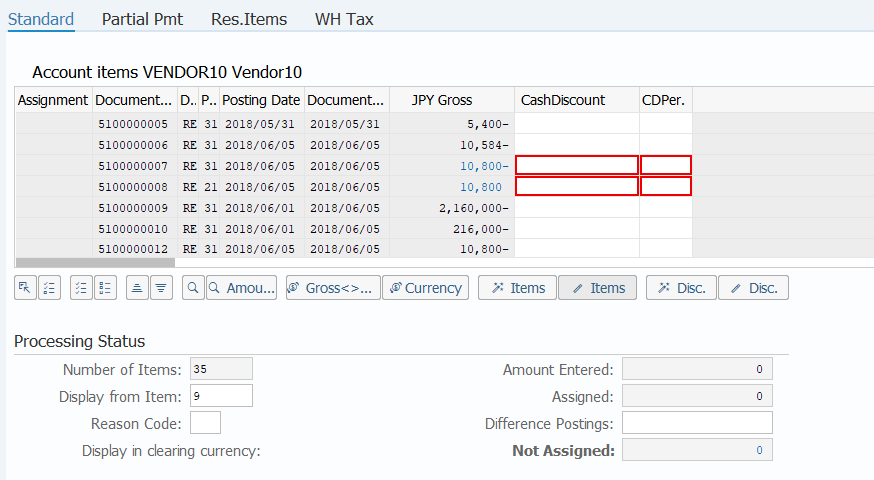
Screen 2:
Operation Process:
| 1. | {{JPY Gross}} | Double-click on the 'JPY Gross' amount of the document and select an item. (The selected item is displayed in blue.) | |
| 2. | {{Not Assigned}} | Check that the clearing amount and assigned amount match (Not assigned is '0'). | |
| 3. |  |
Click [Post]. |
Supplement :
| 1. | When the document number is double-clicked, the item overview can be checked. | |
| 2. | The item field that is displayed on the screen varies according to the setting described in the manual "02-02-08 Change Incoming Payment Adjustment Item Layout" (FB00). |
Copyright(c) MITSUI KINZOKU YOURSOFT Inc.