Back to Menu No.03-01-02
Enter Vendor Invoice (Enjoy) (FB60)
Menu: Accounting > Financial Accounting > Accounts Payable > Document Entry > Invoice
Process Overview: Post a document for Payable which is not from MM (Material Management)
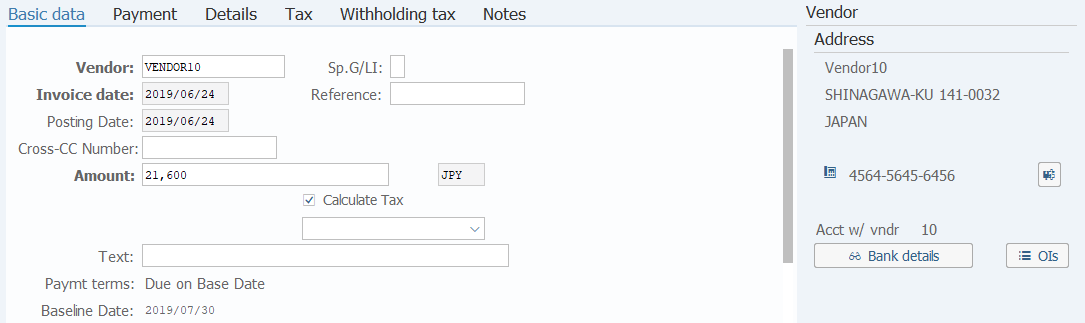
Screen 1:
Operation Process:
| 1. | {{Vendor}} | Enter the Vendor account for reporting debt. | |
| 2. | {{Invoice date}} | Enter any date. (Used as a substitute for a memorandum) | |
| 3. | {{Posting Date}} | Enter the document posting date. (Ex. Enter '2016.05.xx' for the document of May 2016.) | |
| 4. | {{Amount}} | Enter the debt amount. | |
| 5. | {{Currency}} | Currency code for managing the document. Change if the operation is a foreign currency entry. (Ex. 'JPY' Japanese Yen) | |
| 6. | {Calculate Tax} | Select when a consumption tax is calculated automatically. | |
| 7. | {Text} | Enter the debt item abstract. | |
| 8. |  |
Select the [Payment] tab. |
Supplement:
| 1. | The contents of the vendor master can be checked on the right side of the screen. |
Screen 2:
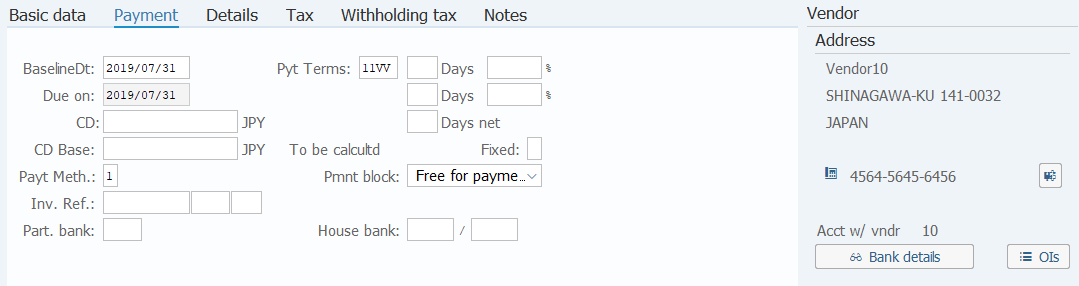
Operation Process:
| 1. | {{Baseline Dt}} | Enter the Baseline date. | |
| 2. | {Pmnt block} | Enter when blocking payment. (Ex. 'Payment block') | |
| 3. | {{Payt Meth}} | Enter the Payment method. (Ex. 'T' Transfer payment) | |
| 4. |  |
Select the [Details] tab. |
Screen 3:
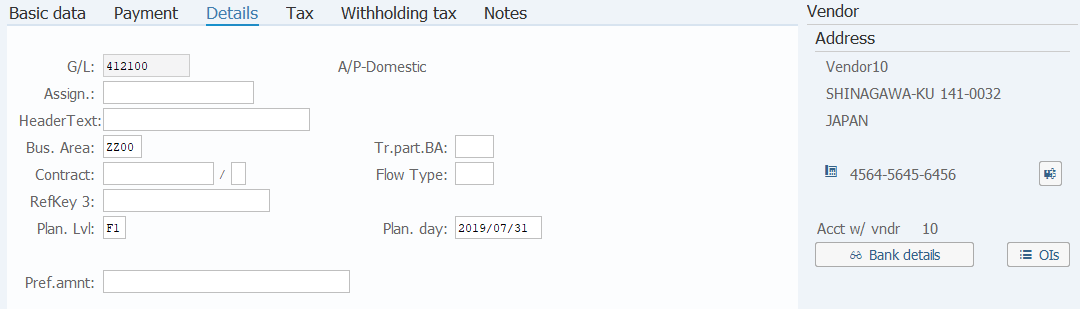
Operation Process:
| 1. | {Assign.} | Enter the sort key for the debt item. | |
| 2. | {Header Text} | Enter the document abstract. | |
| 3. | {{Bus. Area}} | Enter the Business area of the debt item. |
Screen 4:

Operation Process:
| 1. | {{G/L acct}} | Enter the Account code for the item. | |
| 2. | {{D/C}} | Enter the Debit/Credit for the item. | |
| 3. | {{Amount in doc. curr. }} | Enter the Amount of the item. | |
| 4. | {Tax code} | Enter the consumption tax code for the item. (Ex. 'A8' Taxable purchase applied to the taxable sales only 8%) | |
| 5. | {Business Area} | Enter the Business area for the item. | |
| 6. | {{Cost center}} | Enter the Cost center for the item. | |
| 7. |  |
Click [Simulate Document Posting]. |
Supplement:
| 1. | The mandatory/option condition of the entry field varies according to the account. (The field output to the screen varies according to the setting.) | |
| 2. | If the sign in the amount information column is not  , the document is incomplete. Change or add the necessary field or value. , the document is incomplete. Change or add the necessary field or value. |
Screen 5:
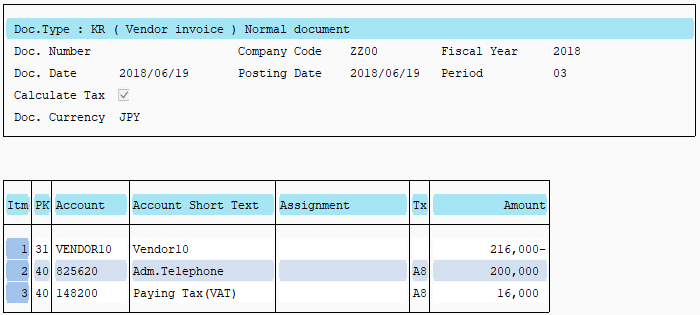
Operation Process:
| 1. |  |
Click [Post]. |
Remarks:
| 1. | After taxable amount automatic calculation is selected, a tax account is added to the item after simulation. Check the amount. |

Copyright(c) MITSUI KINZOKU YOURSOFT Inc.