Back to Menu No.02-04-02
Customer Item List (FBL5N)
Menu: Accounting > Financial Accounting > Accounts Receivable > Account > Display/Change Line Items
Process Overview: Display an item list (cleared/open selection) by Customer (drill-down report).
Reference here when searching by specifying an amount.
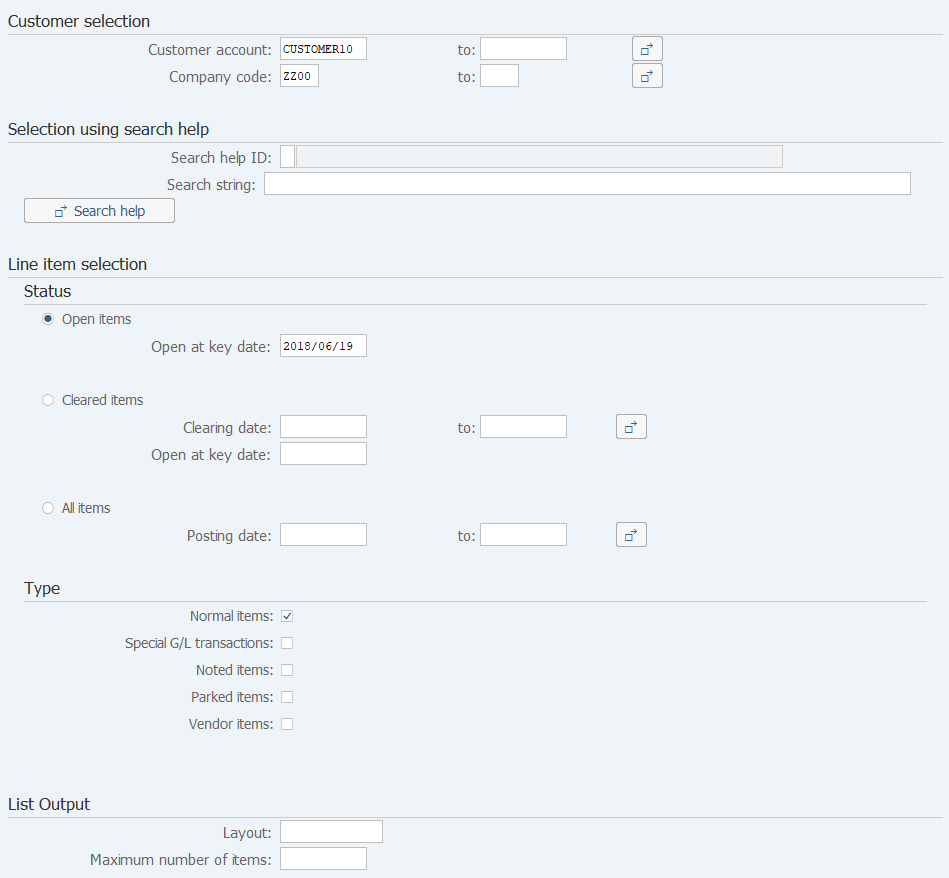
Screen 1:
Operation Process:
| Customer selection | |||
| 1. | {{Customer account}} | Enter the Customer account to be displayed. | |
| 2. | {{Company code}} | Enter the Company code to be displayed. | |
| Line item selection | |||
| Status | |||
3. |
{Open items} | Specify when creating a open item list. | |
| {Cleared items} | Specify when creating a cleared item list. | ||
| {All items} | Specify when creating a list of both open and cleared items. | ||
| Type | |||
4. |
{Normal items} | Select the Normal item. | |
| {Special G/L transactions} | Select the item posted using Special G/L. | ||
| {Noted items} | Select an item which was created from SD 'Advance billing'. | ||
| {Parked items} | Select when extracting parked document items. | ||
| {Vendor items} | Select vendor items also. (Only when the customer master vendor is set.) | ||
| 5. |  |
Click [Execute]. | |
Remarks:
| 1. | Select one or more [Type]. (Multiple types can be selected.) | |
| 2. | Enter a date of each processing for [Status]. | |
| (Enter the Baseline date for an Open item, the Baseline date or the Clearing date for a Cleared item, and the Posting date for All items.) |
Screen 2:
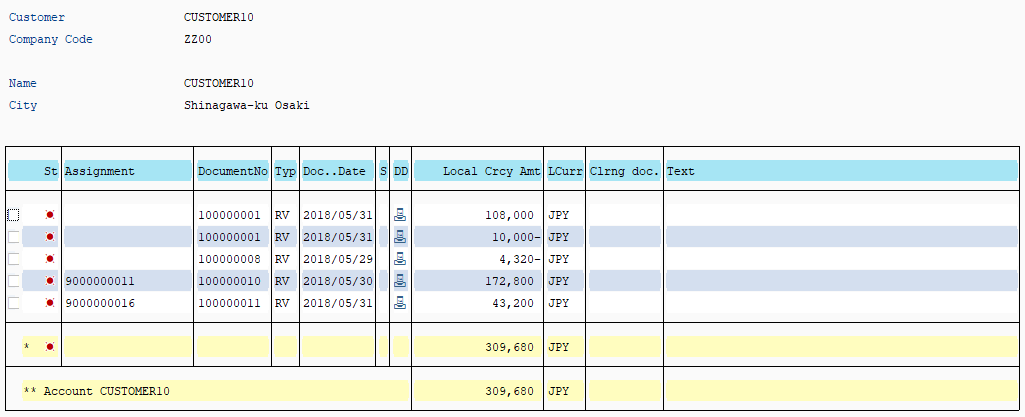
Operation Process:The following procedure is for changing the layout of an item list. (Add the baseline date to the item.)
| 1. |  |
Click [Change layout]. |
Screen 3:
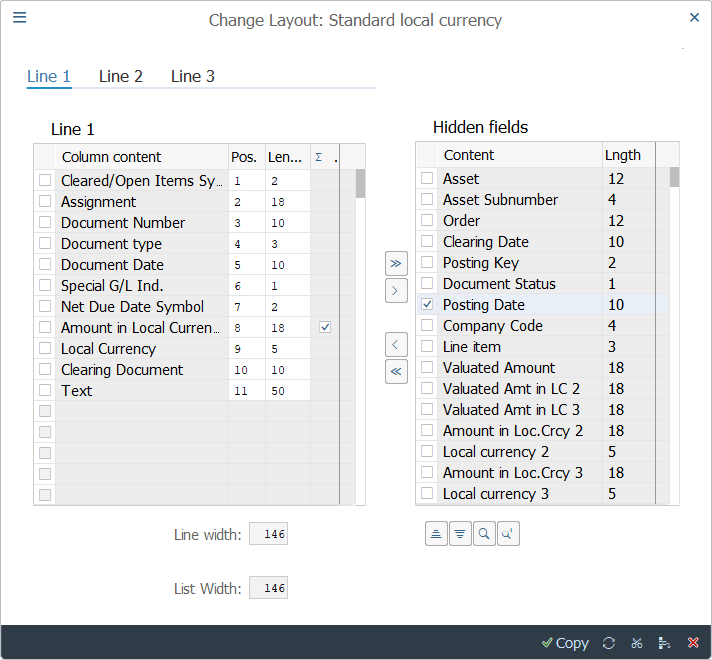
Operation Process:
| 1. | Select the item to be added to the layout from the non-display item. (Click on the item.) | ||
| 2. |  |
Click [Show Sel. Fields]. | |
| 3. |  |
When [Copy] is click, the layout changes. |
Supplement:
| 1. | When Operation Process 1 is performed, the entire color of the selected field changes. | |
| 2. | The field is added to the end of the layout. When changing the sequence, enter the position and change the sequence. | |
| Ex. Change the clearing document position to 11 and item text to 12 and insert the baseline date to 10. |
Screen 4:
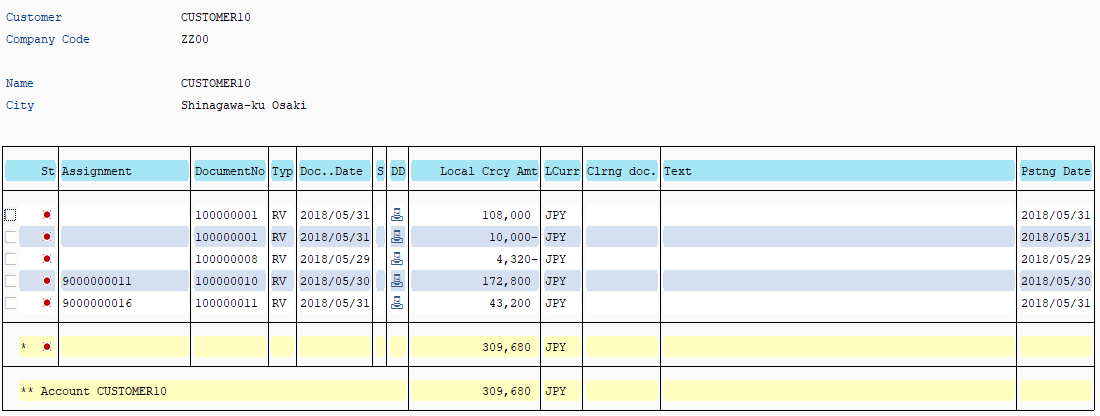
Supplement:
| 1. | Document numbers can be sorted and aggregation by date can be performed for an item list. Refer to the manual "Others 01-10 SAP ERP Useful function 7". |
Searching by specifying the amount
Screen 1:
Operation Process:
| 1. |  |
Click [Dynamic selections]. |
Screen 2:

Operation Process:
| 1. | Select [Amount in LC]. | ||
| 2. |  |
Click [Copy selected]. |
Screen 3:

Operation Process:
| 1. |  |
Click [Multiple selections] that is provided next to the 'Amount in LC' field that was added. |
Screen 4:
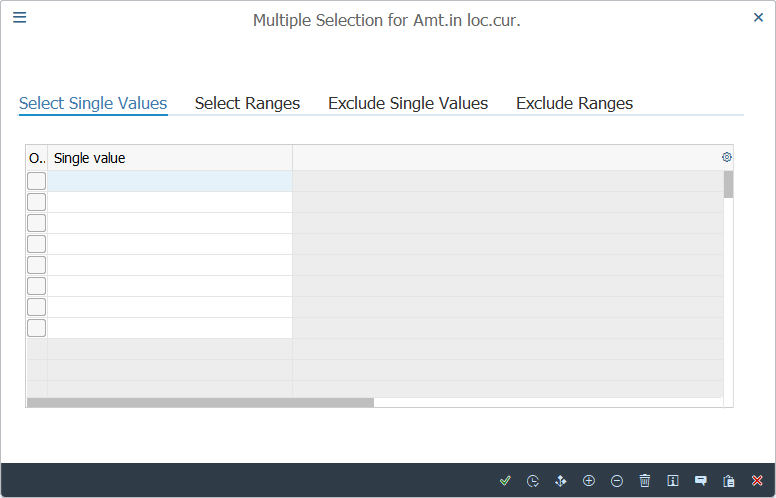
Operation Process:
| 1. |  |
Select [Select Ranges] tab. |
Screen 5:
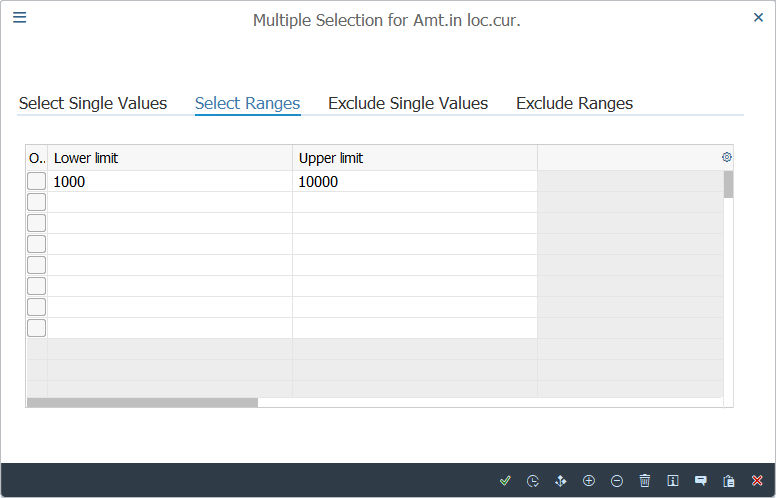
Operation Process:
| 1. | An amount range can be specified. | |||
| 2. |  |
Click [Copy]. | ||
Screen 6:

Operation process:
| 1. | Check that the color of the button is changed. | ||
| 2. | |
Click [Execute]. Search is executed. |
Copyright(c) MITSUI KINZOKU YOURSOFT Inc.