Back to Menu No.01-02-02
Post with Reference (FBR2)
Menu: Accounting > Financial Accounting > General Ledger > Document Entry > General Posting
Process Overview: Post a accounting document by copying from Posted document or Sample document.
Screen 1:
Operation Process:
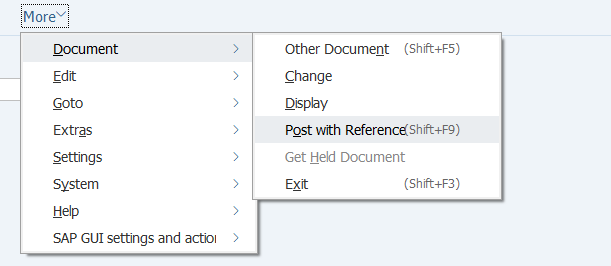
| 1. | Menu: More > Document > Post with Reference |
Screen 2:
Operation Process:
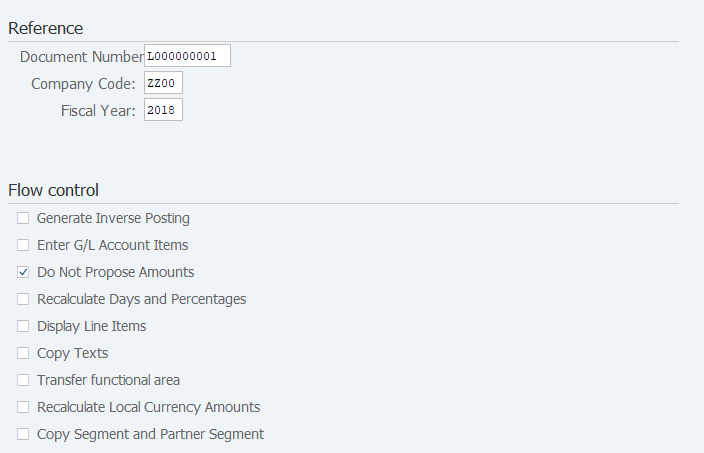
Reference |
|||
| 1. | {{Document Number}} | Enter the Document number to be referenced and posted. (To reference a model document, enter the model document number.) |
|
| 2. | {{Company Code}} | Enter the Company code of the document to be referenced and posted. | |
| 3. | {{Fiscal Year}} | Enter the Fiscal year of the document to be referenced and posted. | |
Flow control |
|||
| 4. | Select a necessary field. (Even if a field is not selected, a document can be referenced and posted.) | ||
| {Generate Inverse Posting} | The debit and credit of the necessary field are reversed. | ||
| {Enter G/L Account Items} | Each item is displayed, enabling changes. | ||
| {Do Not Propose Amounts} | The item amount of the document that is referenced is not copied. | ||
| {Recalculate Days and Percentages} | The field of the document item (number of days and rate) is re-calculated based on the posting date and copied. | ||
| {Display Line Items} | The copied item is displayed on the individual screen. | ||
| {Copy Texts} | All the texts of the referenced document are copied. | ||
| 5. | Press [Enter] key. | ||
Screen 3:
Operation Process:
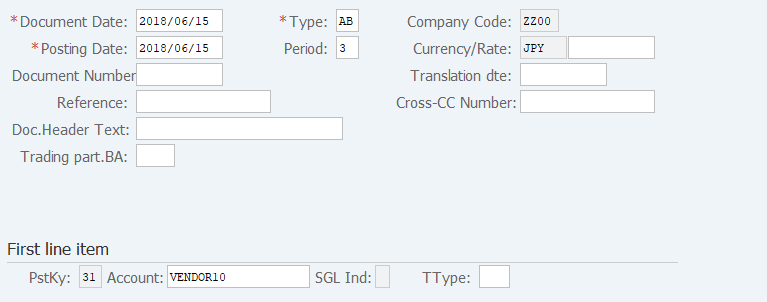
| 1. | Change the field to be modified. | ||
| 2. | Press [Enter] key. |
Remarks:
| 1. | Since the document is copied including the Posting date, change the date to an appropriate date. |
Screen 4:
Operation Process:
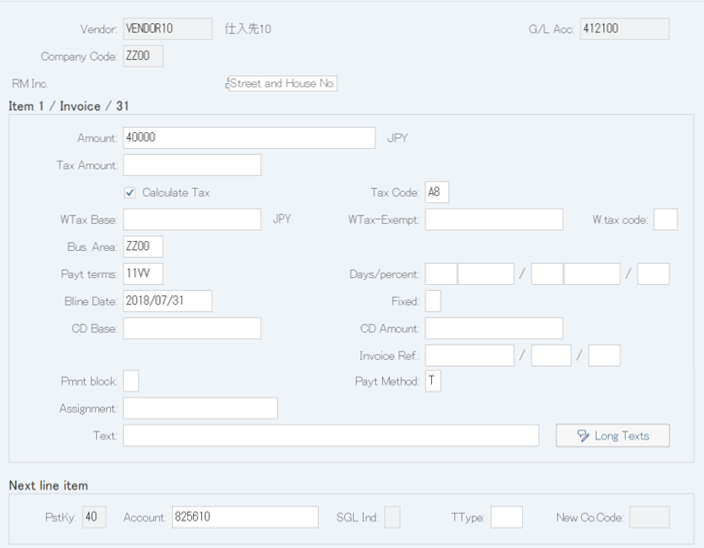
| 1. | {{Amount}} | Enter the item amount. | |
| 2. | Change the item to be modified. | ||
| 3. | Press [Enter] key. |
Screen 5:
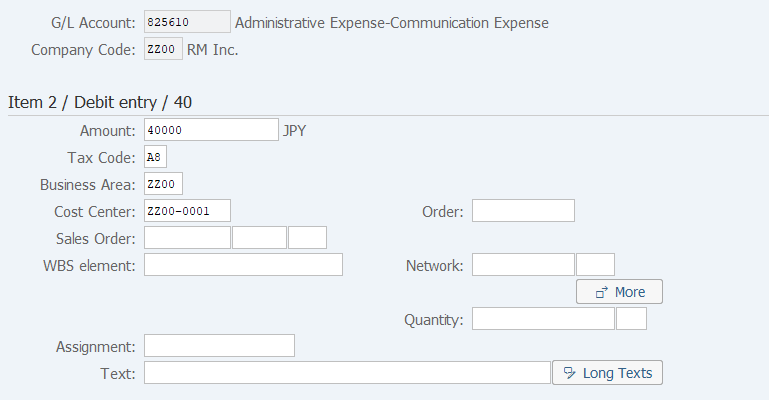
Operation Process:
| 1. | {{Amount}} | Enter the item amount. (For a final item, when '*' is entered, the balance amount is automatically input.) | |
| 2. | Change the field to be modified. | ||
| 3. |  |
Click [Display Document Overview]. |
Screen 6:
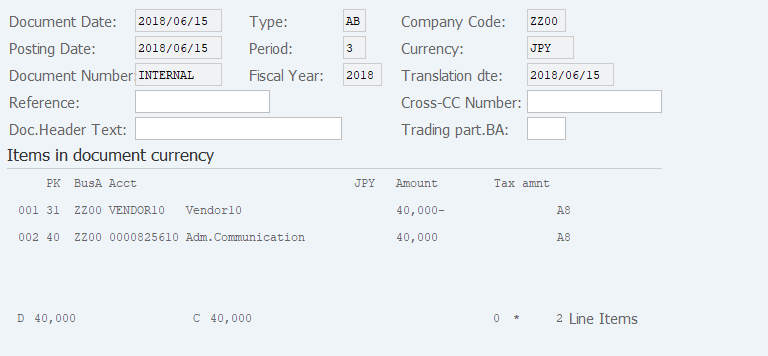
Operation Process:
| 1. | Menu: More > Document > Simulate (The document overview to be posted can be checked through simulation.) | ||
| 2. |  |
Click [Post]. |
Remarks:
| 1. | When tax amount calculation is selected, a tax item is added to the item. Check the amount. |
Copyright(c) MITSUI KINZOKU YOURSOFT Inc.