
Reset Cleared Item (FBRA)
Menu: Accounting > Financial Accounting > General Ledger > Document > Reset Cleared Items
Process Overview: Cancel clearing process and post the reverse document against the clearing document
Screen 1:
Operation Process:
| 1. | {{Clearing Document}} | Enter the Document number of the clearing document to be reset. | |
| 2. | {{Company Code}} | Enter the Company code of the clearing document to be reset. (Normally, company code of own company) | |
| 3. | {{Fiscal Year}} | Enter the Fiscal year of the clearing document to be reset. | |
| 4. |  |
Click [Items]. |
Remarks:
| 1. | Click  [Reset cleared items] to execute the processing without confirming the document. [Reset cleared items] to execute the processing without confirming the document. |
Screen 2:
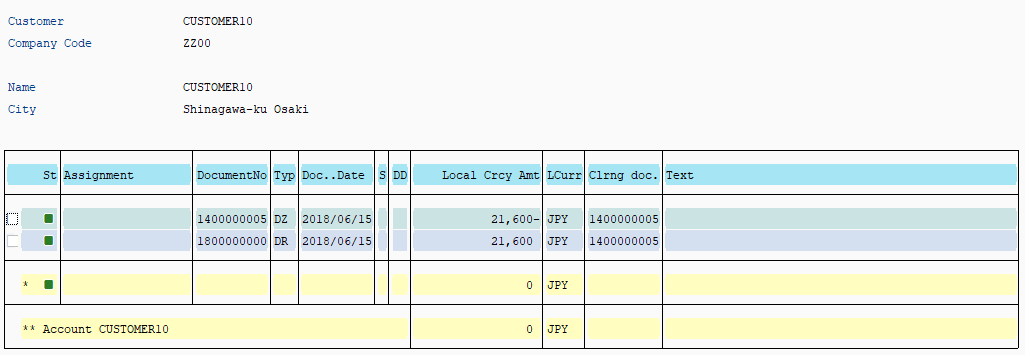
Operation Process:
| 1. | Check the Clearing item to be reset. | ||
| 2. |  |
Click [Back]. |
Screen 3:
Operation Process:
| 1. | |
Click [Reset cleared items]. |
Screen 4:
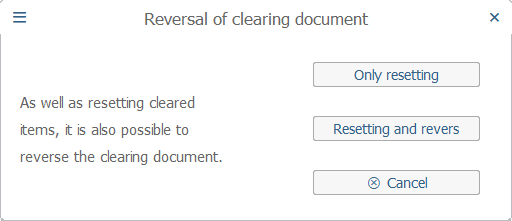
Operation Process:
| 1. |  |
Click [Only resetting] to cancel clearing only. To Screen 5 | |
| 2. |  |
Click [Resetting and reversal] to perform clearing and individual reversal processing. To Screen 6 |

Operation Process:
| 1. | A reset completion message of the specified document number is displayed and the processing completes. |
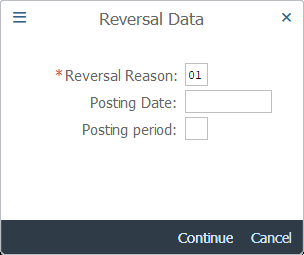
Operation Process:
| 1. | {{Reversal Reason}} | Select a processing reason for the individual reversal document. (Normally '01') | |
| 2. | {Posting Date} | Enter this field when posting a document with a date other than the original Posting date. | |
| 3. |  |
Click [Continue]. |
Screen 7:
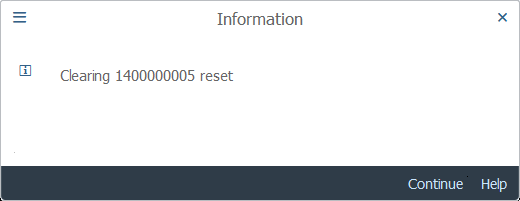
Operation Process:
| 1. | A reset completion message of the specified document number is displayed. | ||
| 2. | |
Click [Enter]. |
Screen 8:
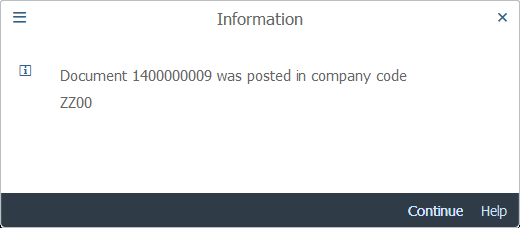
Operation Process:
| 1. | The individual reversal document number is displayed. | ||
| 2. | |
Click [Enter]. |
Copyright(c) MITSUI KINZOKU YOURSOFT Inc.