Back to Menu No.05-01-03
Liquidity Forecast (FF7BN)
Menu: Accounting > Financial Supply Chain Management > Cash and Liquidity Management > Display Liquidity Forecast
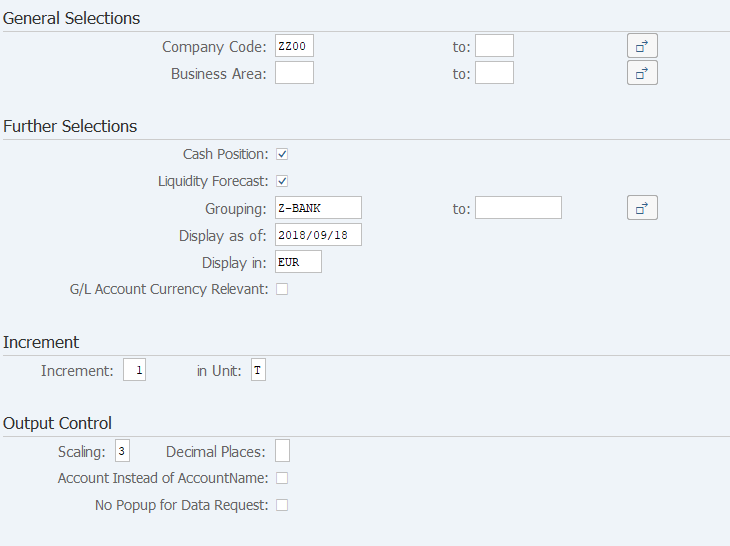
Process Overview: Display incoming payment data by date. To do this, the planning group must be assigned to the customer master and vendor master.
Screen 1:
Operation Process:
| General Selections | |||
| 1. | {{Company Code}} | Enter the Company code for the bank to be extracted. | |
| 2. | {Business Area} | Enter the Business area for the bank to be extracted. | |
| Further Selections | |||
| 3. | {Cash Position} | Checked: displays the bank balance. | |
| 4. | {{Liquidity Forecast}} | Checked: displays the account balance. | |
| 5. | {{Grouping}} | Enter the list display method. | |
| 6. | {{Display as of}} | Enter the list starting date. | |
| 7. | {{Display in}} | Enter the Currency code to be displayed. (Ex. 'JPY' Japanese Yen) | |
| Increment | |||
| 8. | {{in Unit}} | Enter the column display unit of the list. (Ex. 'T/W/M' (Daily/weekly/monthly) | |
| Output Control | |||
| 9. | {{Scaling}} | Enter the currency display unit of the list. (Ex. '3/0' Display in the unit of 1000, no decimal fractions) | |
| 10. |
 |
Click [All Selections]. (When the display type is not changed, perform Operation Process of Screen 2.) | |
Screen 2:
Operation Process:
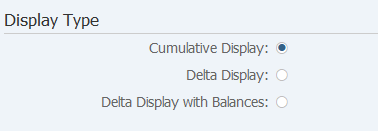
| Display Type | |||
| 1. | {Cumulative Display} | Displays the cumulative balance. | |
| 2. | {Delta Display} | Displays the moved amount. | |
| 3. | {Delta Display with Balances} | Displays the moved amount of the bank account and the balances of the beginning and end of the period for each column. | |
| 4. |
 |
Click [Execute]. | |
Remarks:
| 1. | 'Cumulative Display' is set as the initial setting of the display type. |
Screen 3:
Operation Process:
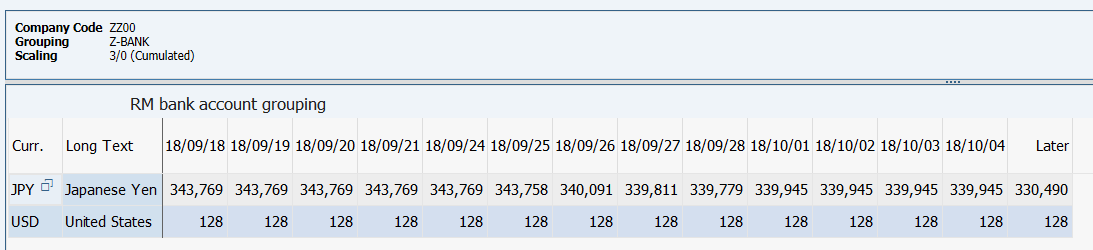
| 1. | Double-click on the item. |
Screen 4:
Operation Process:
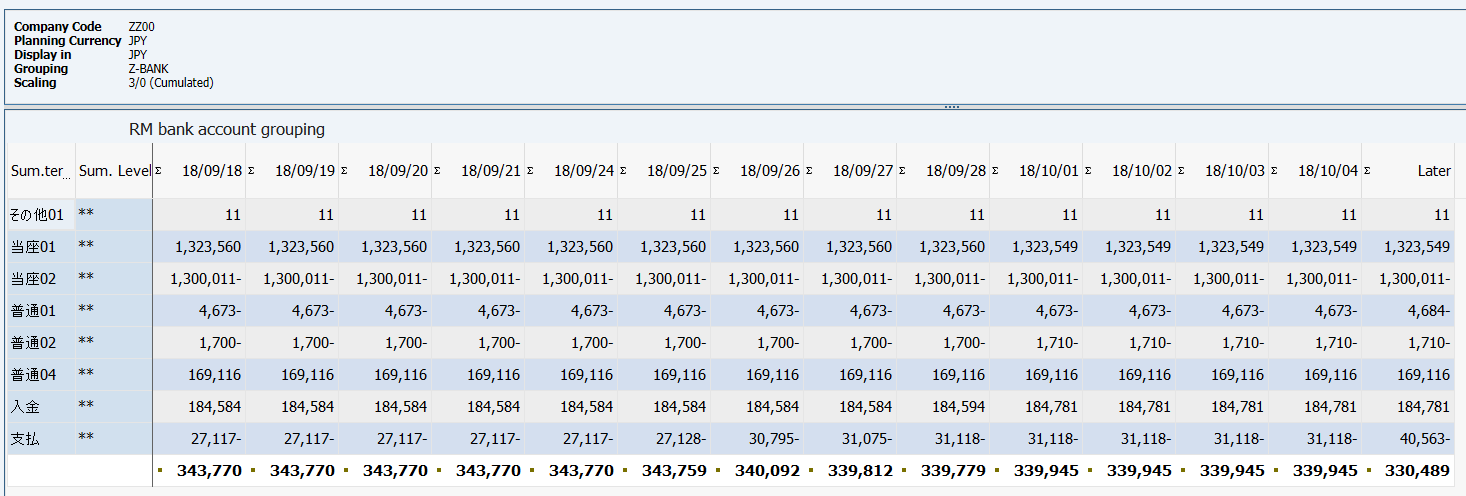
| 1. | Double-click on the item. |
Screen 5:
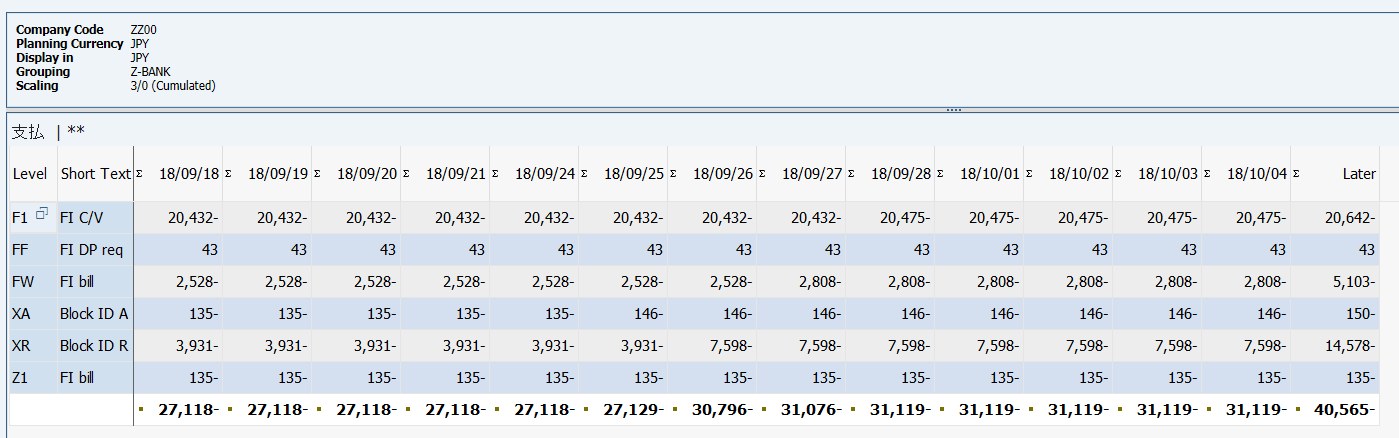
Operation Process:
| 1. | Double-click on the item. |
Screen 6:
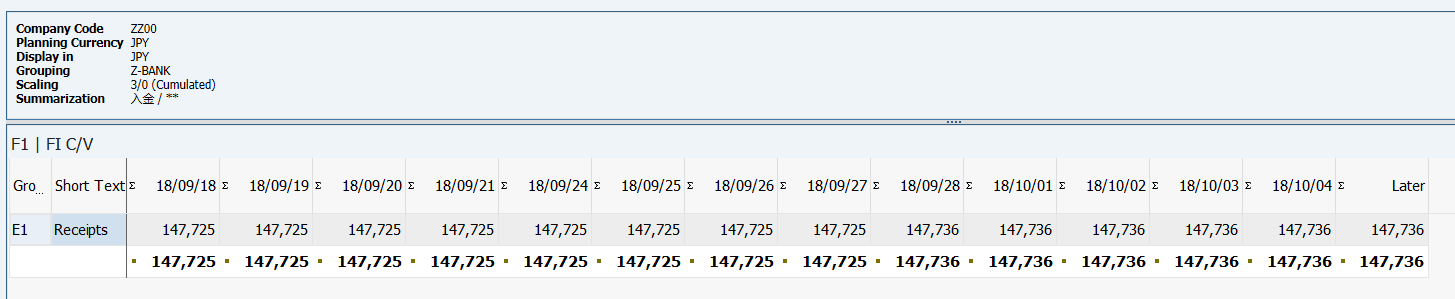
Copyright(c) MITSUI KINZOKU YOURSOFT Inc.