
Back to Menu No.02-02-10
Import Bank Statement (FF_5)
Menu: Accounting > Financial Accounting > Banks > Incomings > Bank Statement > Import
Process Overview: Import 'Firm Banking Data' , clear an open item, post to incoming payment and create Bank Statement.
Screen 1:
Operation Process:
| 1. | {{Program}} | Double-click the row in [RFEBJP00]. |
Screen 2:
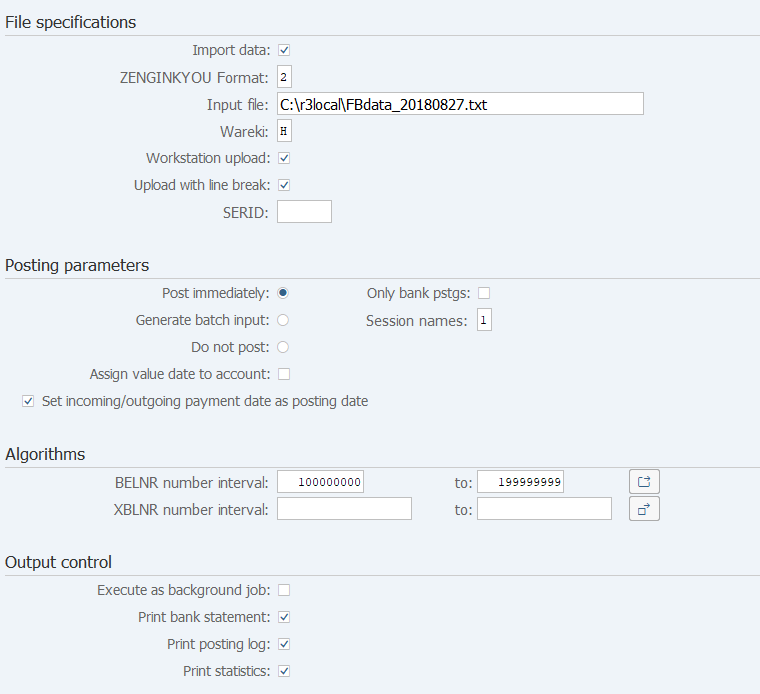
Operation Process:
| File specifications | |||
| 1. | {{Import data}} | Select when you import data. | |
| 2. | {{ZENGINKYOU Format}} | Select Bank file format. (Ex. '2' incoming remittance) | |
| 3. | {{Input file}} | Enter file path and file name of the import data. | |
| 4. | {Workstation upload} | Select when you import the file from disk drive or hard disk. | |
| 5. | {Upload with line break} | Select when there is line break in the data. | |
| Posting parameters | |||
| 6. | {Post immediately} | Select when you post document. | |
| 7. | {Generate batch input} | Select when you create batch-input data. | |
| 8. | {Do not post} | Select when executing a test. | |
| Algorithms | |||
| 9. | {BELNR number interval} | Enter the Document number used when account receivable is generated. | |
| 10. | {XBLNR number interval} | Enter the Reference number used when account receivable is generated. | |
| Output control | |||
| 11. | {{Print bank statement}} | Select when you print bank statement. To Screen 5 | |
| 12. | {Print posting log} | Select when you print posting log. To Screen 3 | |
| 13. | {Print statistics} | Select when you print statistics. To Screen 4 | |
| 14. |  |
Click [Execute]. | |
Remarks:
| 1. | Normally, select 'Post immediately' and execute. | |
| 2. | Next screen is different according to selection in 'Output control'. |
Screen 3: If you select 'Print posting log' in Output control
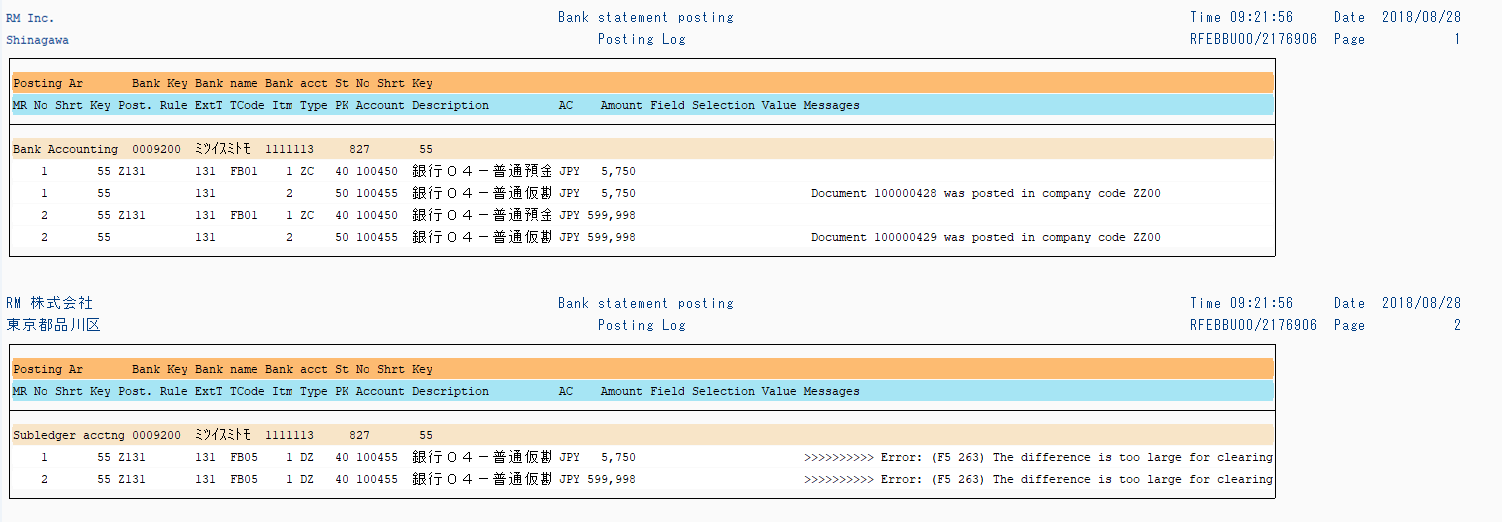
Operation Process:
| 1. |  |
Click [Back]. |
Remarks:
| 1. | When the subject of item is cleared, document number will be displayed. When the subject of item is not cleared, error message is displayed. |
Screen 4: If you select 'Print statistics' in Output control
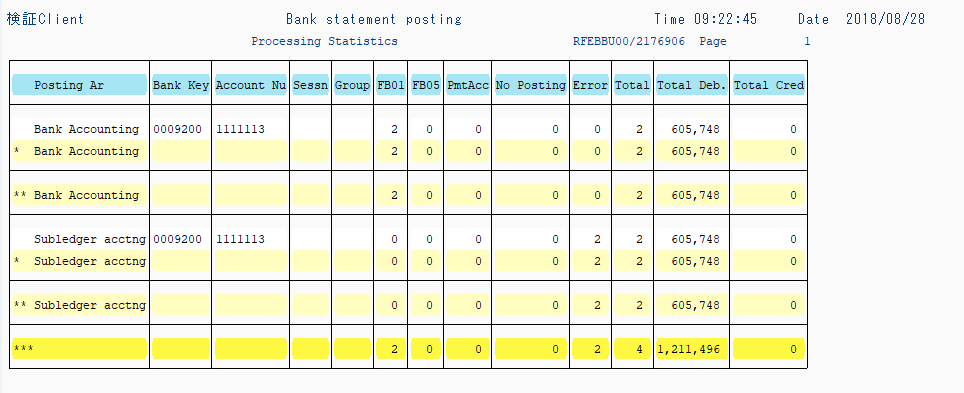
Operation Process:
| 1. | |
Click [Back]. |
Screen 5: If you select 'Print bank statement' in Output control
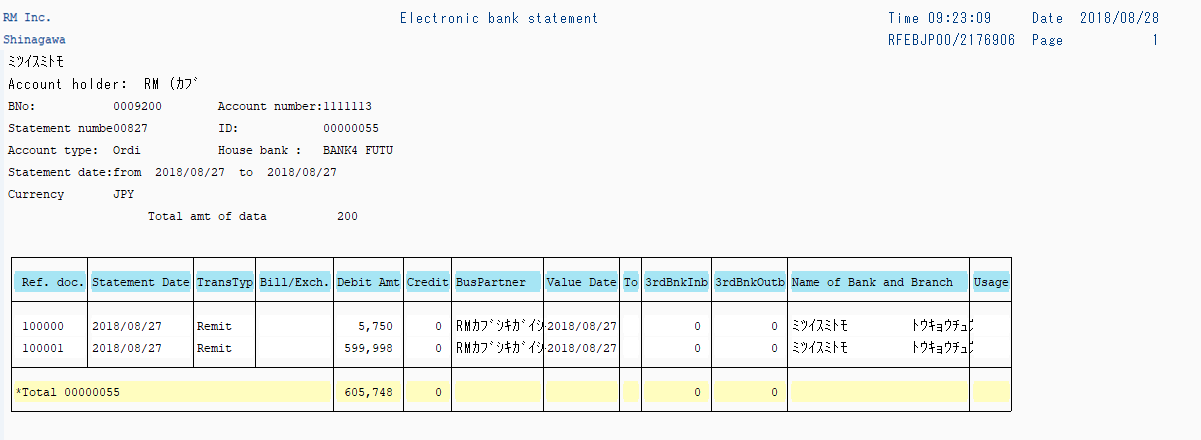
Operation Process:
| 1. | |
Click [Back]. |
Copyright(c) MITSUI KINZOKU YOURSOFT Inc.