Park General Document for Ledger group (FV50L)
Menu: Accounting > Financial Accounting > General Ledger > Document Entry > Park G/L Account Document for Ledger Group
| Process Overview: | Post a transaction record when specifying Ledger group as Parked document. |
| Need to do 'post parked document' to post it to G/L. | |
All kinds of transactions can be posted as Parked document. Here's the example of posting a general transfer document. |
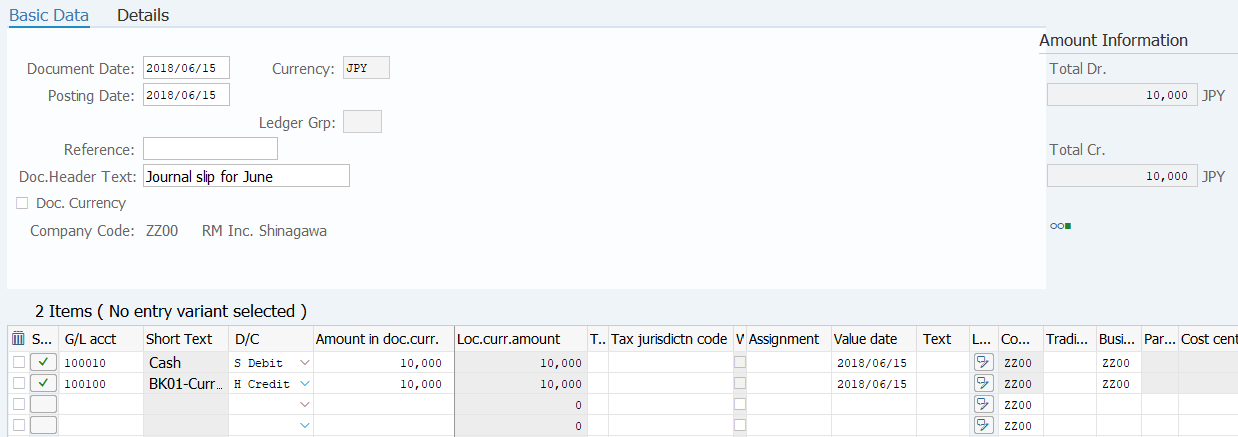
Screen1: Enter header information & item information of Parked document.
Operation Process:
| Basic Data | |||
| 1. | {{Document Date}} | Enter any date. (Used as a substitute of a memorandum.) | |
| 2. | {{Currency}} | Currency code for managing the item amount. Change if the operation is a foreign Currency entry. (Ex. 'JPY' Japanese Yen) | |
| 3. | {{Posting Date}} | Enter the document management date. (Ex. Enter '2016.04.xx' for the document of April 2016.) | |
| 4. | {{Ledger Grp}} | Enter the document management Ledger Group. (0L:Local , Y0:IFRS) | |
| 5. | {Doc.Header Text} | Enter the document abstract. (Ex. 'Account transfer for month XX') | |
| Items | |||
| 6. | {{G/L acct}} | Enter the Account code of the item. | |
| 7. | {{D/C}} | Enter the Debit/Credit of the item. | |
| 8. | {{Amount in doc.curr.}} | Enter the Amount of the item. | |
| 9. | {Assignment} | Enter the Assignment of the report display. | |
| 10. | {{Value date}} | Enter the baseline date of interest calculation. (Used for cash and bank account code) | |
| 11. | {Text} | Enter the Abstract of the item. (Ex. 'Account transfer for month XX') | |
| 12. | {{Business area}} | Enter the Business area for the item. | |
| 13. | {Trading partner} | For a transaction of a Corporate group company, enter the business partner (Corporate company code) as required. | |
| 14. |  |
Click [Simulate Document Posting]. | |
Supplement:
| 1. | The account determines whether the input field is mandatory or optional. (The field that is output to the screen varies according to the setting.) | |
| 2. |
The document is not complete unless the signal of the amount information column is
 . (This can be checked by Pressing [Enter] key.) Modify or add the necessary field or value. . (This can be checked by Pressing [Enter] key.) Modify or add the necessary field or value.
|
Screen 2: Confirm the entry before saving Parked document.
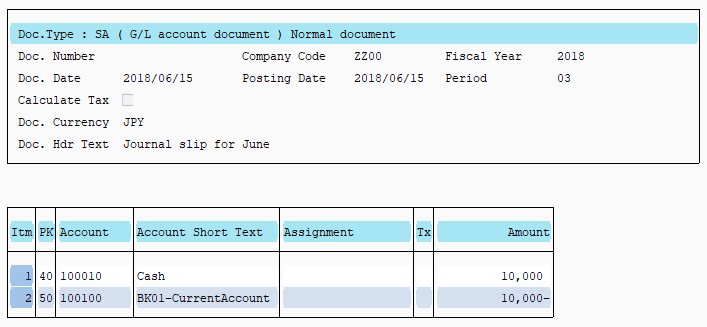
Operation Process:
| 1. |  |
Click [Save parked document]. |
Copyright(c) MITSUI KINZOKU YOURSOFT Inc.