Back to Menu No.01-04-02
Financial Statement (S_ALR_87012284)
Menu: Accounting > Financial Accounting > General Ledger > Information System > General Ledger Reports > Financial Statement / Cash Flow > General > Actual/Actual Comparisons > Financial Statement
Process Overview: Display Balance Sheets and Profit and Loss statements. Comparison between actual duration and comparison period can be confirmed.
Process: (1) Report creation (2) Variant registration (3) Variant selection
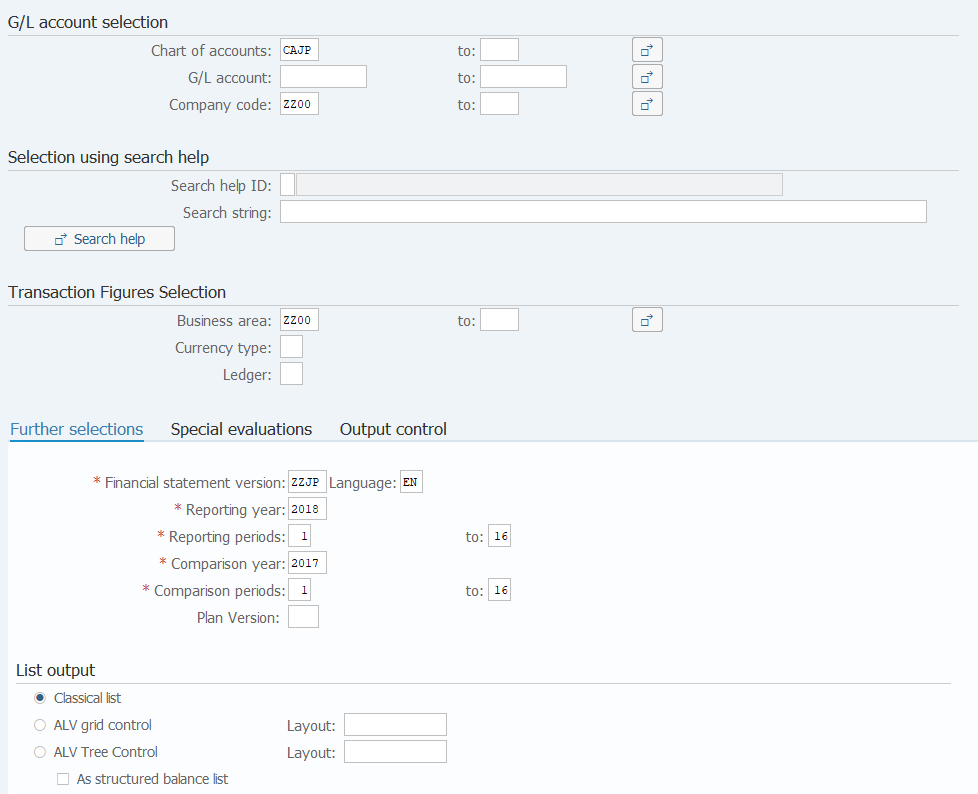
Screen (1)-1:
Operation Process:
|
G/L account selection |
|||
| 1. | {Chart of accounts} | Enter the account code report for creating a list. (Ex 'CAJP' Chart of accounts - Japan) | |
| 2. | {G/L account} | Enter the Account code for creating a list. | |
| 3. | {{Company code}} | Enter the Company code for creating a list. | |
|
Transaction Figures Selection |
|||
| 4. | {Business area} | Enter the Business area for creating a list. | |
|
Further selections |
|||
| 5. | {{Financial statement version}} | Enter the versions of B/S and P/L. | |
| 6. | {{Language}} | Enter the Language used for creating B/S and P/L. (Ex. 'JA' Japanese) | |
| 7. | {{Reporting year}} | Enter the Fiscal year for creating a report. | |
| 8. | {{Reporting periods}} | Enter the starting accounting period for creating a report. | |
| 9. | {{Reporting periods to}} | Enter the ending accounting period for creating a report. | |
| 10. | {{Comparison year}} | Enter the Fiscal year for comparison. | |
| 11. | {{Comparison periods}} | Enter the starting accounting period for comparison. | |
| 12. | {{Comparison periods to }} | Enter the ending accounting period for comparison. | |
| 13. | {List output} | Select "List in existing format'. | |
| 14. |  |
Select [Special evaluations] tab. | |
Remarks:
| 1. | Multiple account codes, company codes, and business areas can be selected. If no entry is made, all the data are targeted. | |
| 2. | If a list is created by specifying an account code range, the value of the profit of the current period is not output correctly. |
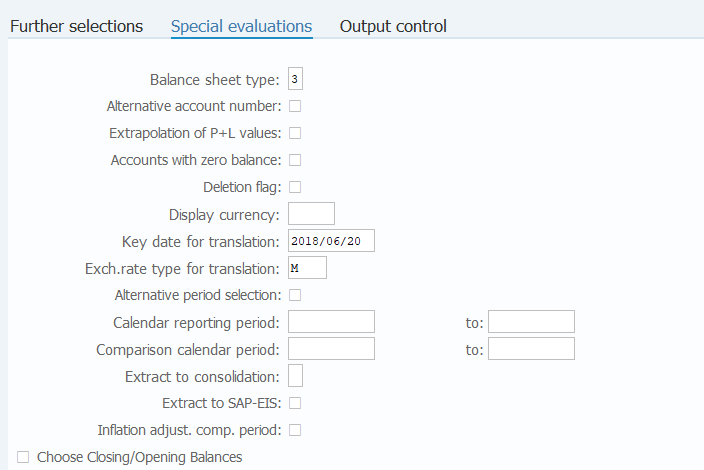
Screen (1)-2:
Operation Process:
| 1. | {{Balance sheet type}} | Define the setting of period output. (Fixed to '3') | |
| 2. |  |
Select [Output control] tab. |
Screen (1)-3:
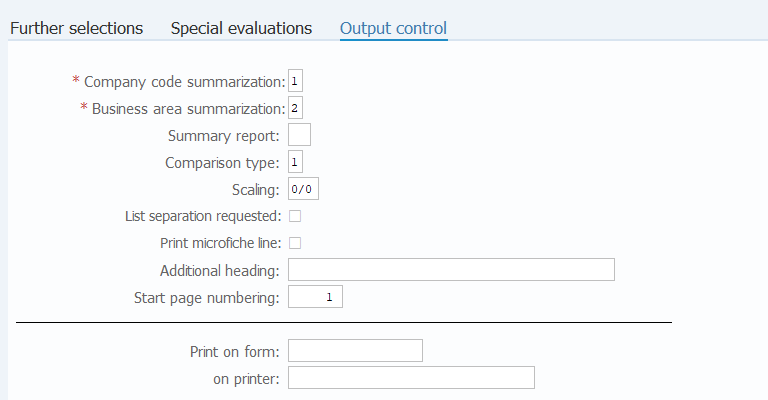
Operation Process :
| 1. | {{Company code summarization}} | Select a Company code summarization method. (Normally, '1' Balance sheet per company code) | |
| 2. | {{Business area summarization}} | Select a summarization method of Business areas. ('1'Balance sheet per business area,'2'Balance sheet with account display per business area,'3'Balance sheet with act display summarized for all business area) |
|
| 3. | {Summary report} | Specify an output level. (Normally blank: Balance sheet with accounts) | |
| 4. |  |
Click [Execute]. |
Remarks:
| 1. | When there is only one business area, create a report by specifying '3' as the value of 'Business area summarization'. | |
| 2. | Parameter input values from Screens (1)-1 to (1)-3 can be saved as variants. (See Screen (2)-2 for the Operation Process.) |
Screen (1)-4:
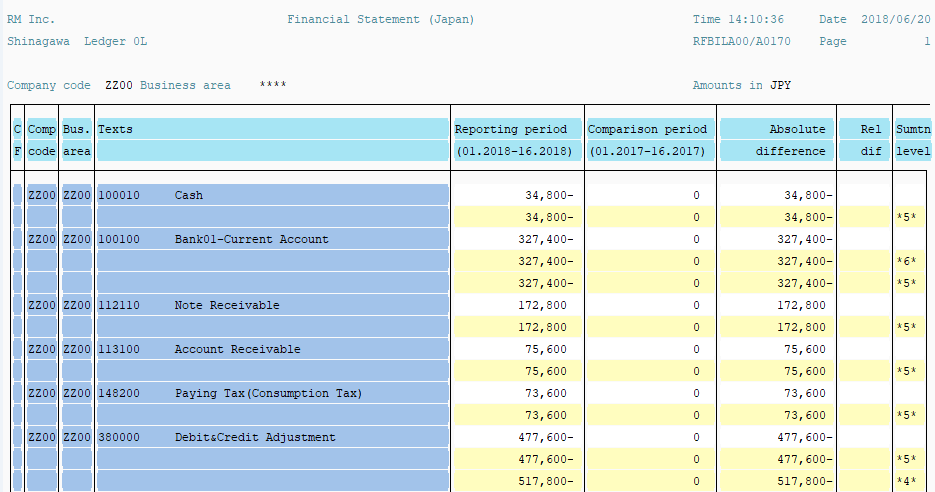
Operation Process:
 |
To print a report, click [Print]. |
Screen (2)-1:
Operation Process:
| 1. |  |
After entering the parameters, click [Save As Variant]. |
Screen (2)-2:
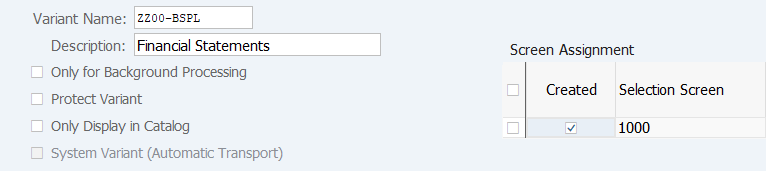
Operation Process:
| 1. | {{Variant Name}} | Enter the Variant name to be registered. | |
| 2. | {{Description}} | Enter the explanation of the contents of the variant. | |
| 3. |  |
Click [Save]. |
Remarks:
| 1. | The variants are commonly used. Make sure that the variants created by others will not be overwritten. | |
| 2. | When using the variants that have been saved from the next processing, see the Operation Processes from Screen (3)-1. |
Screen (3)-1:
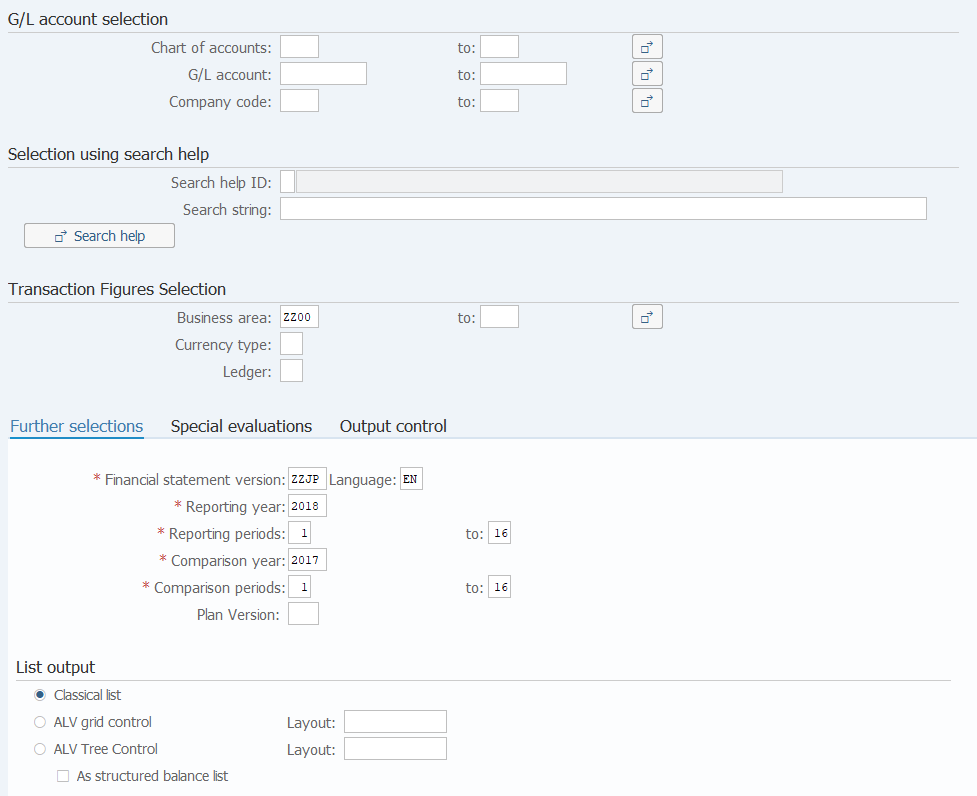
Operation Process:
| 1. |  |
Click [Get Variant]. |
Screen (3)-2:
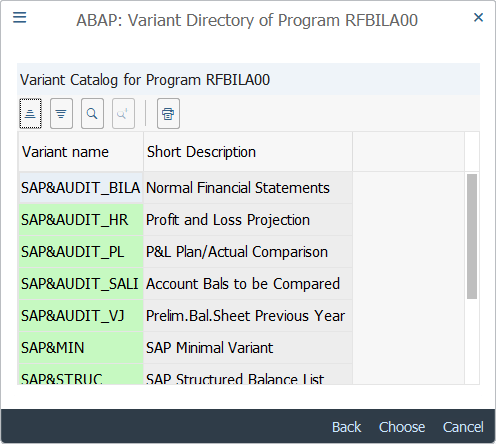
Operation Process:
| 1. |  |
Select a variant name to be used and click [Choose]. |
Copyright(c) MITSUI KINZOKU YOURSOFT Inc.