Back to Menu No.03-02-01
Change Payment Documents in Batch (YRFI0022)
Menu: Accounting > Financial Accounting >Add: Function >Add: Accounts Payable > Change Payment Documents in Batch
Process Overview: Extract payment documents and change the payment condition on Excel sheet, and update in batch mode
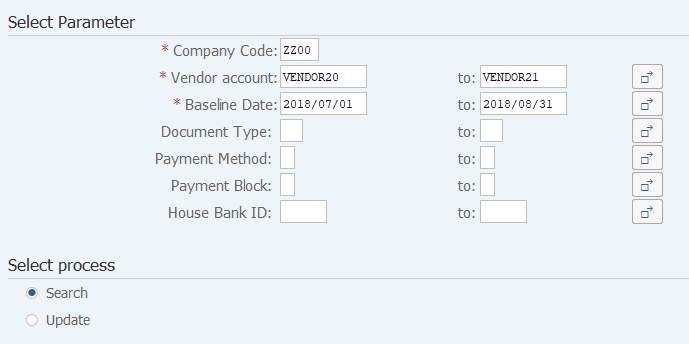
Screen 1:
Operation Process:
| Select Parameter | |||
| 1. | {{Company Code}} | Enter the Company code. | |
| 2. | {{Vendor account}} | Enter the Vendor code. | |
| 3. | {{Baseline Date}} | Enter the Baseline date. | |
| 4. | {Document Type} | Enter the Document type. | |
| 5. | {Payment Method} | Enter the Payment method. | |
| 6. | {Payment Block} | Enter the Payment block. | |
| 7. | {House Bank ID} | Enter the House bank ID. | |
| Select process | |||
| 8. | {{Search}} | Tick. | |
| 9. |
 |
Click [Execute]. | |
Screen 2:
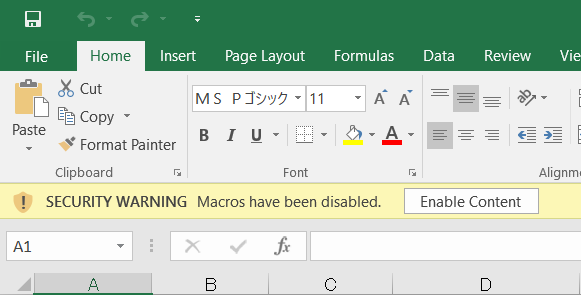
Operation Process:
| 1. |  |
Click [Enable Content]. |
Screen 3:

Operation Process:
| 1. | {Unnecessary} | Enter 'X' (half-size uppercase letter) for the data that is not to be changed. | |
| 2. | {Baseline Date} | Enter the changed Baseline date. | |
| 3. | {Payment Method} | Enter the changed Payment method. | |
| 4. | {Payment Block} | Enter the changed Payment block. | |
| 5. | {House Bank ID} | Enter the changed House bank ID. | |
| 6. |
 |
Click [Save]. |
Screen 4:
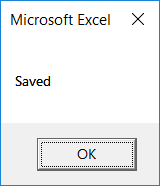
Operation Process:
| 1. |
 |
Click [OK]. |
Screen 5:
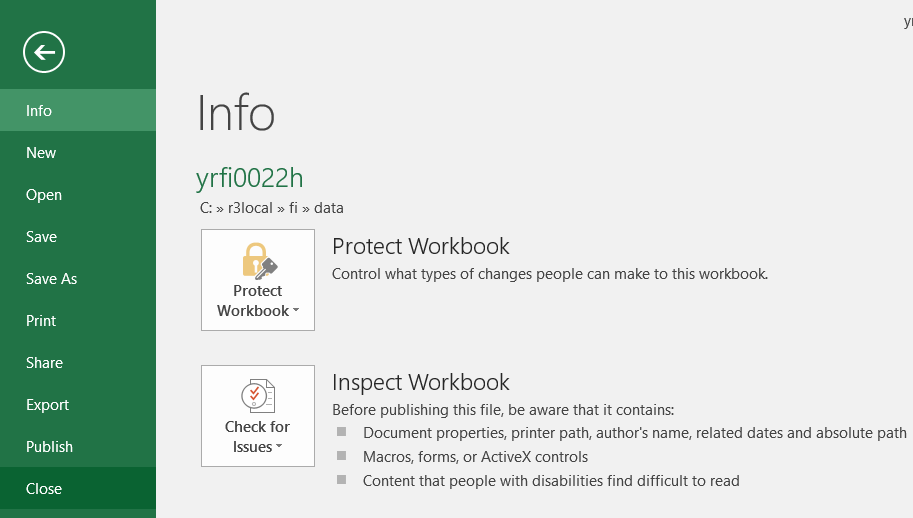
Operation Process:
| 1. | Menu: File > Close |
Screen 6:
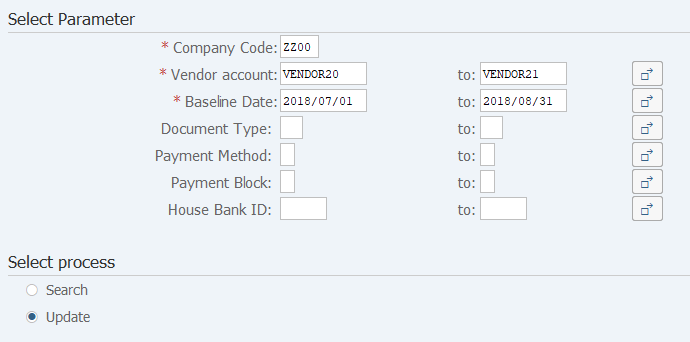
Operation Process:
|
Select process |
|||
| 1. | {{Update}} | Tick. | |
| 2. | |
Click [Execute]. | |
Screen 7:
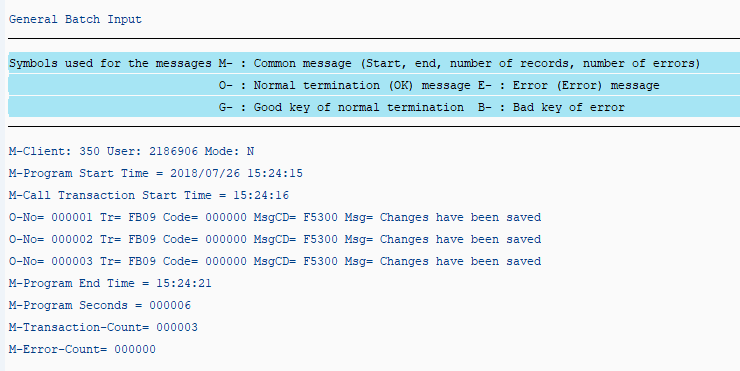
Operation Process:
| 1. | Check that there is no error. |
Copyright(c) MITSUI KINZOKU YOURSOFT Inc.