Back to Menu No. 08-03-01
Check Accounting Document (YRFI0029)
Menu: Accounting > Financial Accounting > Add: Function > Add: General Ledger > Check Accounting Documents
Process Overview: Check the accounting documents
| The process of checking accounting documents involves the documents listed below. Please confirm. | |||
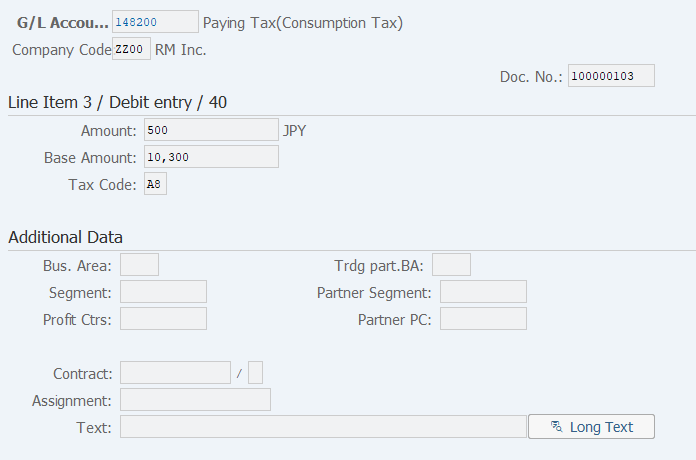
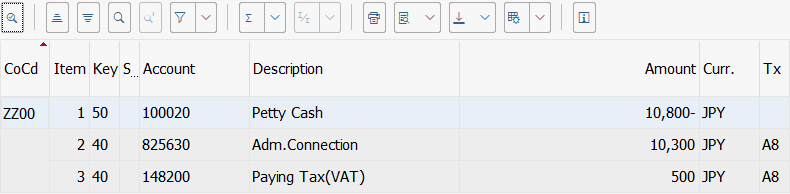
| Check 1: the taxes on sales/purchases items for which documents have been issued manually | |||
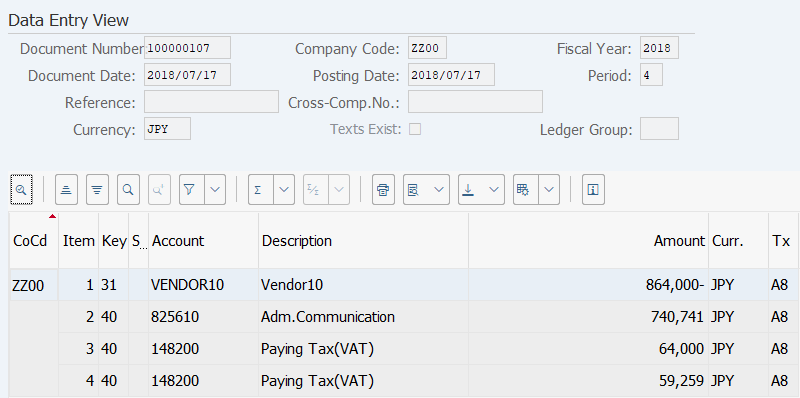
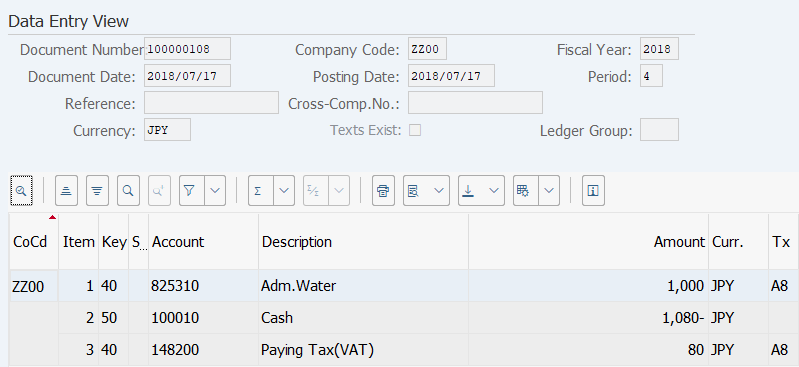
| (1) The account number of the line item indicates that document for either the output tax or input tax has been issued manually. | |||
| (2) The automatic calculation of taxes on sales/purchases has not been selected for the line item. | |||
| If documents for taxes on Sales/Purchases are issued manually, a confirmation message is displayed because a document can be issued as long as the balance is achieved, even if the taxes have been miscalculated. | |||
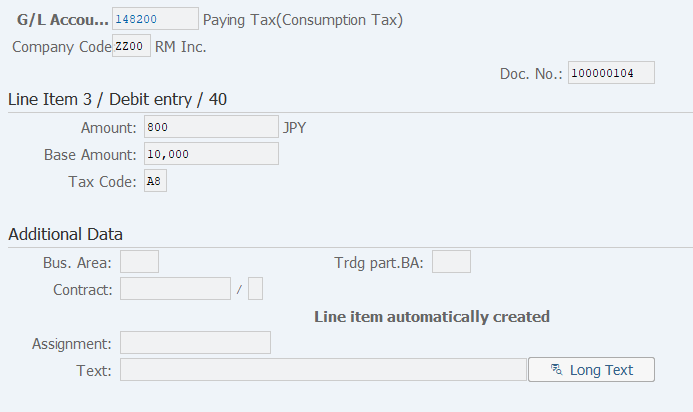
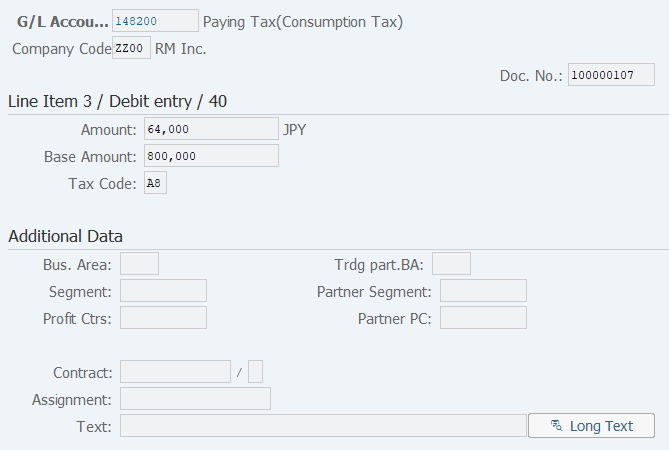
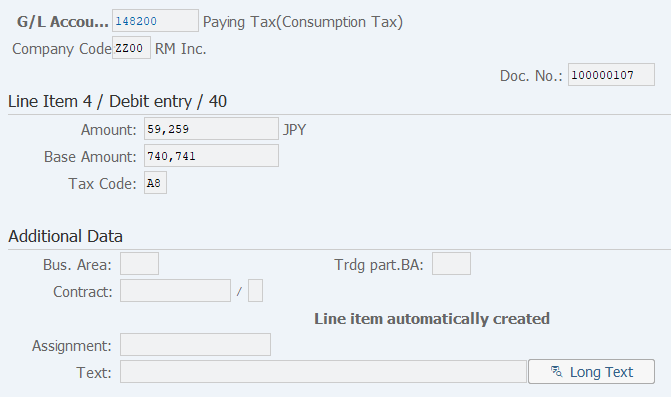
| If taxes on sales/purchases are calculated automatically, the following screen appears. |
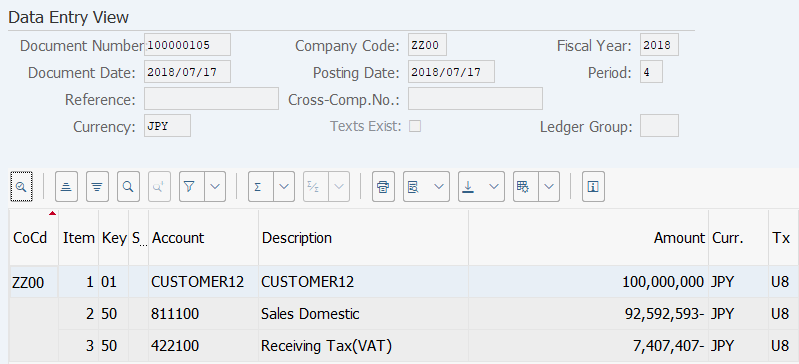
| Check 2: the line item exceeding acceptable amount | |||
| (1) The line item exceeding acceptable amount. (Ex. 100 million yen) | |||
| A confirmation message is displayed when an attempt is made to issue a document with the amount exceeding acceptable amount (Ex. 100 million yen), due to an excessively large amount. | |||
| Check 3: the line item for which overlapping taxes on sales/purchases are created | |||
| (1) The account number of the line item indicates that document for either the output tax or input tax has been issued manually. | |||
| (2) Both the line items with automatically calculated taxes on sales/purchases and those with manually calculated ones coexist. | |||
| If taxes on sales/purchases are calculated manually while the automatic calculation of taxes on sales/purchases is selected, a confirmation message notifying the creation of overlapping taxes on sales/purchases appears. | |||
| Check 4: Tax code item in transitional measure | |||
| (1) New Tax code has been used before the tax system revision. | |||
| (2) Old Tax code has been used after the tax system revision. | |||
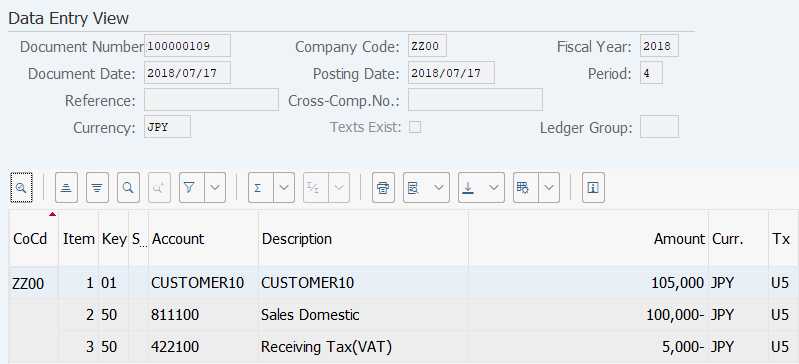
Screen 1:
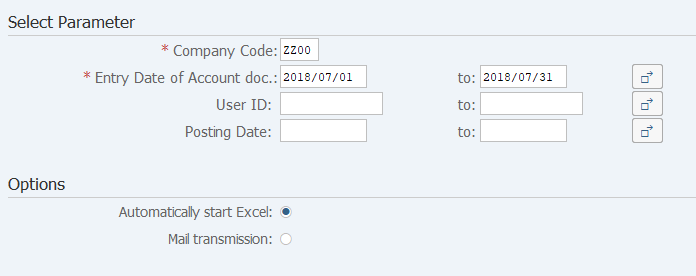
Operation Process:
| Select Parameter | |||
| 1. | {{Company Code}} | Enter the Company code. | |
| 2. | {Entry Date of Account doc.} | Enter the accounting document registration date. (Enter either [Entry date of Account document] or [Posting Date]. | |
| 3. | {User ID} | Enter the User ID. | |
| 4. | {Posting Date} | Enter the Posting date. | |
| Options | |||
| 5. | {Automatically start Excel} | Select this option if you display the check result by Excel. | |
| 6. | {Mail transmission} | Select this option if mail is transmitted. | |
| 7. |
 |
Click [Execute]. | |
Supplement:
| 1. | If [Mail transmission] is selected, the result is transmitted to the Inbox of SAP Marketplace. | ||
Screen 2:
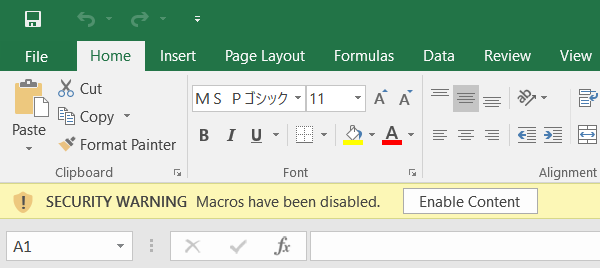
Operation Process:
| 1. |
 |
Click [Enable Content]. |
Screen 3:
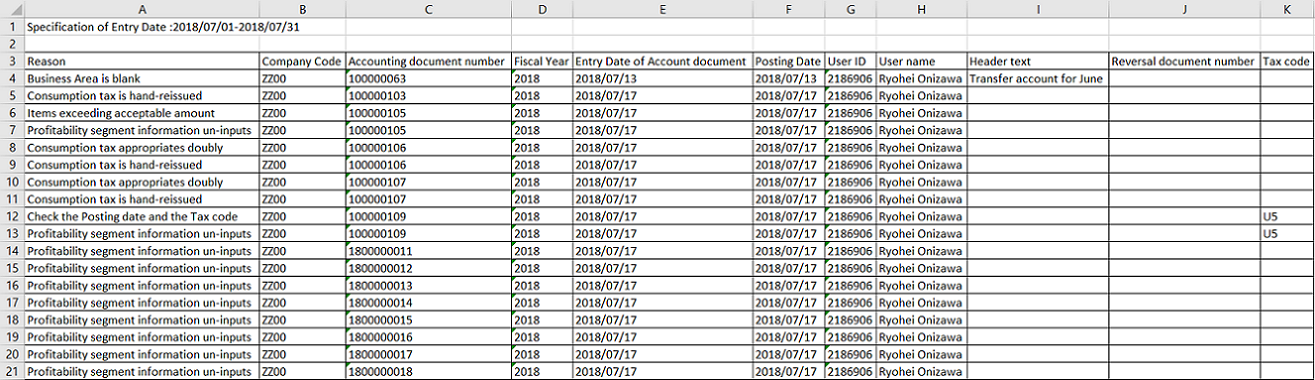
| 1. | Check the reason, and also check the details of the individual accounting documents. |
Copyright(c) MITSUI KINZOKU YOURSOFT Inc.