Back to Menu No.02-05-01
List of Customer Open Items (YRFI0049)
Menu: Accounting > Financial Accounting > Add: Download > Add: Accounts Receivable > List of Customer Open Items
Process Overview: Create a Customer open item list as well as a summary table by each currency.
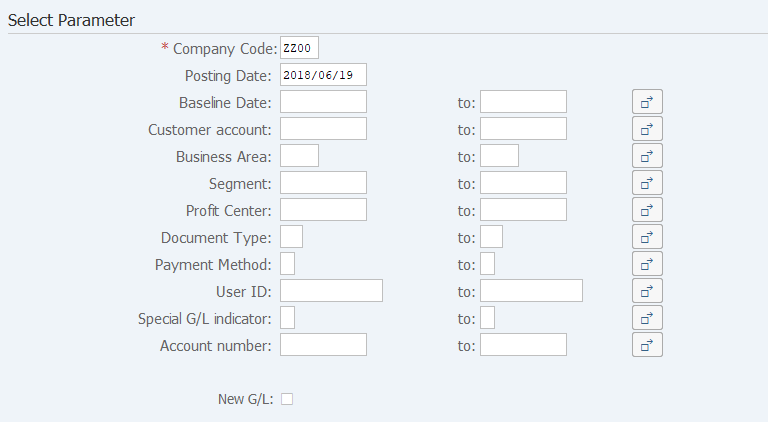
Screen 1:
Operation Process:
| Select Parameter | |||
| 1. | {{Company Code}} | Enter the Company code. | |
| 2. | {Posting Date} | Enter the Posting date used as the basis. (*Remarks1) | |
| 3. | {Baseline Date} | Enter the Baseline date. (*Remarks1) | |
| 4. | {Customer account} | Enter the Customer account. | |
| 5. | {Business Area} | Enter the Business area. | |
| 6. | {Segment} | Enter the Segment. | |
| 7. | {Profit Center} | Enter the Profit center. | |
| 8. | {Document Type} | Enter the Document type. | |
| 9. | {Payment Method} | Enter the Payment method. | |
| 10. | {User ID} | Enter the User ID. | |
| 11. | {Special G/L indicator} | Enter the Special G/L. | |
| 12. | {Account number} | Enter the Account number. | |
| 13. | {New G/L} | Select this option when extracting New G/L data. | |
| 14. |  |
Click [Execute]. | |
Remarks:
| 1. | Entry of a Posting date or a Baseline date is mandatory. | |
| 2. | When selecting "New G/L" , specify one of the Business area, Segment, and Profit Center. |
Screen 2:
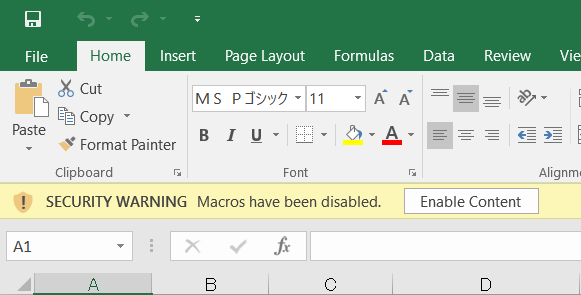
Operation Process:
| 1. |  |
Click [Enable Content]. |
Screen 3:
Sheet 1 (Item table)
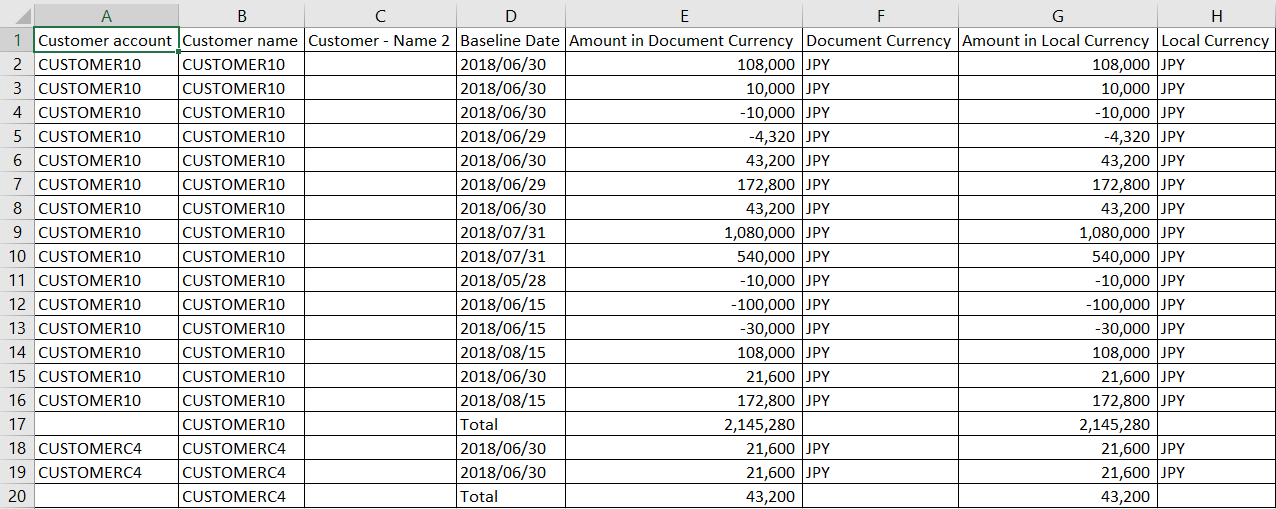
Sheet 2 (Document currency: Total table)

Sheet 3 (Local currency: Total table)
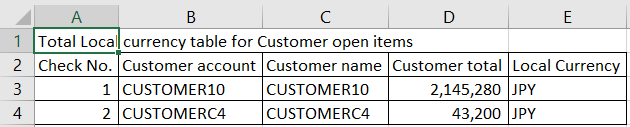
Sheet 4 (Second Local currency: Total table)

Copyright(c) MITSUI KINZOKU YOURSOFT Inc.