Back to Menu No.02-02-09
Receivables - Automatic clearing (YRFI0068)
Menu: Accounting > Financial Accounting > Add: Function > Add: Accounts Receivable > Receivables - Automatic clearing
Process Overview: Clear the receivable documents based on the incoming payment data sent from the bank, using account holder name as key.
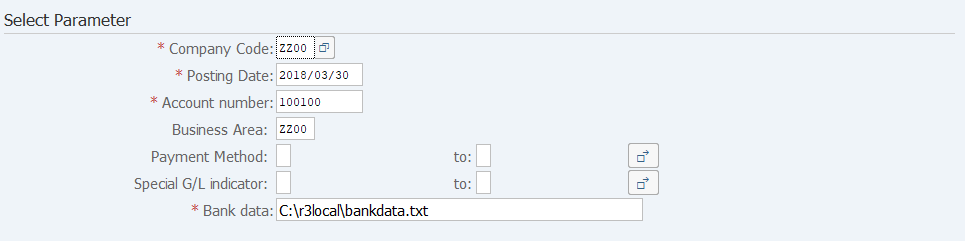
Screen 1-1:
Operation Process:
| Select Parameter | |||
| 1. | {{Company Code}} | Enter the Company number representing the company controlling the receivables to be cleared. | |
| 2. | {{Posting Date}} | Enter the incoming payment due date (payment from bank). | |
| 3. | {{Account number}} | Enter the Bank account number for clearing the receivables. | |
| 4. | {{Business Area}} | Enter the Business area managing the bank account. | |
| 5. | {Payment Method} | Enter the Payment method to be cleared. | |
| 6. | {Special G/L indicator} | Enter the Special G/L indicator for clearing. | |
| 7. | {{Bank data}} | Enter the location where information regarding the incoming payment from the bank is stored. | |
Remarks:
| 1. | The character code bank data must be Shift-JIS. | |
| 2. | Specify in Screen 1-2 how to handle the situation where there is a difference between the receivables to be cleared and the incoming payment information. | |
| If this is not done, any difference incurred will be treated as an error. |
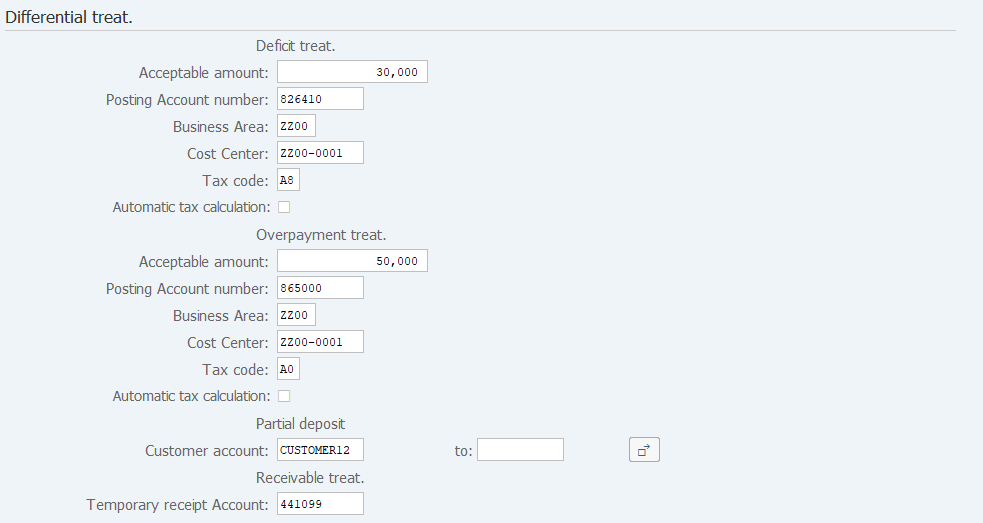
Screen 1-2:
Operation Process:
| Deficit treat. | |||
| 1. | {Acceptable amount} | Enter the permitted amount for overpayment/underpayment. (If the amount is within the specified range, a document for overpayment/underpayment is issued using the following accounts.) | |
| 2. | {Posting Account number} | Enter the Account for creating a document for the amount overpaid/underpaid. (Ex. Bank charges, etc.) | |
| 3. | {Business Area} | Enter the Business area managing the account for document creation. | |
| 4. | {Cost Center} | Enter the Cost center managing the account for document creation. | |
| 5. | {Tax code} | Enter the Tax code for the account for document creation. | |
| 6. | {Automatic tax calculation} | If this option is selected, the tax amount is calculated automatically based on the tax code. | |
| Overpayment treat. | |||
| 7. | {Acceptable amount} | Enter the permitted surplus amount. (If the amount is within the specified range, the document for the surplus amount is issued using the following accounts.) | |
| 8. | {Posting Account number} | Enter the Account for creating a document for the amount overpaid/underpaid. (Ex. Nonoperating income, etc.) | |
| 9. | {Business Area} | Enter the Business area managing the account for document creation. | |
| 10. | {Cost Center} | Enter the Cost center managing the account for document creation. | |
| 11. | {Tax code} | Enter the Tax code for the account for document creation. | |
| 12. | {Automatic tax calculation} | If this option is selected, the tax amount is calculated automatically based on the tax code. | |
| Partial deposit | |||
| 13. | {Customer account} | Enter the Customer for whom partial payment is permitted. (Clear all and newly create a difference amount) | |
| Receivable treat. | |||
| 14. | {Temporary receipt Account} | Enter the account to be processed for temporary receipts.
(If the above process is not applicable, a document is issued based on the account for temporary receipts entered.) |
|
| 15. |  |
Click [Execute]. | |
Screen 2:
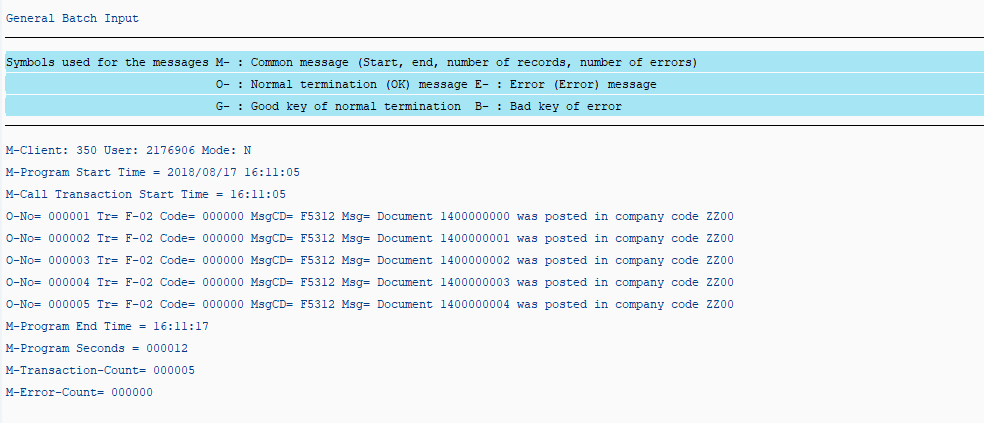
Operation Process:
| 1. |  |
Click [Back] and close the screen. |
Remarks:
| 1. | If 'M-Error-Count =' takes any value other than zero, there is an error. |
Screen 3-1 (If there is reconciled data)
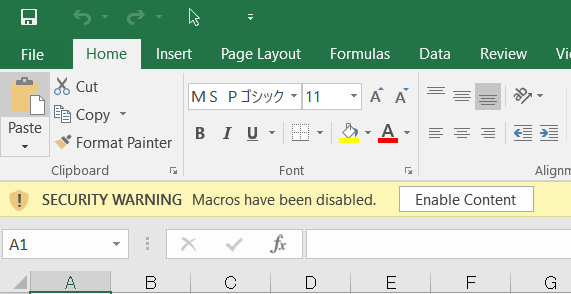
Operation Process:
| 1. |  |
Click [Enable Content]. |
Screen 4-1:

| A list of reconciled data are created. | |||
| Ex) |
Line 3: |
Customer number is CUSTOMER010, and an incoming payment from the bank is 21,600 yen, which agrees with the receivable amount of SAP ERP of 21,600 yen, and thus the clearing is complete. |
|
Screen 3-2 (If there is no reconciled data)

Operation Process:
| 1. | |
Click [Enable Content]. |
Screen 4-2:

| A list of errors is created. | |||
| Ex) |
Line 4-10: |
Clearing cannot be executed because an incoming payment from the bank is 525,000 yen while the receivable amount of SAP ERP is 0 yen (or not searchable). |
|
Copyright(c) MITSUI KINZOKU YOURSOFT Inc.