Back to Menu No.03-03-03
Clear Vendor Down Payment (F-54)
Menu: Accounting > Financial Accounting > Accounts Payable > Document Entry > Down Payment > Clearing
Process Overview: Clear the advance payment which was created at the manual No.03-01-03 "Down Payment - Invoice "
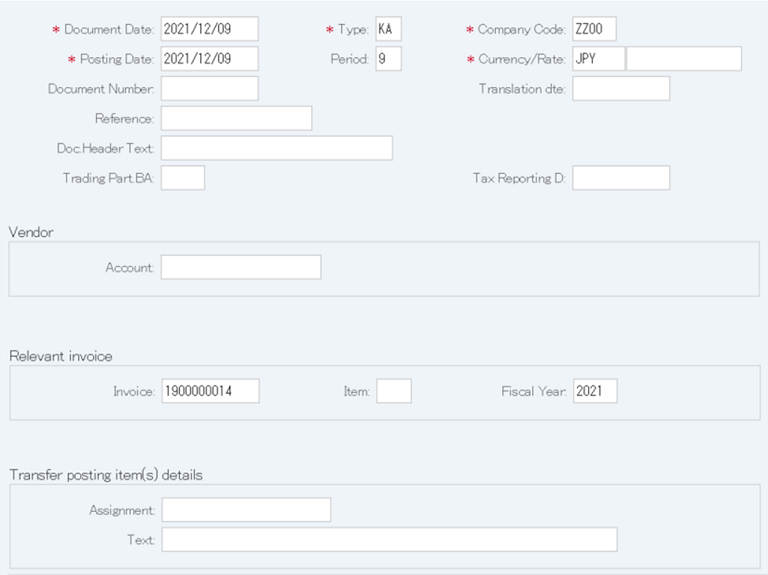
Screen 1:
Operation Process:
| 1. | {{Document Date}} | Enter any date. (Used as a substitute for a memorandum) | |
| 2. | {{Type}} | Enter the code for classifying the document. (Ex. 'KA' Vendor document) | |
| 3. | {{Company Code}} | Enter the Company code for managing the document. (Normally, own company code) | |
| 4. | {{Posting Date}} | Enter the document management date. (Ex. Enter '2016.05.xx' for the document of May 2016.) | |
| 5. | {Period} | Enter the Accounting period for managing the document. (Calculated automatically based on the posting date) | |
| 6. | {Currency} | Currency code for managing the item amount. Change if the operation is a foreign currency entry. (Ex. 'JPY' Japanese Yen) |
|
| 7. | {Rate} | Enter the Rate when entering a foreign currency. (Not required for the local currency) | |
| 8. | {Doc. Header Text} | Enter the document abstract. | |
| Vendor | |||
| 9. | {{Account}} | Enter the Vendor account. | |
| Relevant invoice | |||
| 10. | {Invoice} | Enter the document number that was posted when advance payment was invoiced. | |
| 11. | {Fiscal Year} | Enter the Fiscal year of the invoice described above. | |
| 12. |  |
Click [Process down pmnts]. | |
Screen 2:
Operation Process:
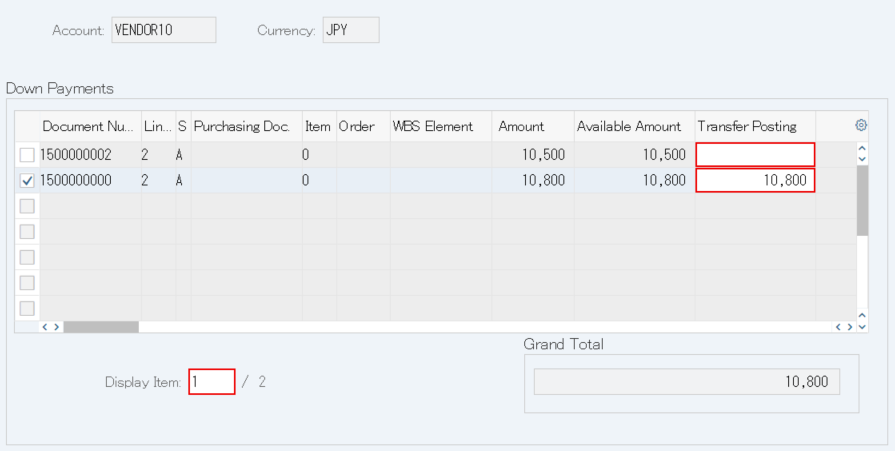
| 1. | Select the item. |
Screen 3:
Operation Process:
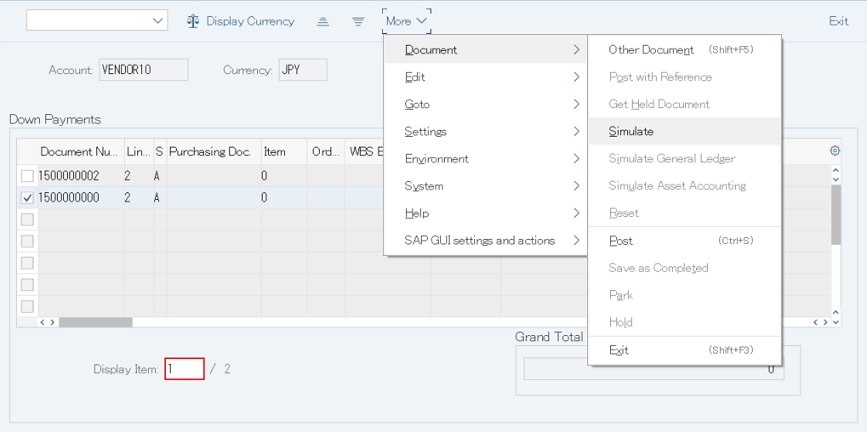
| 1. | Menu: More > Document > Simulate |
Screen 4:
Operation Process:
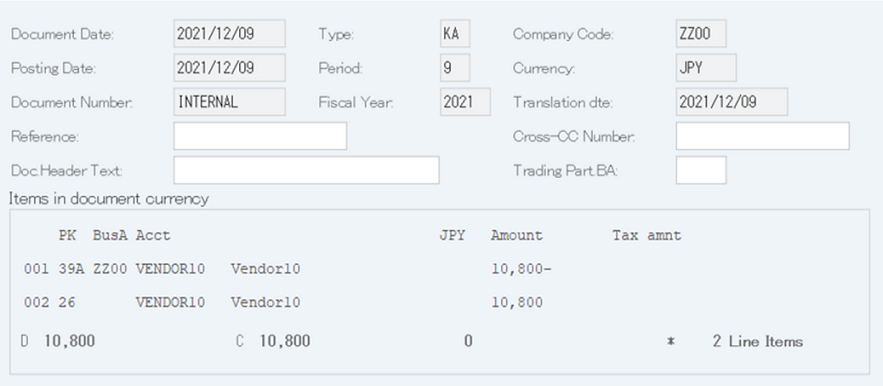
| 1. | Double-click on the item marked in blue (or red). |
Screen 5:
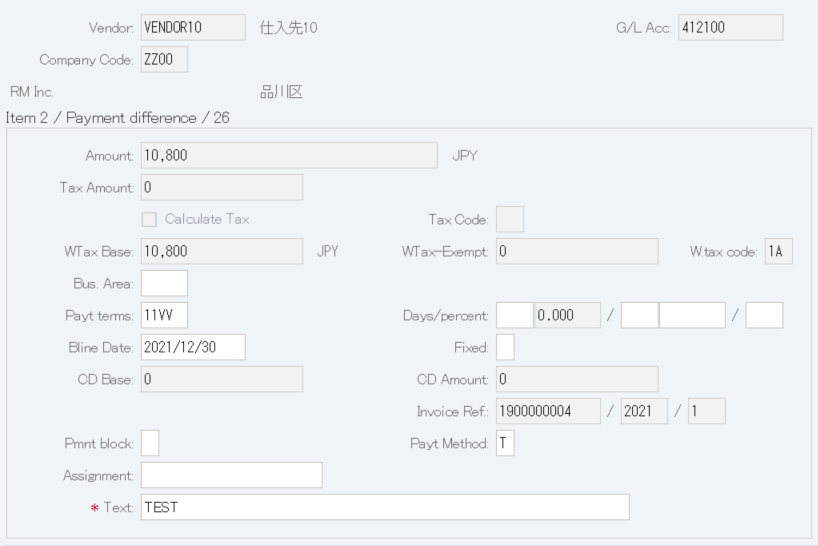
Operation Process:
| 1. | {{Text}} | Enter the item description text. | |
| 2. |  |
Click [Display Document Overview]. |
Screen 6:
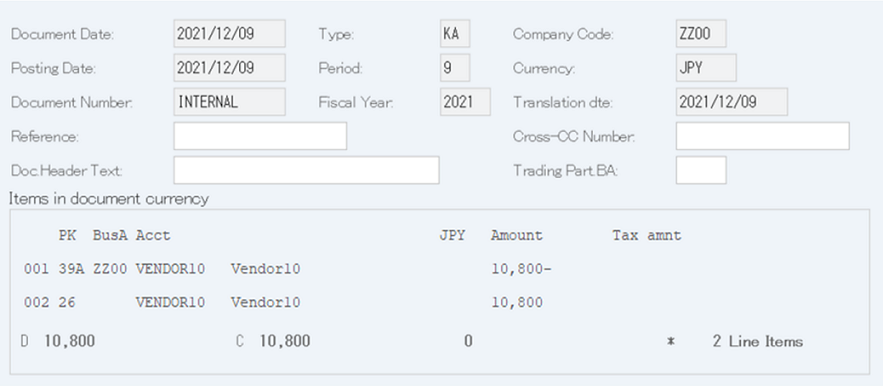
Operation Process:
| 1. |  |
After checking the document, click [Post]. |
Copyright(c) MITSUI KINZOKU YOURSOFT Inc.